
Notifications Plus
Notifications Plus

Introduction
You must disable the built-in notifications add-on to use this product!
This plugin replaces the built-in Notifications add-on in myCred and enables you to set up instant notifications, notifications for ranks and badges. You can also conveniently change the colour, styling or positions of the notifications without CSS knowledge.
Enabling Add-on
- Navigate to WordPress admin Dashboard > myCred > Addons
- Enable myCred Notification Add-on

Settings
In the myCred General Settings section, the admin can configure the duration, enable instant notifications, and more.
- Go to Admin Dashboard > myCred > General Settings.
- Navigate to the Notifications Plus section.
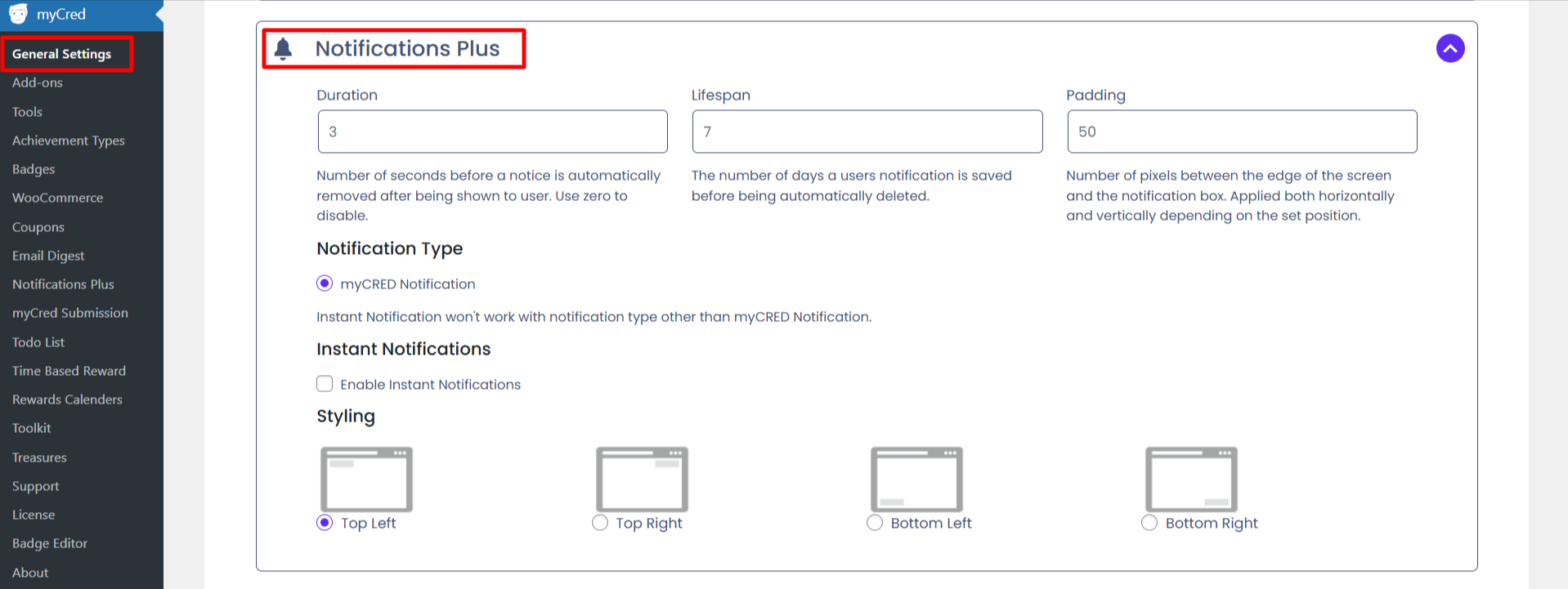
Duration
Within the duration option, the admin can specify the number of seconds before a notice is automatically dismissed after being displayed to the user. Set to zero to disable this feature.
Lifespan
The lifespan option defines how many days a user’s notification is stored before it is automatically deleted.
Padding
The padding option sets the pixel distance between the notification box and the edges of the screen, applied horizontally or vertically depending on the notification’s position.
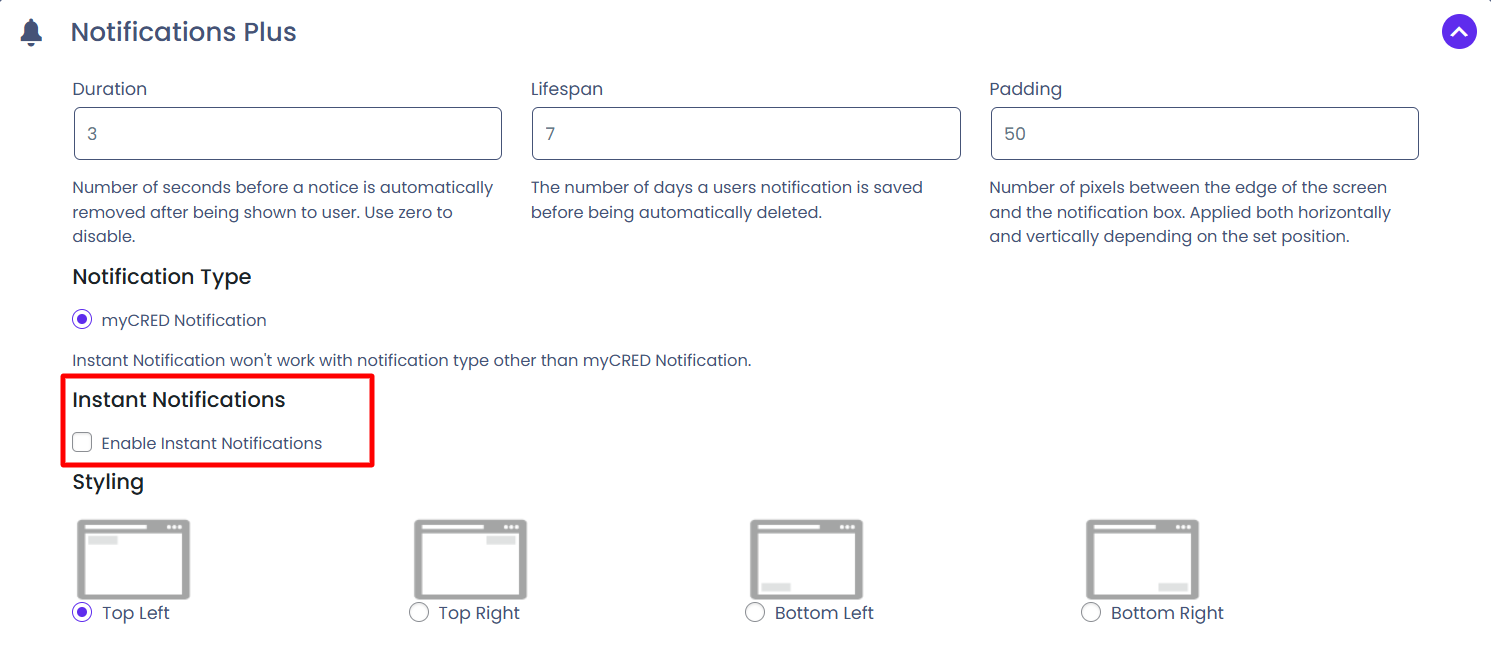
Instant Notification
- The Instant Notifications feature lets the admin display notifications in real time, removing the need for users to refresh the page to see updates.
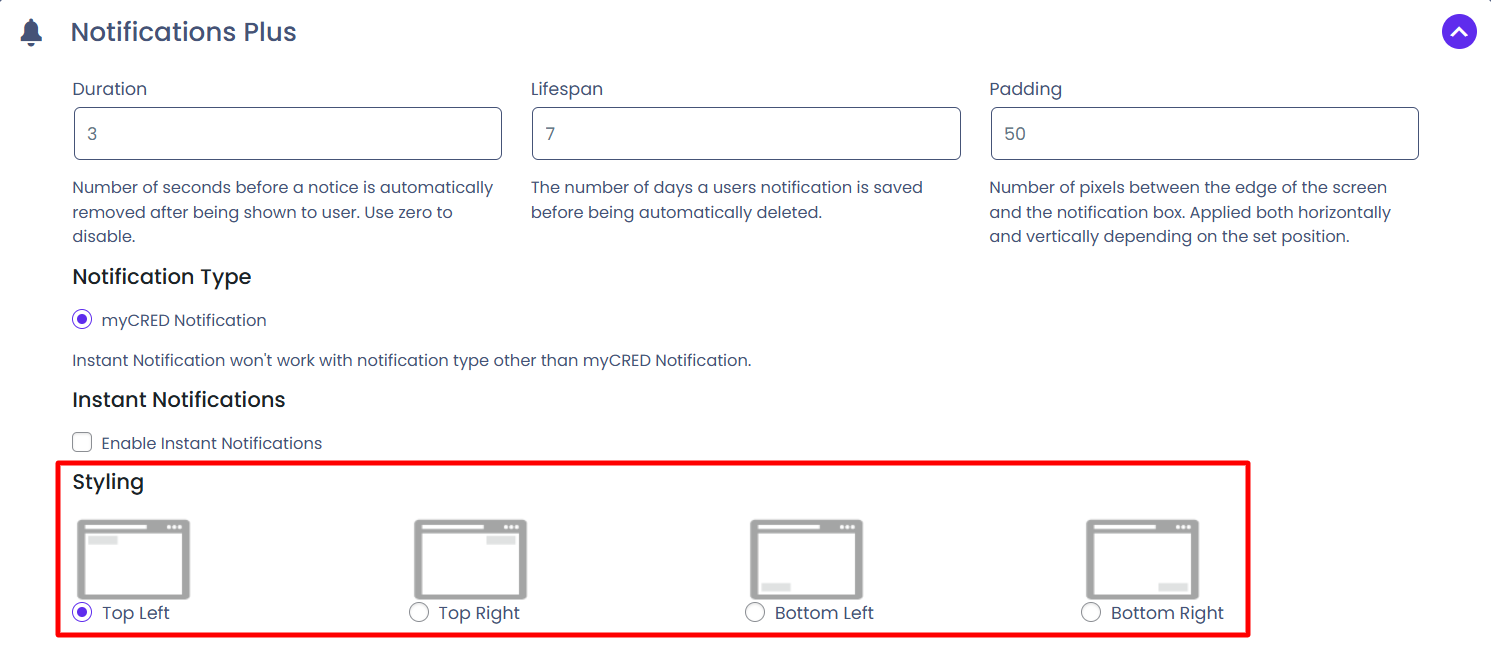
Styling
- The styling option enables the admin to display the notification popup in the top left, top right, bottom left, and bottom right corners of the screen.
Adding Notification
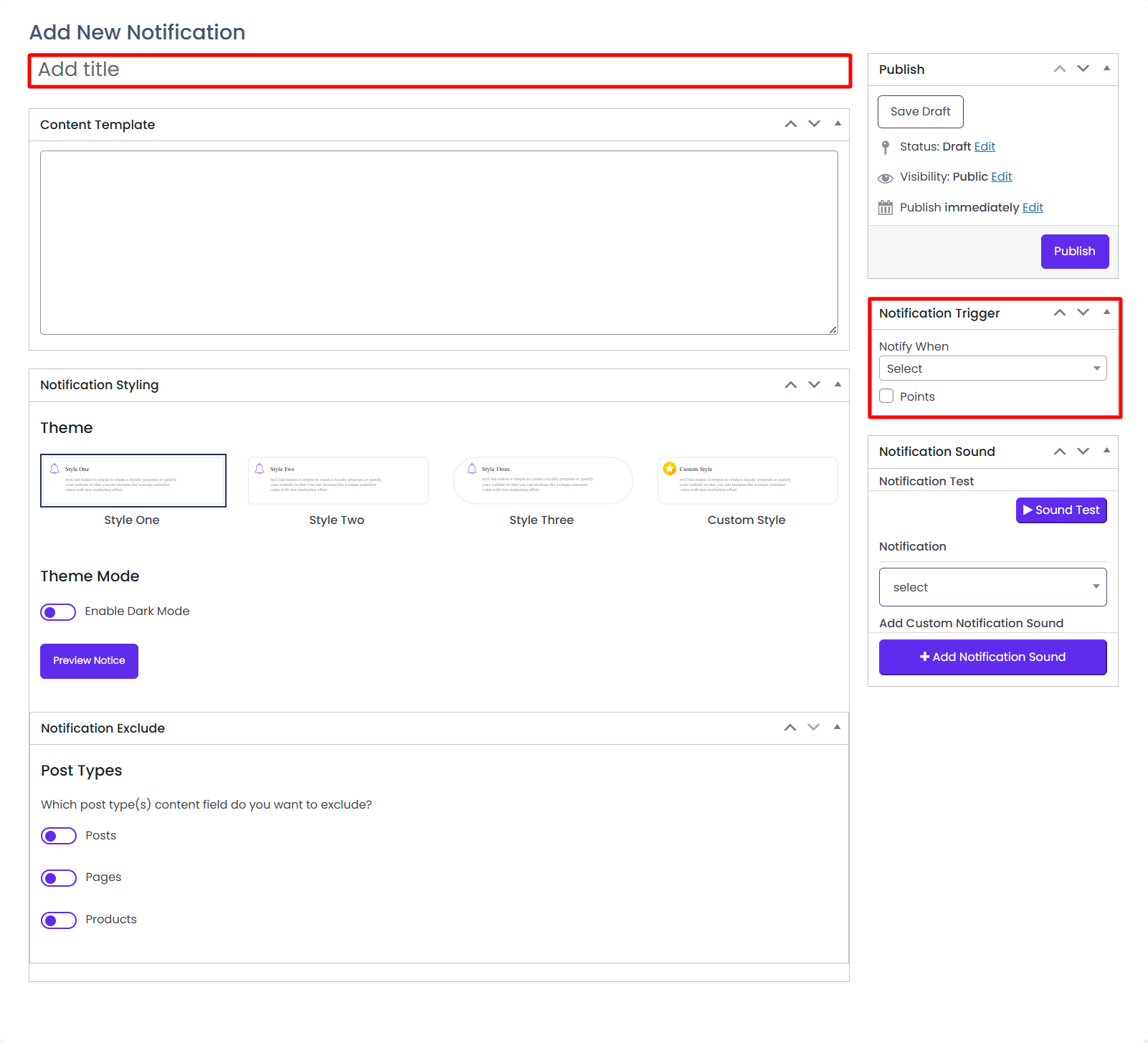
The admin can customize notifications with personalized styling and design options.
- Go to Admin Dashboard > myCred > Notifications Plus
- Click the Add New button.
Notification Trigger
The notification trigger feature allows the admin to notify users when a specific event occurs. The admin can also create custom events for notifications.
The following events trigger a popup notification on the frontend:
- User’s Balance Changes: A notification appears when the user’s balance either increases or decreases.
- User’s Balance Increases: A notification appears when the user’s balance increases.
- User’s Balance Decreases: A notification appears when the user’s balance decreases.
- User Gains a Badge: A notification appears when the user earns a badge.
- User is Promoted to a Higher Rank: A notification appears when the user is promoted to a higher rank.
- User is Demoted to a Lower Rank: A notification appears when the user is demoted to a lower rank.
- Admin Manually Assigns a Rank: A notification appears when a rank is manually assigned to the user by the admin.
A Custom Event Occurs: A notification appears when the user completes a myCred reference-based event, such as visiting the website or logging in.
Log Template
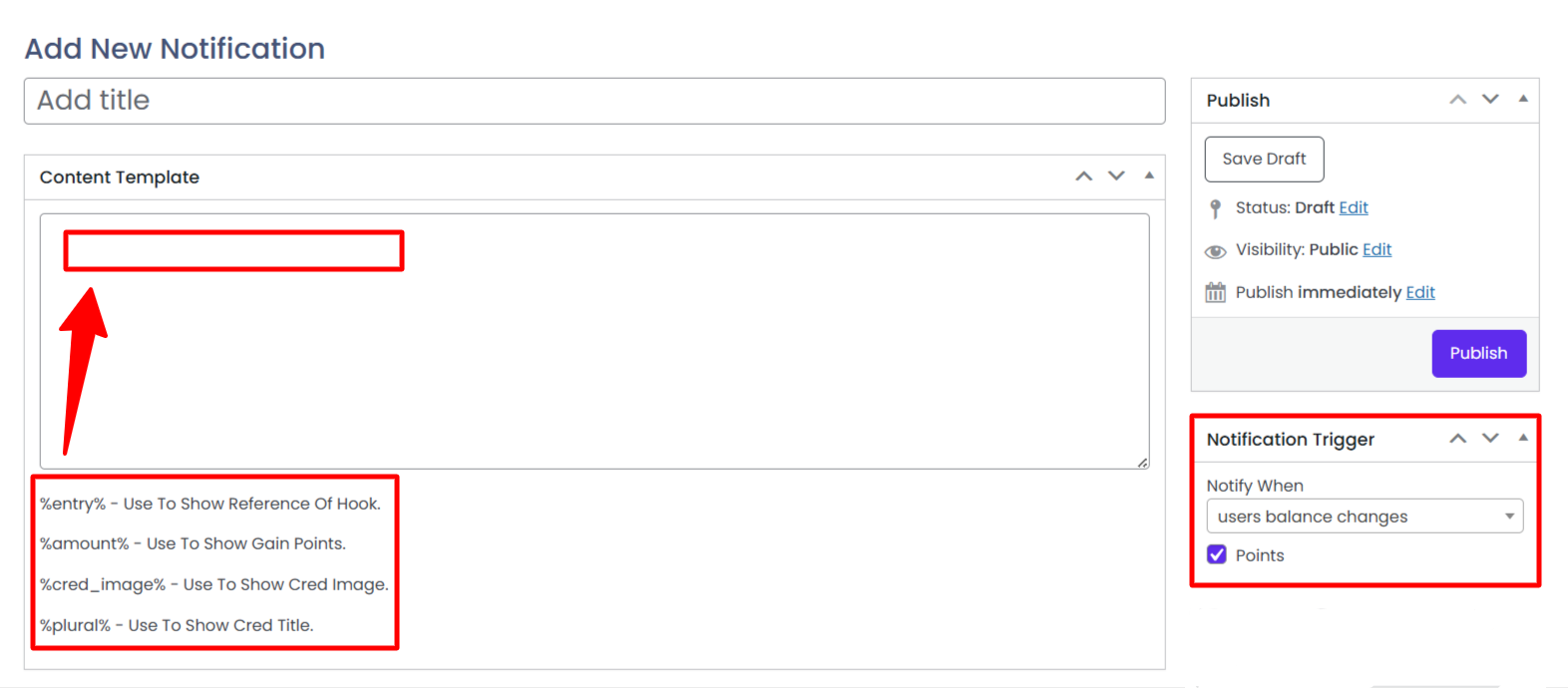
- Choose the event from the Notification Trigger dropdown menu along with the point type.
- When an event is selected from the dropdown menu, different template tags will appear for the corresponding events.
- Add the desired templates in the Content Template section.
- Click the Update button.
Notification Sound

The Notification Sound feature lets the admin alert users with sound effects when they receive notifications. Various sound effects are available in the notification dropdown menu.
- Choose a notification sound effect from the available options.
- The admin can preview the sound before finalizing their choice of notification sound.
- The admin can also add a custom notification sound.
Notification Styling
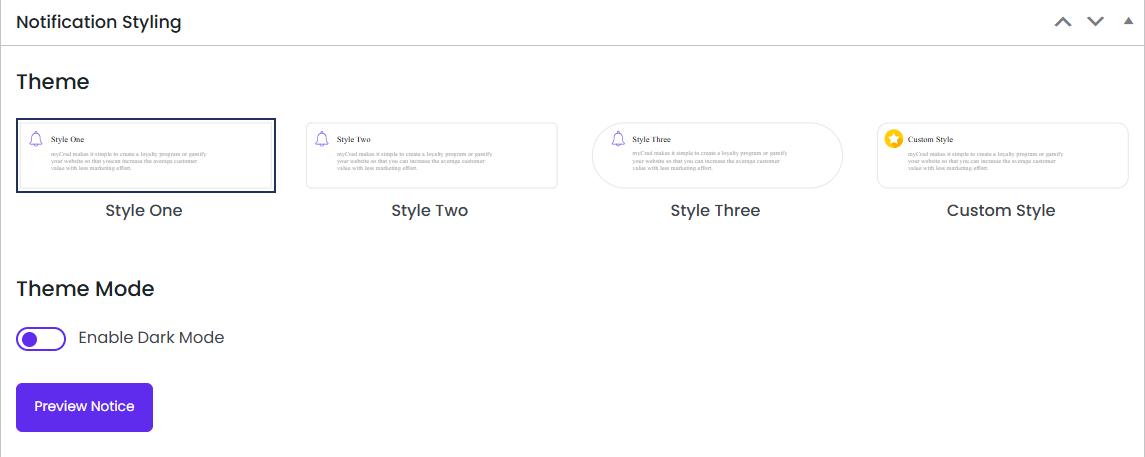
- Admin can choose from one of the three predefined styles (Style One, Style Two, Style Three) or opt for a Custom Style.
- When Custom Style is selected, additional customization options will appear automatically.
- Custom Style allows full control over notification appearance, including:
- Background Color
- Text Color
- Border Color
- Border Radius
- Border Width
- Option to add custom CSS for advanced styling
- Admin can enable Dark Mode to display notifications with a dark-themed appearance.
- A Preview Notice option is available to preview how notifications will appear before applying the settings.
Notification Exclude

From the Posts option, the admin can choose to exclude notifications from all posts or specific posts.
Note: In this case, we will exclude notifications from specific post