
General Settings
General Settings
- The dashboard is disabled by default. To enable it, go to the Admin Dashboard > myCred > Settings.

- Next, navigate to the Dashboard section.
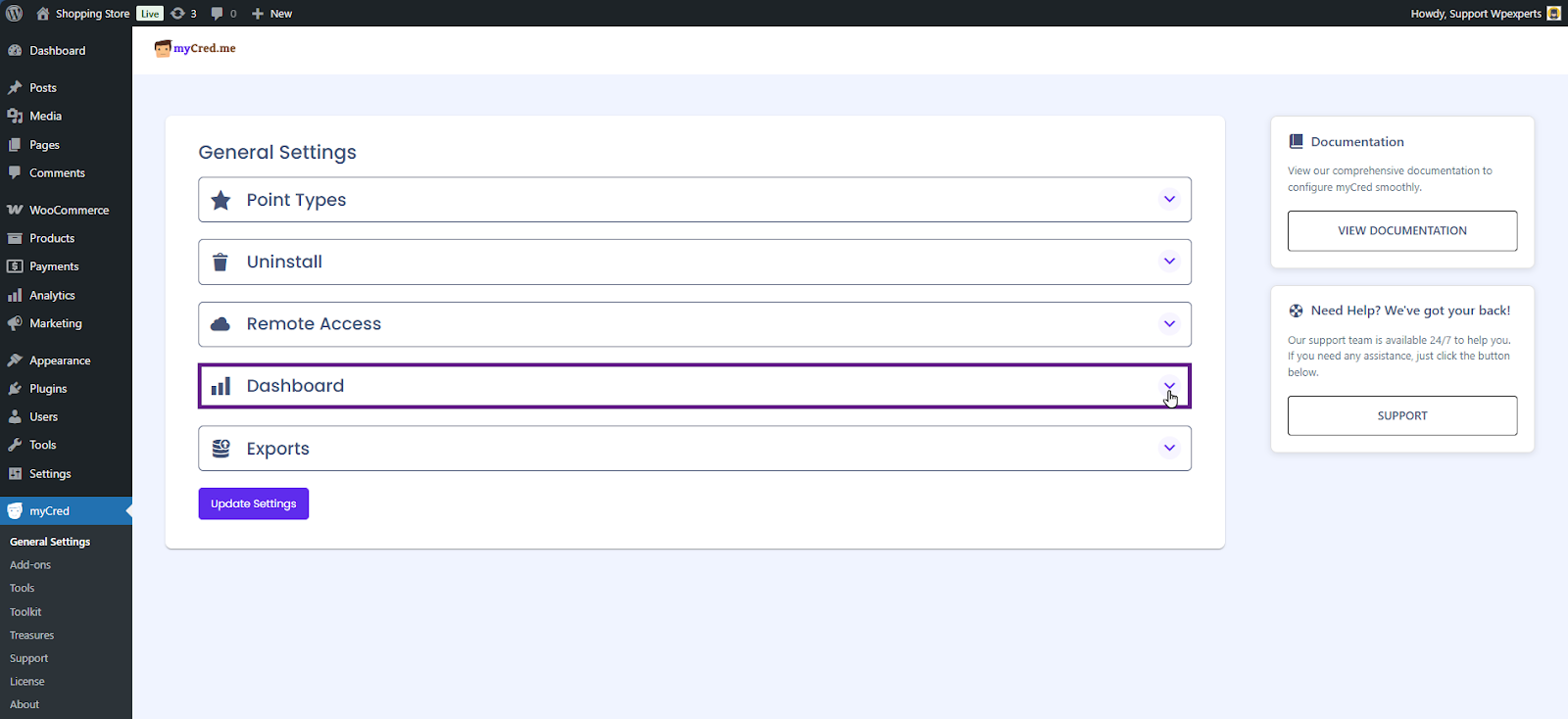
- Turn on the Enable Dashboard toggle to activate the dashboard.
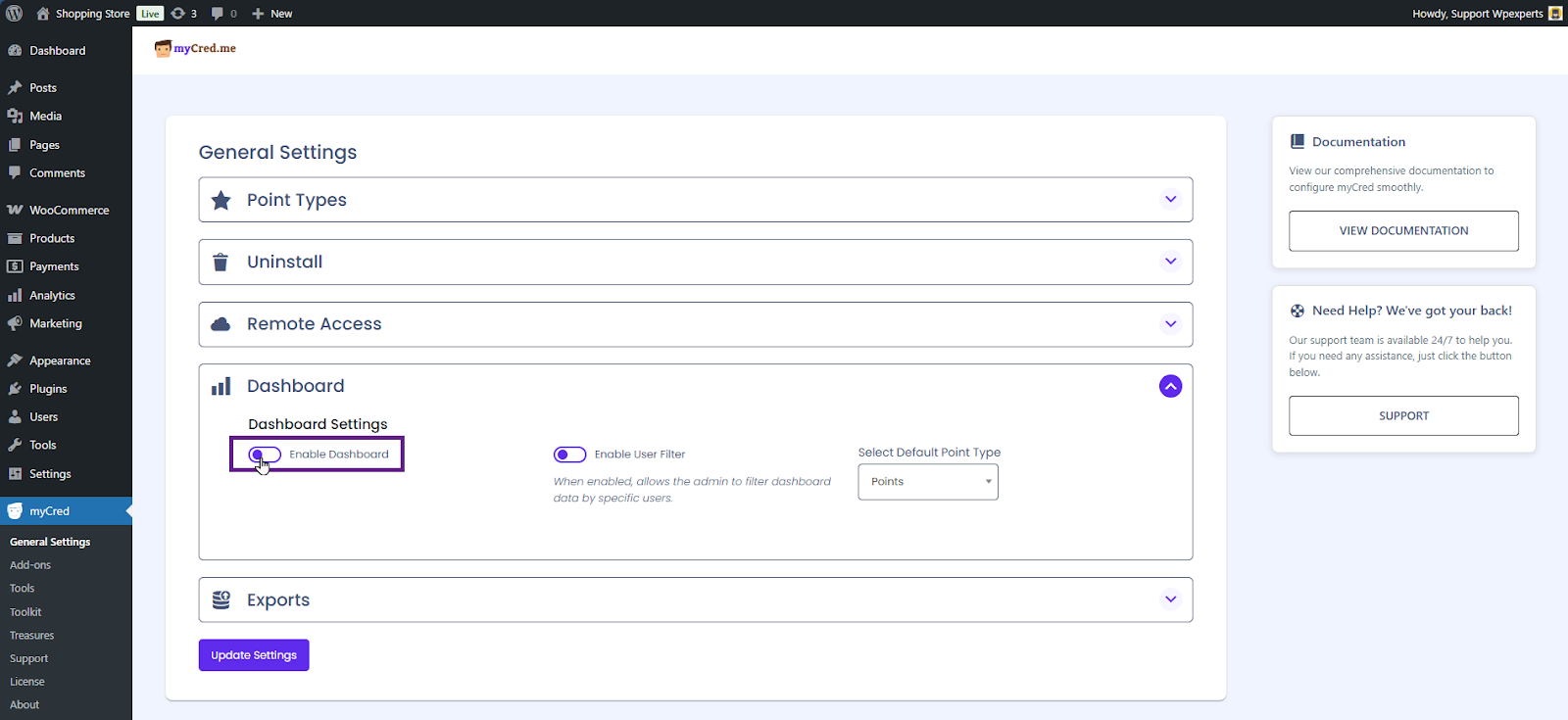
- Next, activate the Enable User Filter toggle. This allows the admin to access the single-user insights screen. If disabled, the user search bar will not appear, and the admin won’t be able to view individual user data.

- Now, select the default point type in the ‘Select Default Point Type’ option. The dashboard will initially display data for this point type.
Note: You can change the point type later within the dashboard, as explained in this section of the documentation.

- Once done, click the Update Settings button.
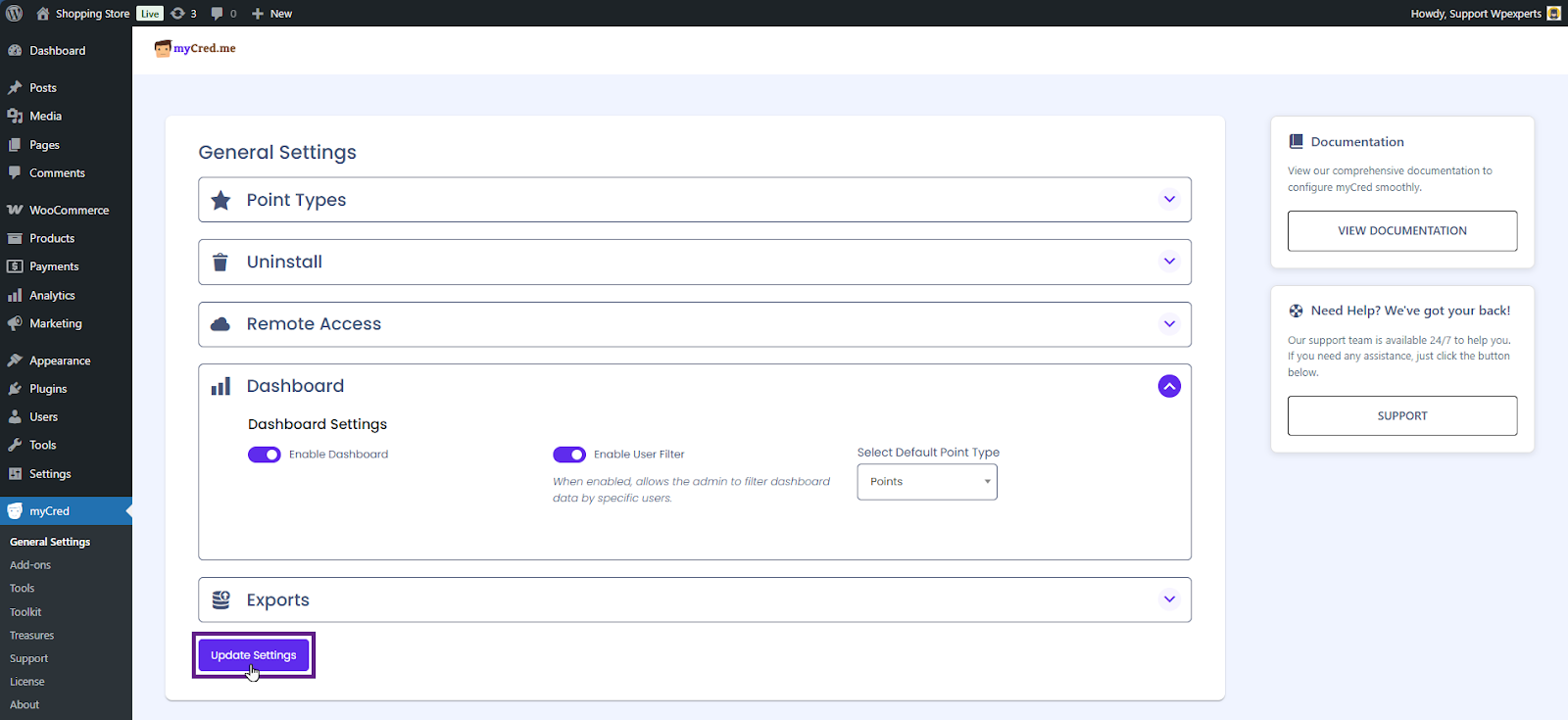
- Once updated, a dashboard menu will appear.
