
myCred Submission
myCred Submission

Introduction
With the Premium Submission AddOn, users can request the badge and rank that they want to achieve by submitting the form set up by the Admin. The Admin can then approve or reject the submitted request for badge and rank after reviewing the user submission.
Getting Started
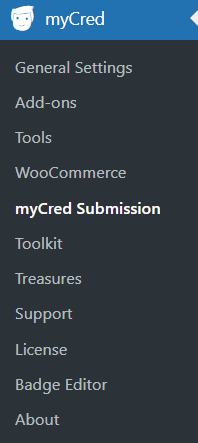
- After activating the plugin, you can see myCred Submission in the WordPress Admin Dashboard → myCred.
- The Admin has to configure the Submissions in the Badge and Rank for which the Admin has to allow the user to request using the Submission form.
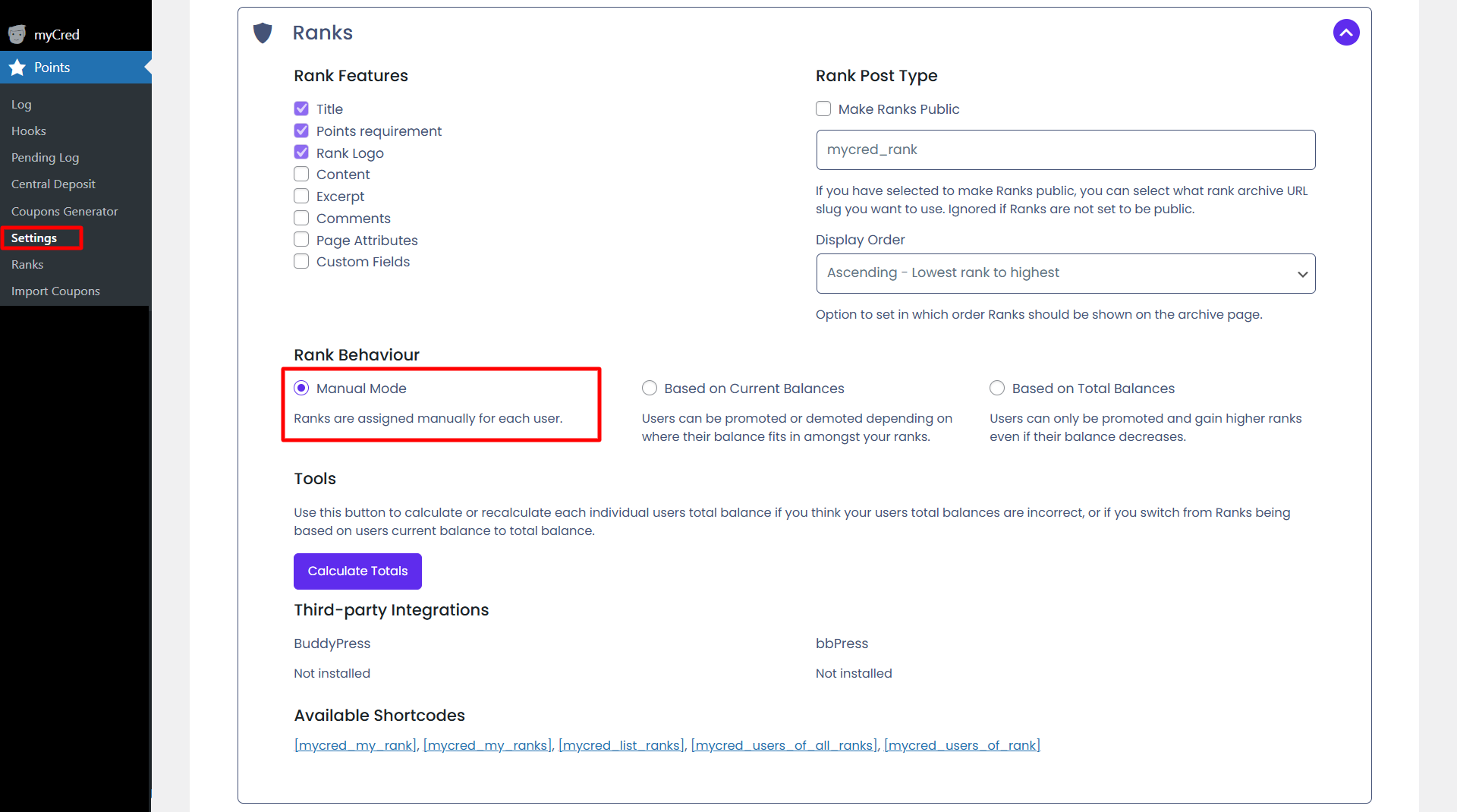
- For the Ranks, it is important to change the Rank Behaviour to Manual mode in Rank Settings.
- Admin can manage the submission requests and approve or reject the requests.
- The admin can display the submission form anywhere on the page or post using the Submission blocks or shortcode.
Badges Submission Settings
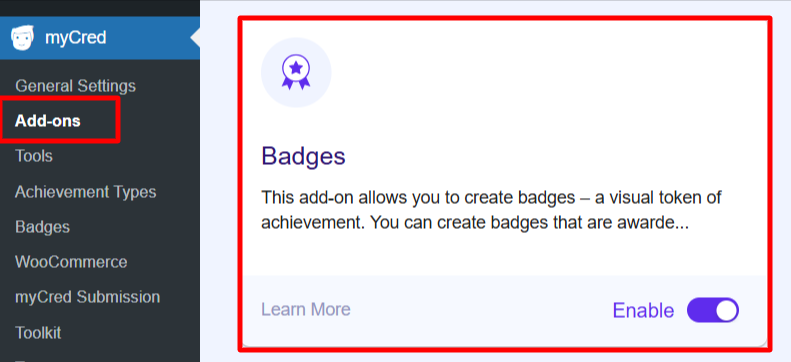
- Navigate to WordPress admin Dashboard > myCred > add-ons.
- Enable badges.
- Navigate to myCred > Badges

- Hover the cursor over the badge and press “Edit.”

- In the Submission Settings, set the Label of the Submission Button.
- The admin can set the Submission Note that will be displayed as the input label.
- Shortcode is also available for the particular Badge Submission, so the Admin can place it anywhere on the page.
- Click on the Update button to save the badge settings.
Rank Submission Settings
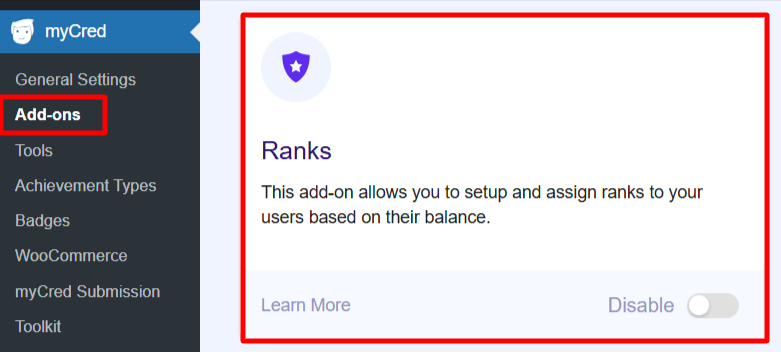
- Navigate to WordPress admin Dashboard > myCred > add-ons
- Enable Ranks
- Navigate Points > Settings
- Click “Ranks”
- Enable “Manual Mode”
- Navigate to Points > Ranks
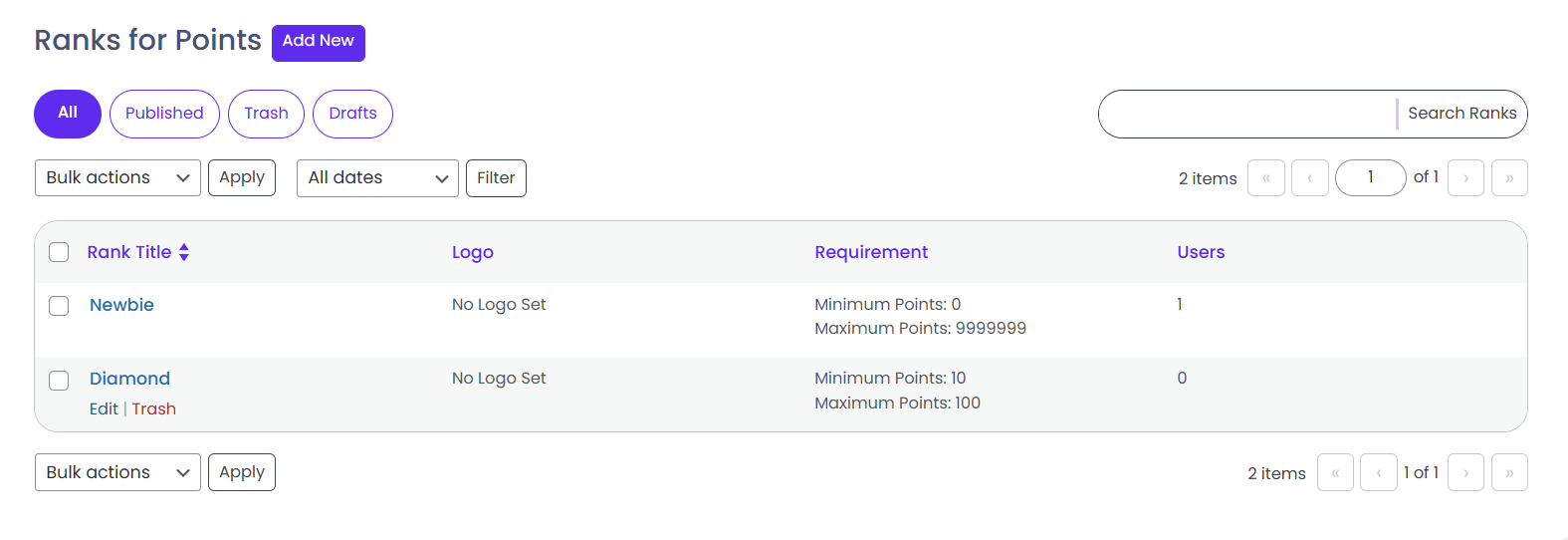
- Hover the cursor over a Rank and press “Edit”

- In the Submission Settings, set the Label of the Submission Button.
- The admin can set the Submission Note that will be displayed as the input label.
- Shortcode is also available for the particular Rank Submission, so the Admin can place it anywhere on the page
- Click on the Update button to save the badge settings.
Submission of Badges and Ranks
Submission Shortcode
- The ID attribute is the ID of the badge or rank.
- ShortCode can be found in the Edit Badge section and Edit Rank section, where the submission is enabled.
- Go to the WordPress Admin Dashboard → myCred → Badges.
- Now select a submission-enabled badge and click on the Edit button.
- In the Edit Badge, navigate to the submission panel located on the right side of the screen.

- Now, navigate to the WordPress Admin Dashboard → Pages.
- Edit the page or Add New page where you want to display the submission field.
- In the page editor, add the shortcode field.
- Paste the copied Badge Submission Shortcode.
Submission Block
- To add the Submission to the page, navigate to the WordPress Admin Dashboard → Pages → Add New.
- Add a new page.
- Enter the title of the page.
- Click on the “Add Block” button.
- Type in myCred Submissions in the search bar.
- Click on myCred Submissions to add the block.

- Select the Badge or Rank from the Select Drop-down menu in the Submission block.

Submission Management
- All the submission requests are displayed and managed in the myCred Submission tab.
- The admin can Approve and Reject the submission requests from this section.
- Navigate to the WordPress Admin Dashboard → myCred → myCred Submission.

- Click on the Edit button to check the details of the submission
- Press to Approve or Reject the request