
BP Group Leaderboards
BP Group Leaderboards

Introduction
This plugin allows you to create leaderboards for your BuddyPress groups, based on the group members’ points history or balance.
Installation:
Navigate to the myCRED Addons, search for BP Group Leaderboards, and simply enable the BP Group Leaderboards Add-on.
BP Leaderboard Setup
Once the addon is enabled, you will need to go through and save your desired setup. To do this, you need to go to your BuddyPress Settings page in your wp-admin area. Here you will find a new “Leaderboard” tab, which will take you to the plugin’s settings page.

Default Setup
There is two ways the plugin can operate. You can either enforce one setup on all groups or let your BuddyPress Group admins set up leaderboards themselves. In either case, you are required to set a default setup.
This includes what point type or types to create leaderboards for, the size of the leaderboard, the option to append the current user, and the leaderboard type (as of version 1.1).
Sizes
The size of the leaderboard refers to the number of users to include in the leaderboard. The larger the size, the more resources will be required in order to query the leaderboard. For this reason, the plugin, by default has a limit of maximum 50 users being shown in a leaderboard. You can change this using the MYCRED_BP_GROUP_LEAD_MAX_SIZE constant.
Appending Users
If the user viewing the leaderboard is not in the size you set, you can select to append them to the end with their position.
This will only be applicable to those who are a members of the group, are logged in and are not excluded from the point type the leaderboard is based on.
Leaderboard Types
As of version 1.1 you can select what type of leaderboard you want to generate. The plugin supports 6 different types of leaderboards:
Leaderboard Based on Current Balance (default)
This is what previous versions were offering and is based on members current balance.
Leaderboard Based on Total Balance
Leaderboard Based on Today’s Gains
Leaderboard Based on This Week’s Gains
Leaderboard Based on This Months’ Gains
Leaderboard Based on Date Range
Override
Once you have selected the leaderboard type, you need to decide if these settings should be applicable to all groups or if you want to let admins create their own setups.
If admins are allowed to setup their own leaderboards, they will be able to do this in their Groups admin area in BuddyPress.
The Menu
Finally we need to set up the BuddyPress navigation. This includes the title shown in the menu, the URL slug for the leaderboard page, and the menu position. The URL slug must be unique to prevent conflicts with other BuddyPress group pages!
Leaderboard Customizations
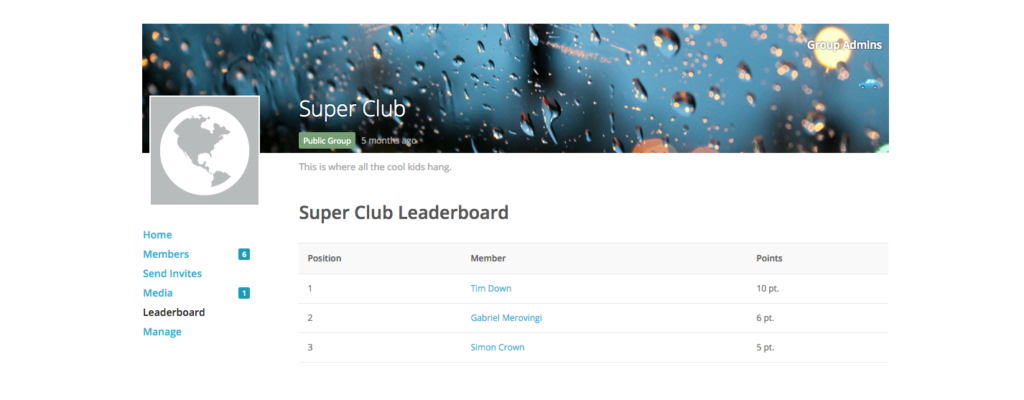
By default, the leaderboard will be rendered as a table which consists of three columns: The position, The member and the Points. In this guide I will show you how we can add in our own custom column along with replacing existing columns contents with our own.
This guide requires basic understanding of PHP and WordPress development.
Column Headers
The columns you see in the leaderboard table is controlled by the mycred_bp_leaderboard_columns filter. So we can use this filter to remove, rename or add columns.
Example 1: Add a custom column called “Avatar“ to the leaderboards.
/**
 * Add Custom Leaderboard Column
 * @since 1.0
 * @version 1.0
 */
function mycred_pro_bp_leaderboard_columns( $columns ) {

	$columns['avatar'] = 'Avatar';

	return $columns;

}
add_filter( 'mycred_bp_leaderboard_columns', 'mycred_pro_bp_leaderboard_columns' );
Column Content
Next we need to render our columns content, or alternatively if you prefer, change the content the built-in columns generate. To render a custom columns content, we need to use the mycred_bp_leaderboard_{$column_id}_column filter.
Example 1: Render the content of our custom column
/**
 * Avatar Leaderboard Column
 * @since 1.0
 * @version 1.0
 */
function mycred_pro_bp_leaderboard_avatar_column( $content, $row, $group_id, $point_type ) {

	return get_avatar( $row->user_id, 64 );

}
add_filter( 'mycred_bp_leaderboard_avatar_column', 'mycred_pro_bp_leaderboard_avatar_column', 10, 4 );
Example 2: Insert a users avatar into the members column in leaderboards instead of adding a new column.
/**
 * Insert Avatar in Leaderboard Column
 * @since 1.0
 * @version 1.0
 */
function mycred_pro_bp_leaderboard_avatar_column( $content, $row, $group_id, $point_type ) {

	return get_avatar( $row->user_id, 64 ) . $content;

}
add_filter( 'mycred_bp_leaderboard_member_column', 'mycred_pro_bp_leaderboard_avatar_column', 10, 4 );
Leaderboard Caching
When generating leaderboards, especially where there are a lot of users or a lot of transactions, the leaderboard query can become resource heavy. You would mainly see this in the form of the leaderboard page taking a long time to load.
To cut down on unnecessary queries, the plugin caches the leaderboard results. This is done by saving the raw leaderboard result as a group meta value. This also includes a users position in each leaderboard. Instead of running a new query on each page load, their position is saved and only re-queried when needed.
Clearing the Cache
A groups leaderboard cache will be cleared automatically in the following situations:
- A user joins or leaves the group.
- A group member gains or loses points (depending on the leaderboard type used).
- The leaderboard plugin settings are saved.
- An admin saves the leaderboard setup in the group admin area.
- A custom point type that has previously been used for leaderboards is deleted.
Caching Issues
There are a few scenarios where caching might cause some “issues”. If a leaderboard is based on a timeframe like today, this week or this month, the leaderboard cache will not be cleared at the end of each period. Instead it is cleared first when a member gains or loses points.
As an example, lets say we show todays point gains in our leaderboards and it is a new day. Throughout this new day, the leaderboard will show yesterdays results until someone in my group gains or loses points or any of the other above mentioned triggers occur.