
Quick Actions
Quick Actions
To facilitate the administrator, the Quick Actions menu has been introduced. The menu includes Award Points, Deduct Points, Hooks, and Settings.
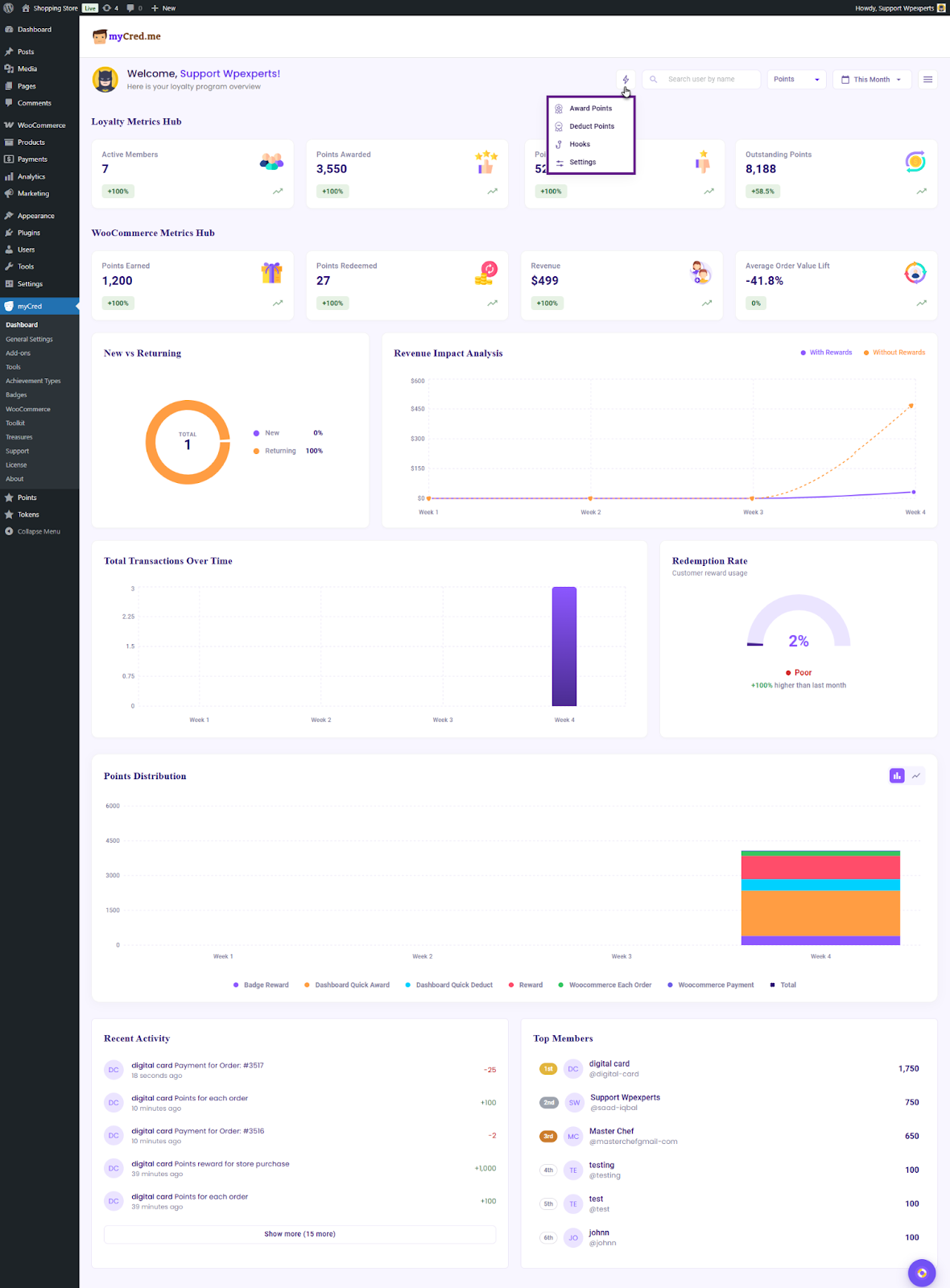
Award Points
The Award Points option lets the administrator grant points to specific users or to all users at once.
- Click the Award Points button. Once clicked, a pop-up window will appear.

- Select the point type.
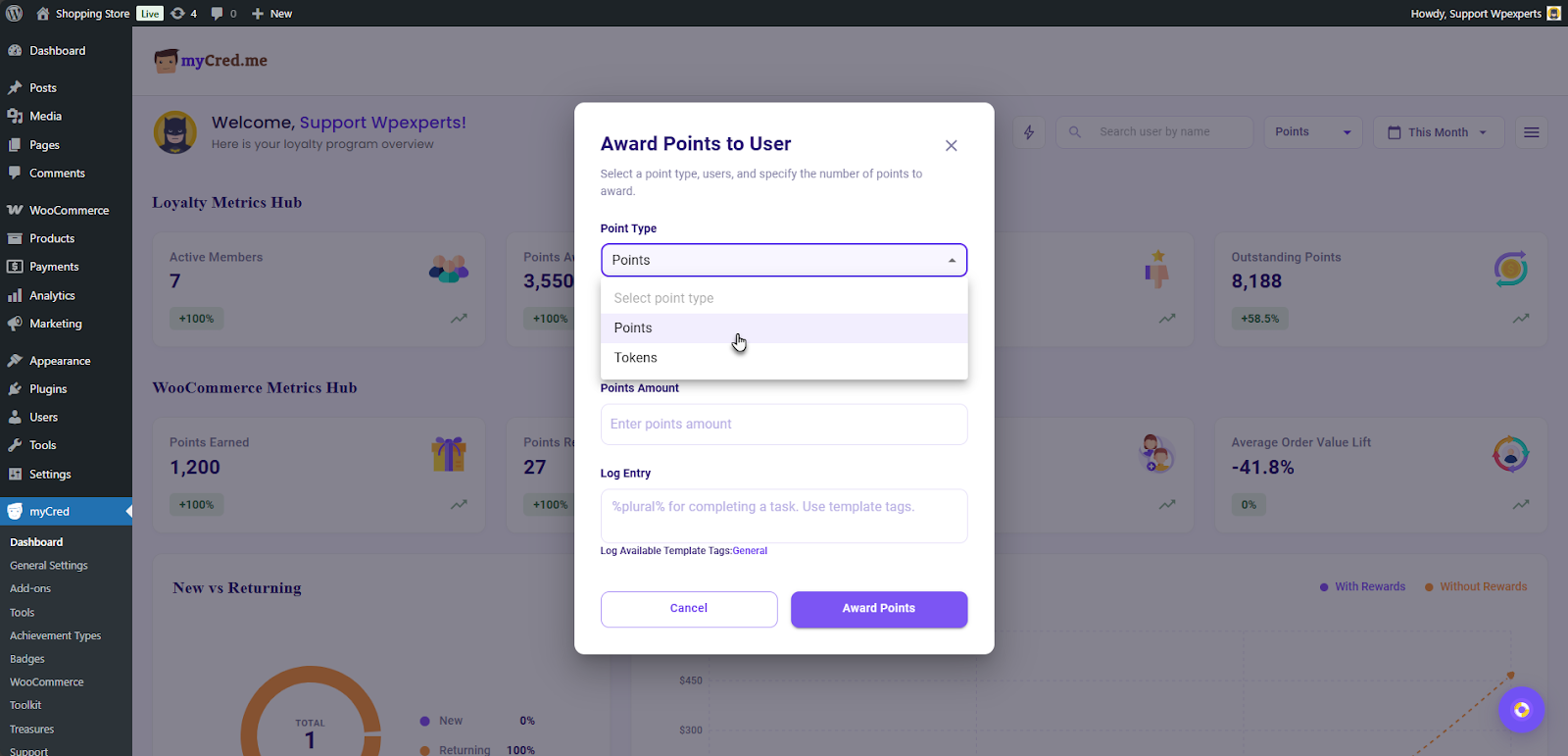
- Enter the username of the user you want to award points to. In this case, we are awarding points to all users.

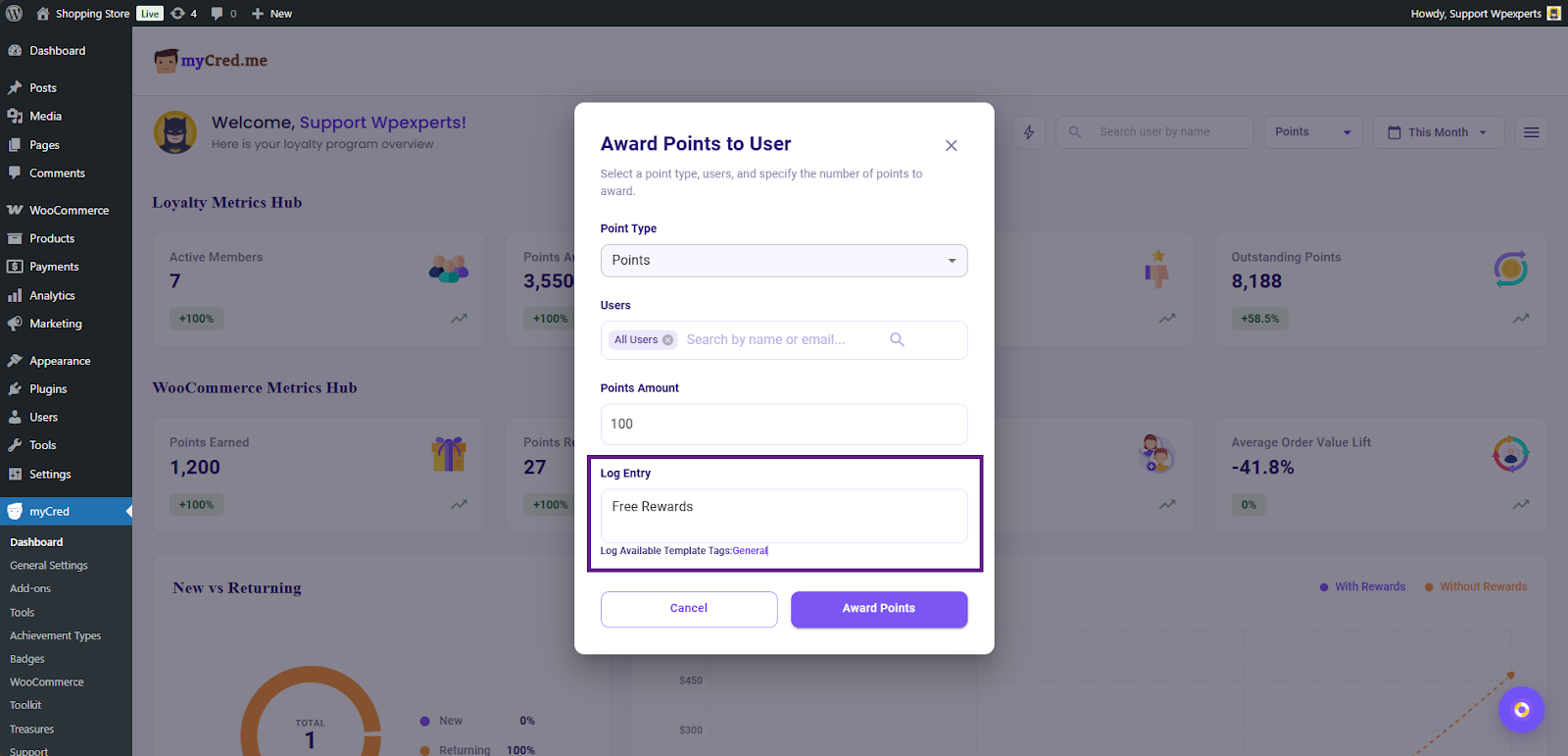
- Now, enter the number of points you want to award to your users.

- Next, enter a log template (optional).
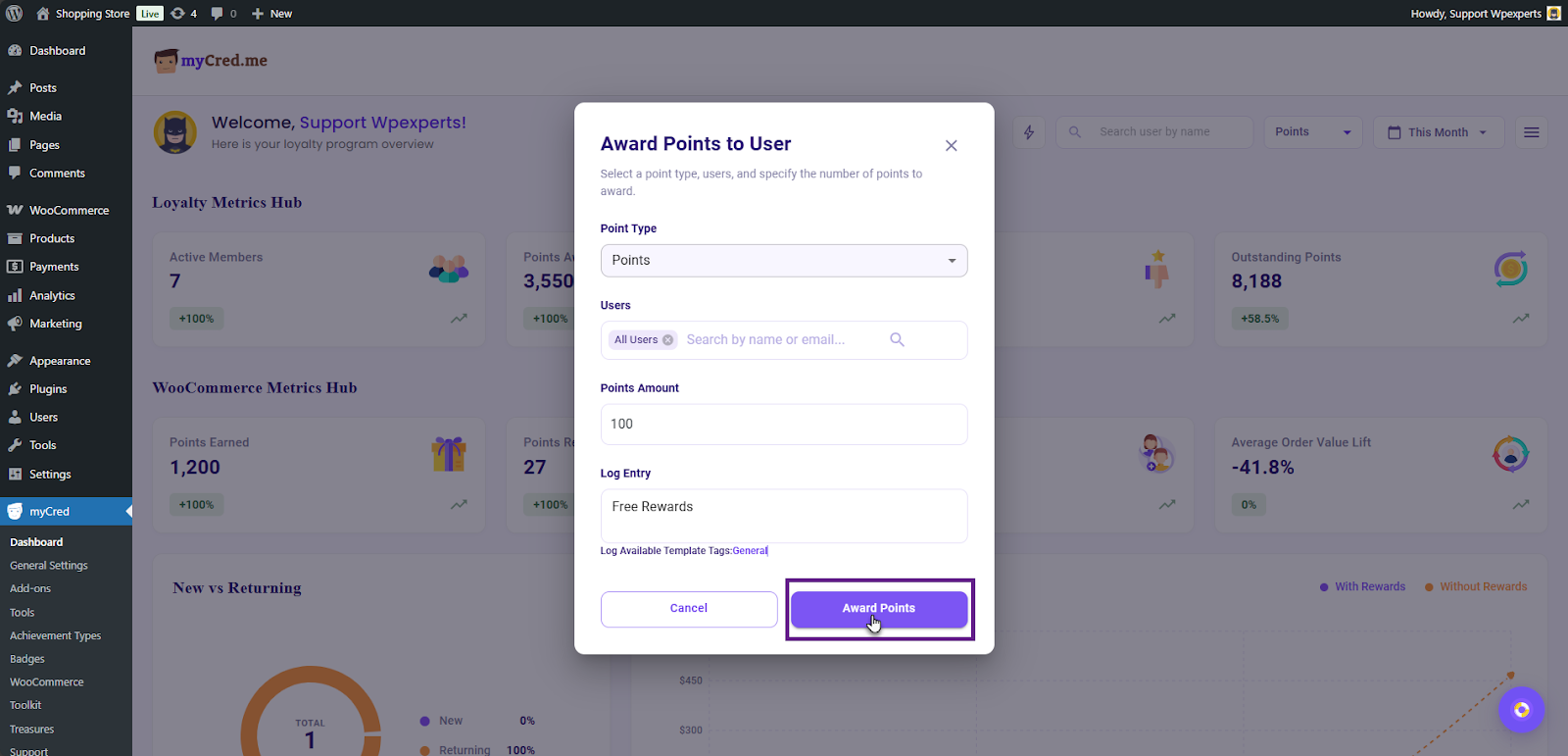
- Once done, click the Award Points button.
- To verify that all users received the points, check the hooks by navigating to the Admin Dashboard > Points > Log.
- As you can see, all users have been awarded 100 points.

Deduct Points
The Deduct Points option lets the administrator remove points from specific users or from all users at once.
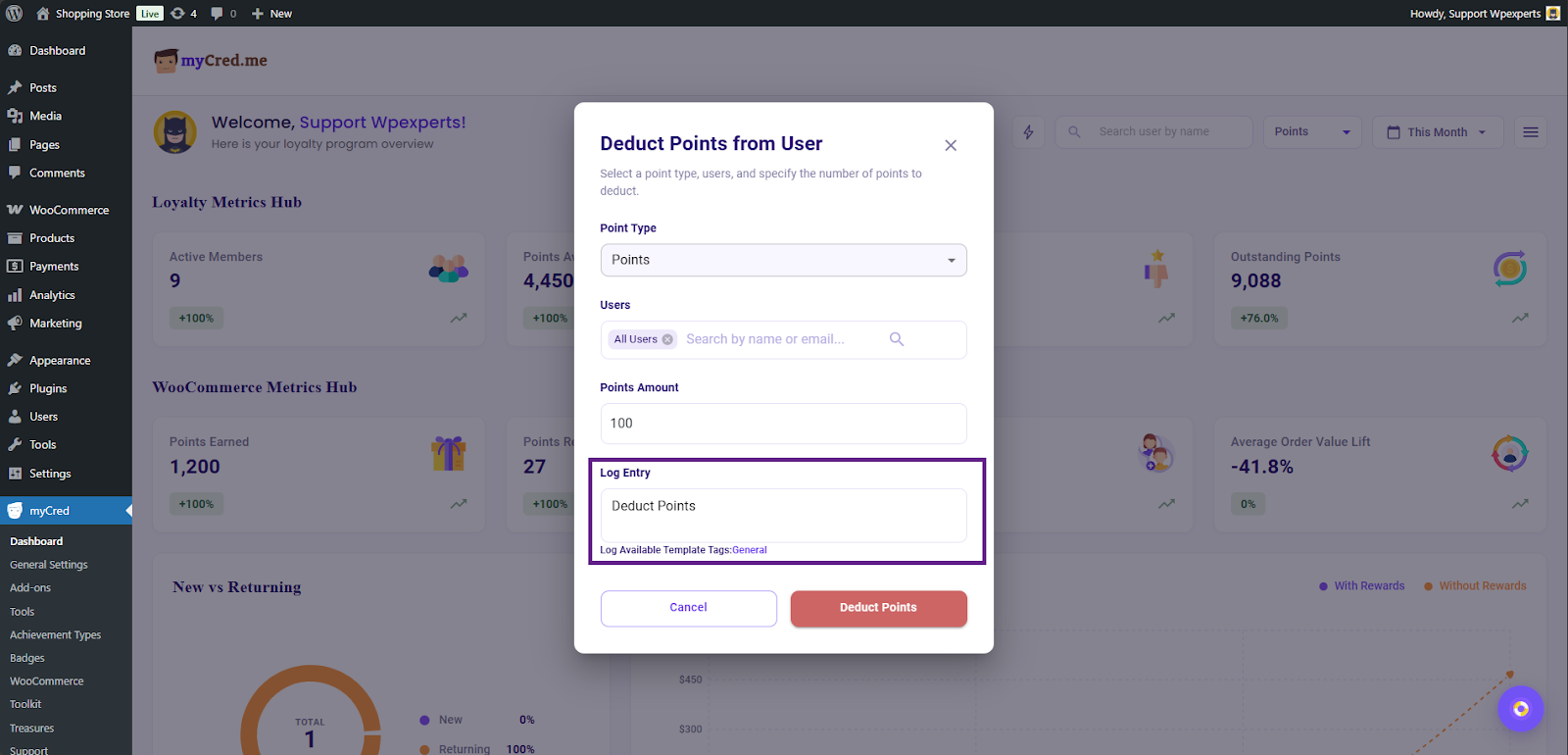
- Click the Deduct Points button. Once clicked, a pop-up window will appear.

- Select the point type.

- Enter the username of the user you want to deduct points from. In this case, we are deducting points from all users.

- Now, enter the number of points you want to deduct from your users.

- Next, enter a log template (optional).
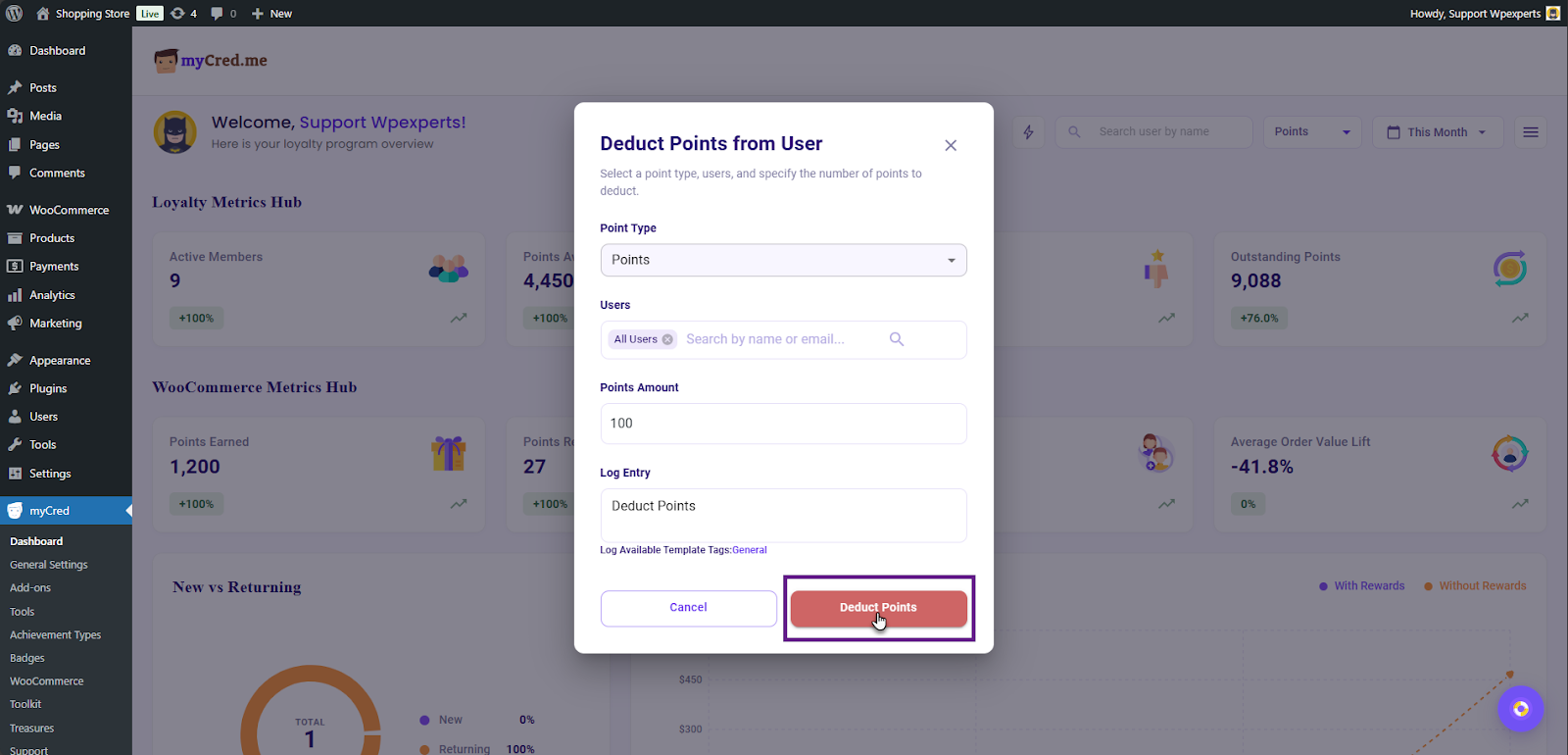
- Once done, click the Deduct Points button.
- To verify that points were deducted from all users, check the hooks by navigating to the Admin Dashboard > Points > Log.
- As you can see, 100 points have been deducted from all users.

Hooks
When the Hooks button is clicked, the admin is redirected to the hooks section of the point type selected in the filter, making management easier.

Settings
When the Settings option is clicked, the admin is redirected to the settings for the point type selected in the Points Type filter in the top-right corner. The Points Type filter is explained in this section of the document.

User Search Bar
The User Search Bar allows the admin to search for a specific user and view their individual insights. This feature is explained in detail later in this section.
Point Type Filter
The Point Type filter allows the admin to view data for different point types if multiple point types have been created.
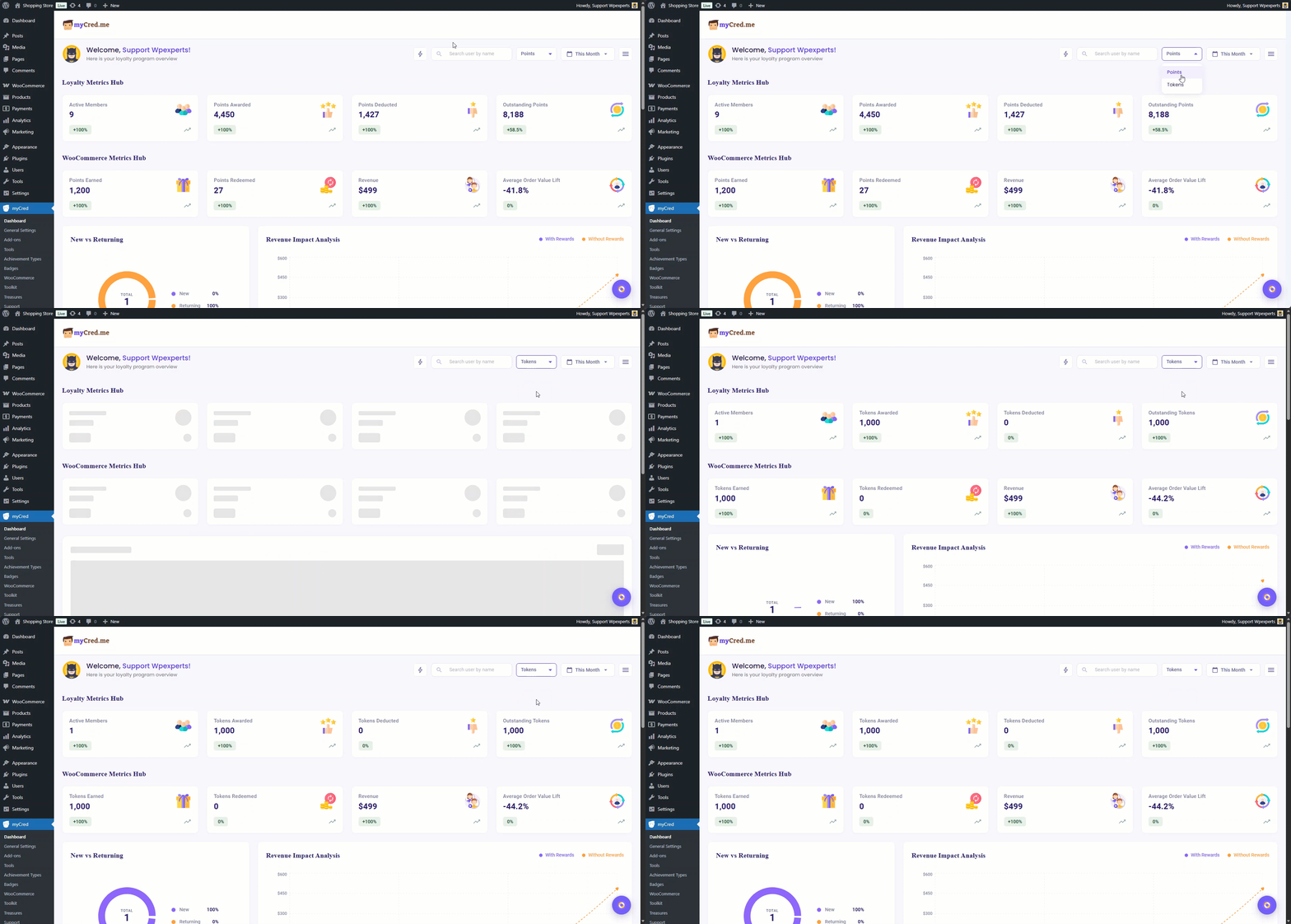
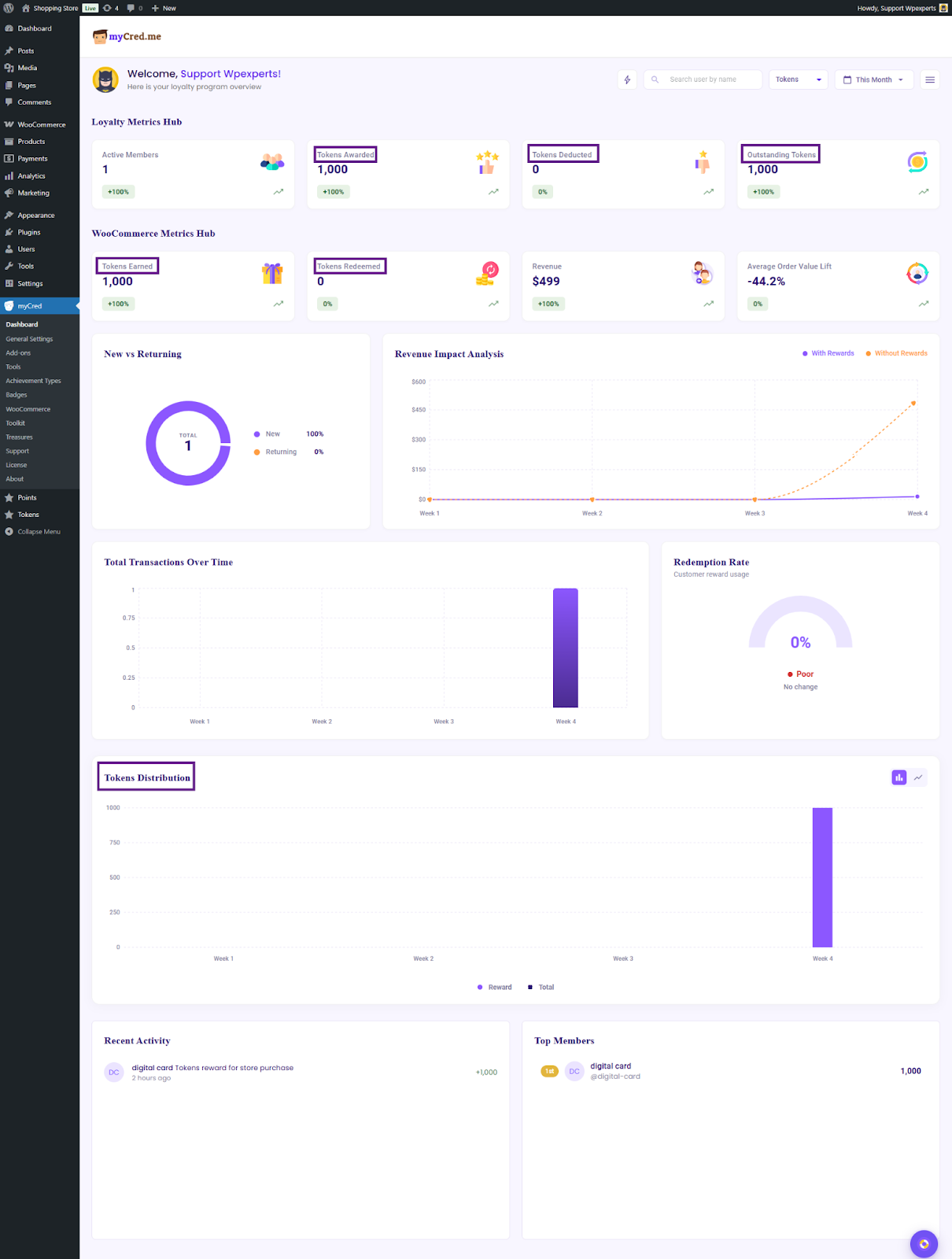
Note: All KPIs, charts, and options are dynamic and will update according to the selected point type.
Date Filter
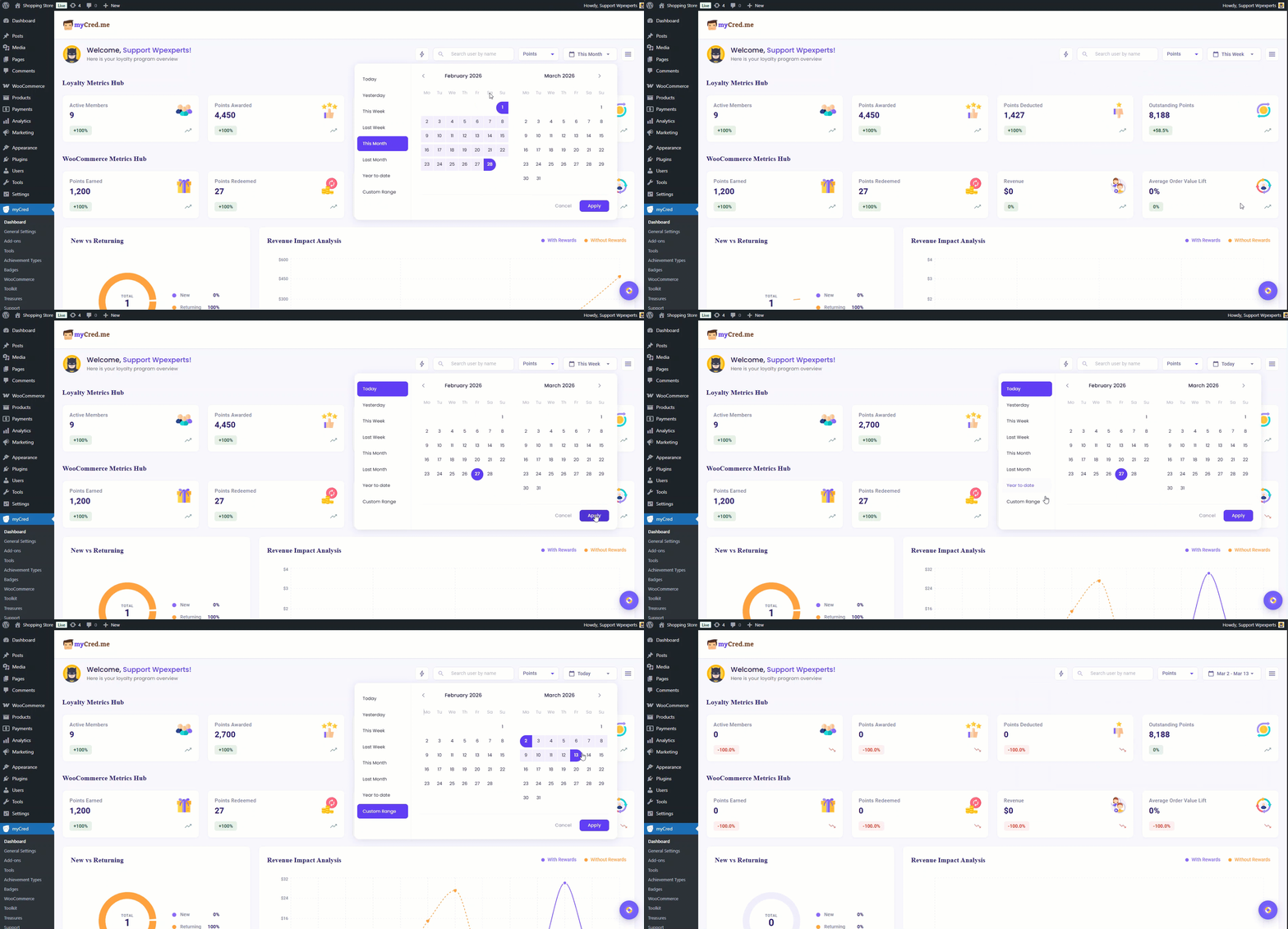
The admin can filter the data by date, such as Last Month, Last Week, or a Custom Range.
Dashboard Settings
The Dashboard Settings allow the admin to hide any sections they don’t want to see. This helps the admin focus only on the data that is relevant to them.

Floating Help Icon
The dashboard includes a Floating Help Icon, which is draggable. Clicking this icon provides quick access to Documentation and Support links.
