Specific User Insight
Specific User Insight
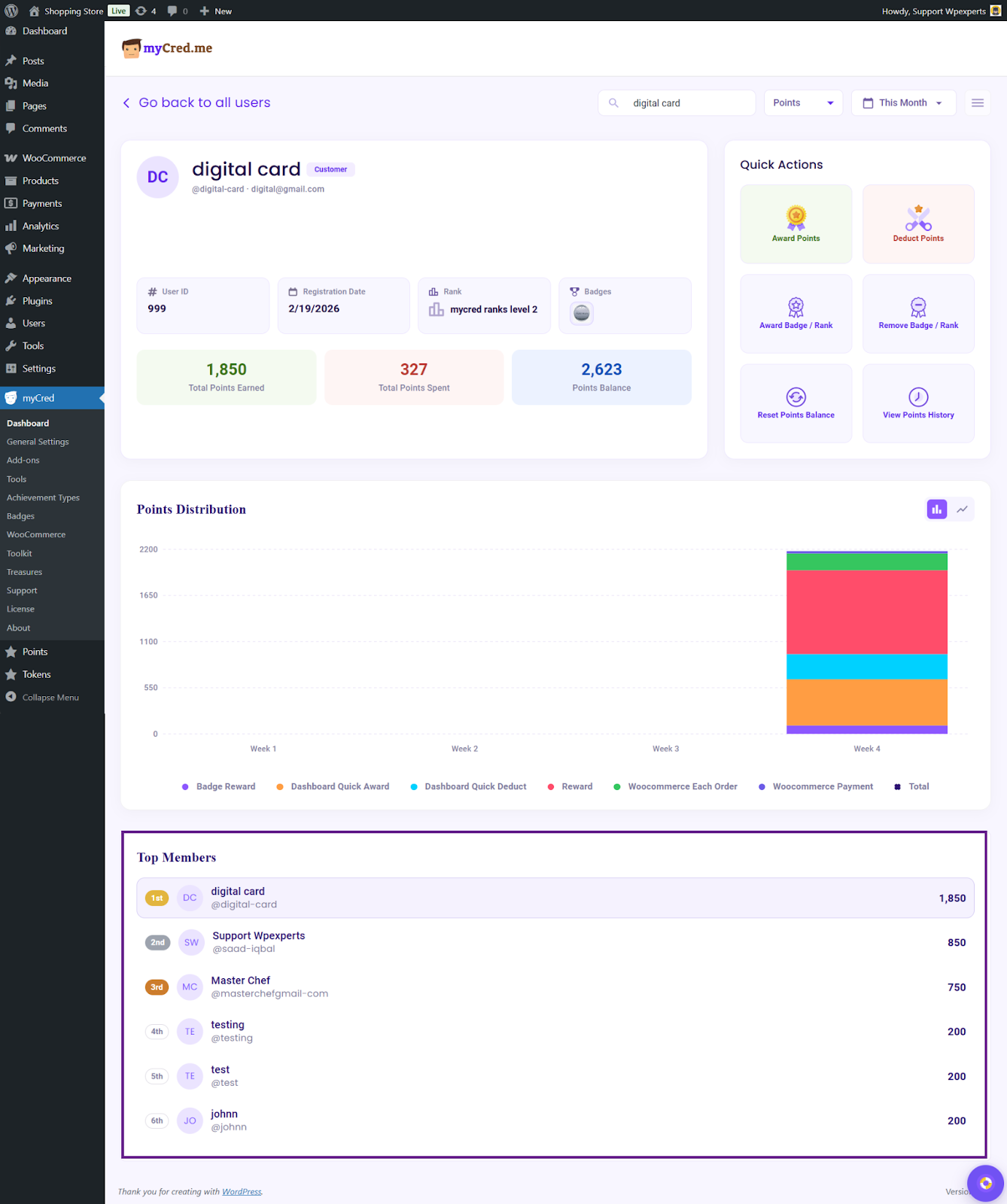
This section provides detailed insights for a specific user within the myCred dashboard. Admins can view the user’s activity, track points earned or spent, award or deduct points, manage badges and ranks, and perform other user-specific actions, offering a comprehensive view of individual engagement and contributions.
- To access a specific user’s data, enter the username or user ID in the search bar.

User Profile Card
- On the specific user screen, the first thing the admin will see is the user information card.
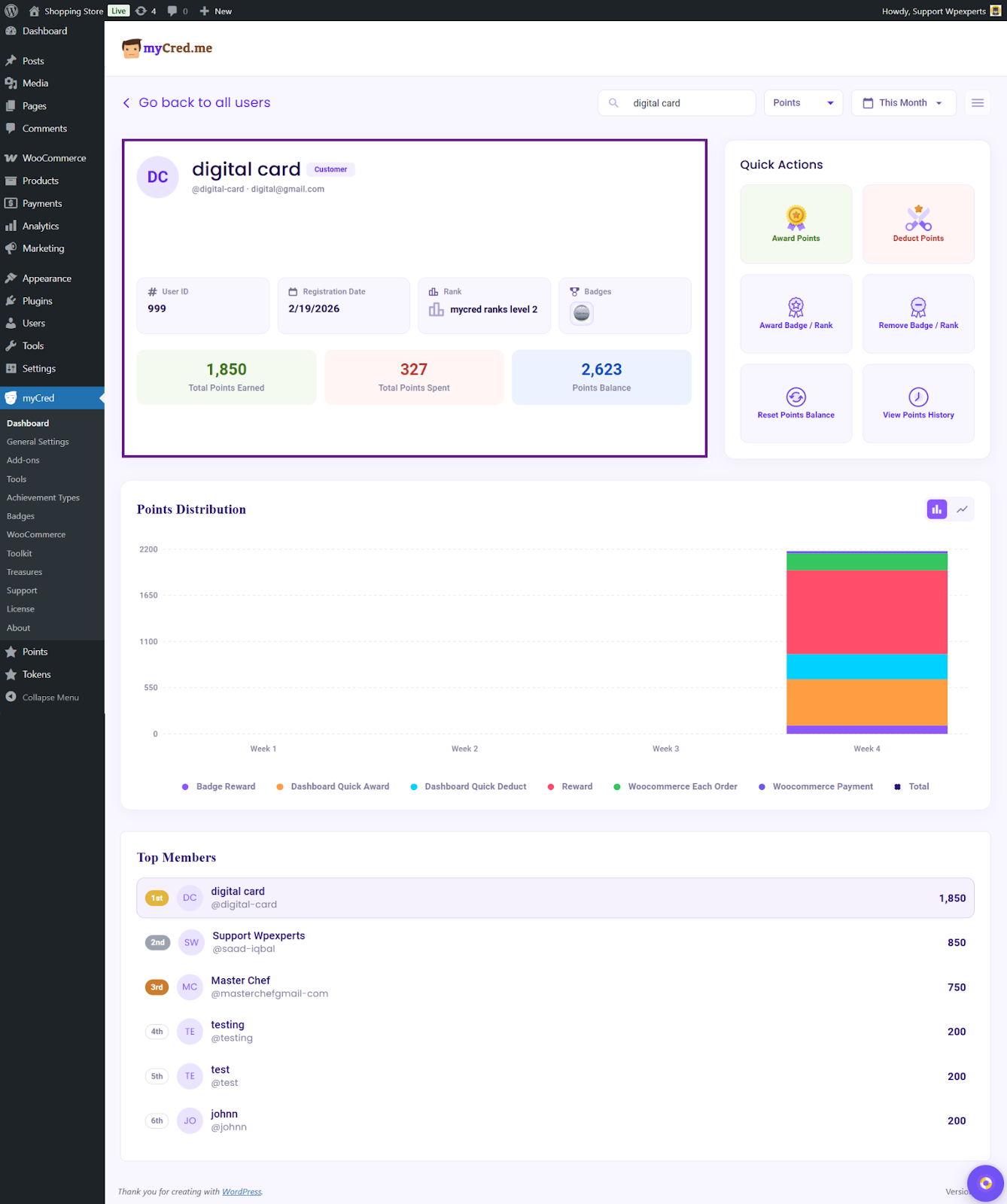
- The admin can filter the data using the available date and point type filters.

Quick Actions
- In Quick Actions, the admin can award or deduct points, grant or remove badges/ranks, reset points, and view a user’s history.
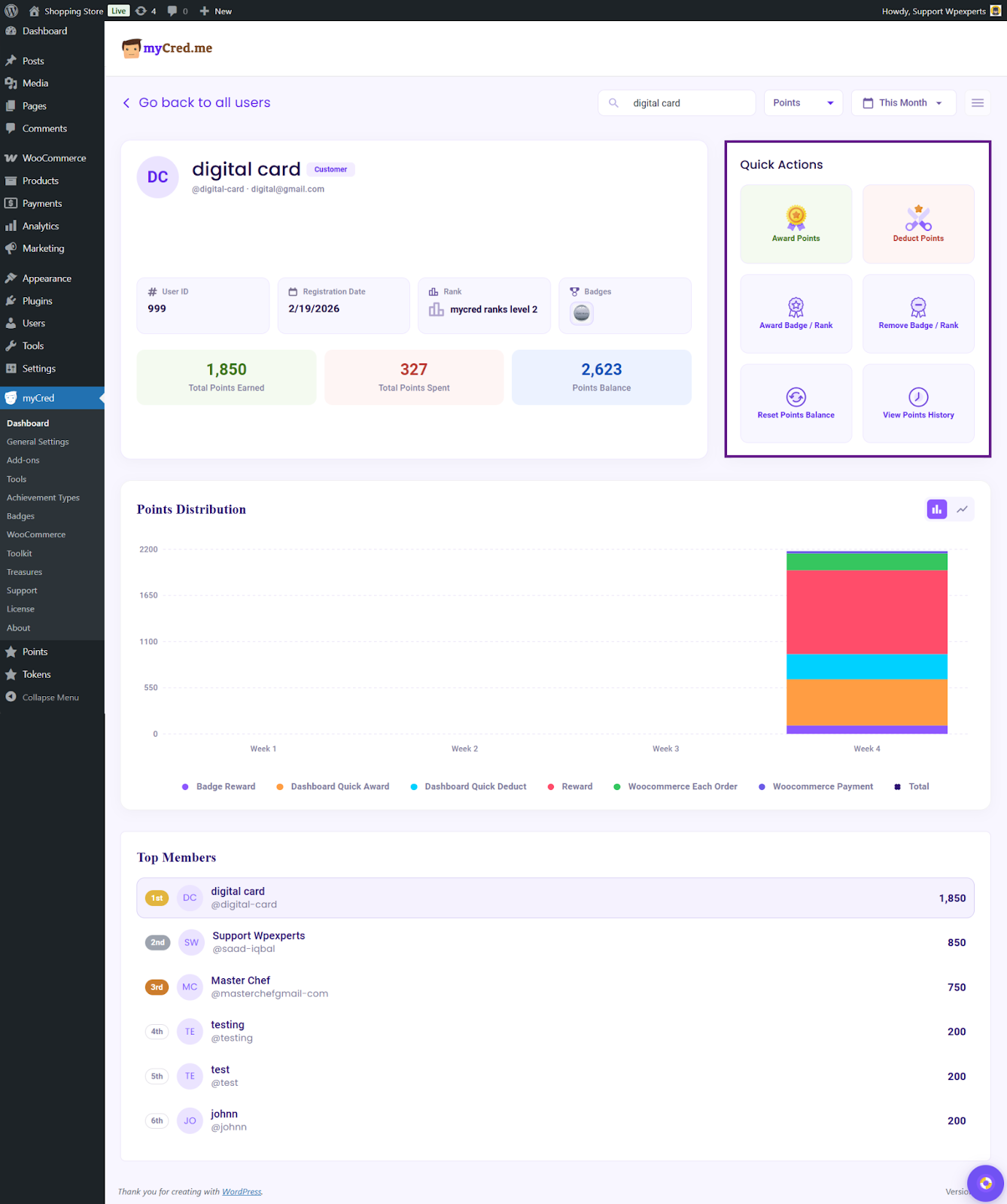
- The Award Points and Deduct Points options function the same way as on the All Users screen.
- The Award Rank/Badge option allows the admin to assign a rank and badge to a user.
Note: The rank and badge must be created beforehand; otherwise, the admin will not be able to assign or remove them.
Note: Make sure the Badges/Ranks add-ons are enabled; otherwise, the Award Badge/Rank and Remove Badge/Rank options will be disabled.
- Click the Award Badge / Rank button. A pop-up window will open.
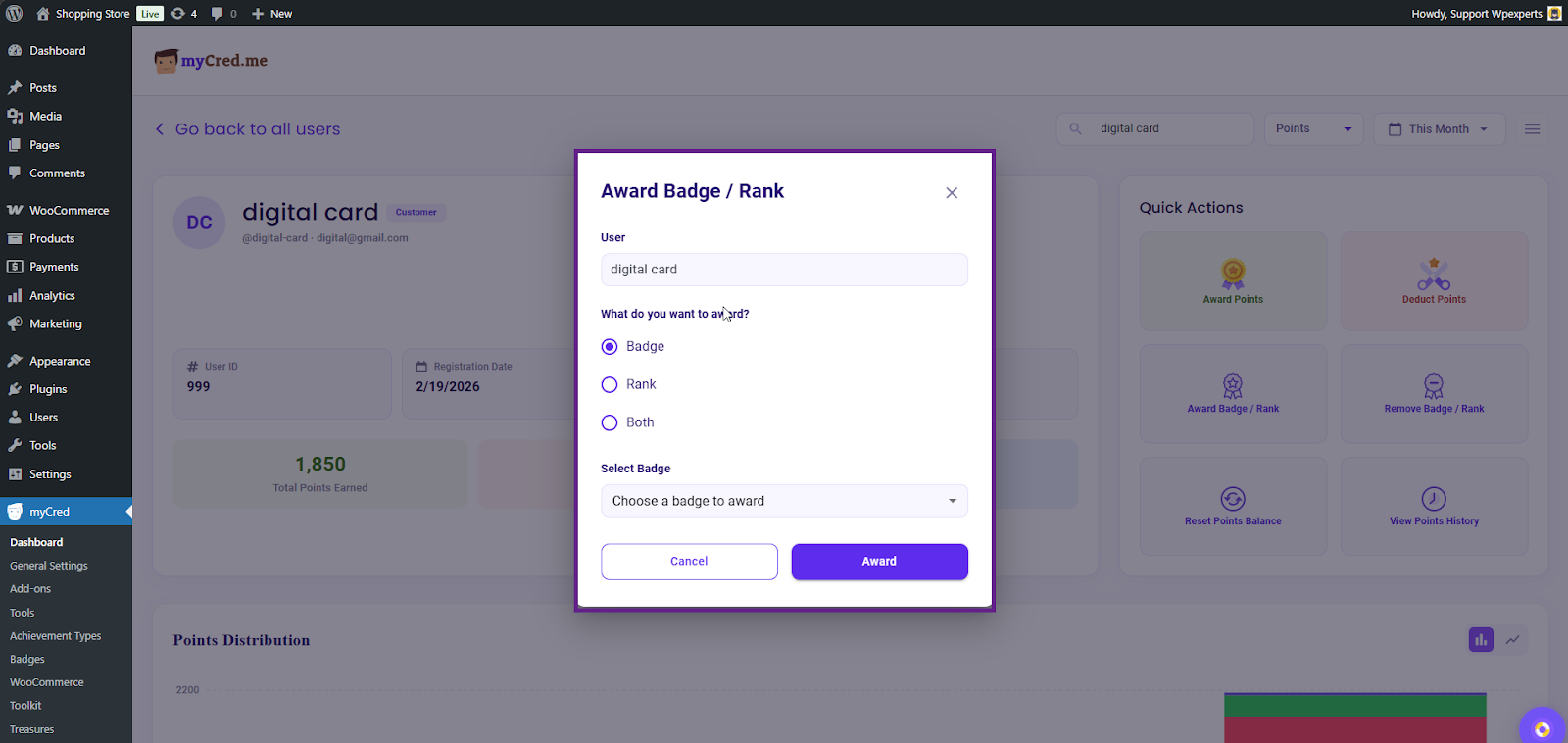
- Now, the admin must decide whether to award a badge, a rank, or both. In this case, we will award both.

- To remove the badge or rank, click the Remove Badge/Rank button. A pop-up window will open.

- To remove, the admin must decide whether to remove a badge, a rank, or both. In this case, we will remove both.

- The Reset Points Balance option allows the admin to easily reset a user’s points.

- The admin can view a user’s points history by clicking the View Points History button. Filters are also available to help refine and display the history according to their needs.

Points Distribution
- The Points Distribution chart works the same way as it does on the All Users screen. The only difference is that this chart displays data specifically for the selected user. It also includes the line chart, just like the one on the All Users screen.
- To better understand the Points Distribution chart, please refer to that section.
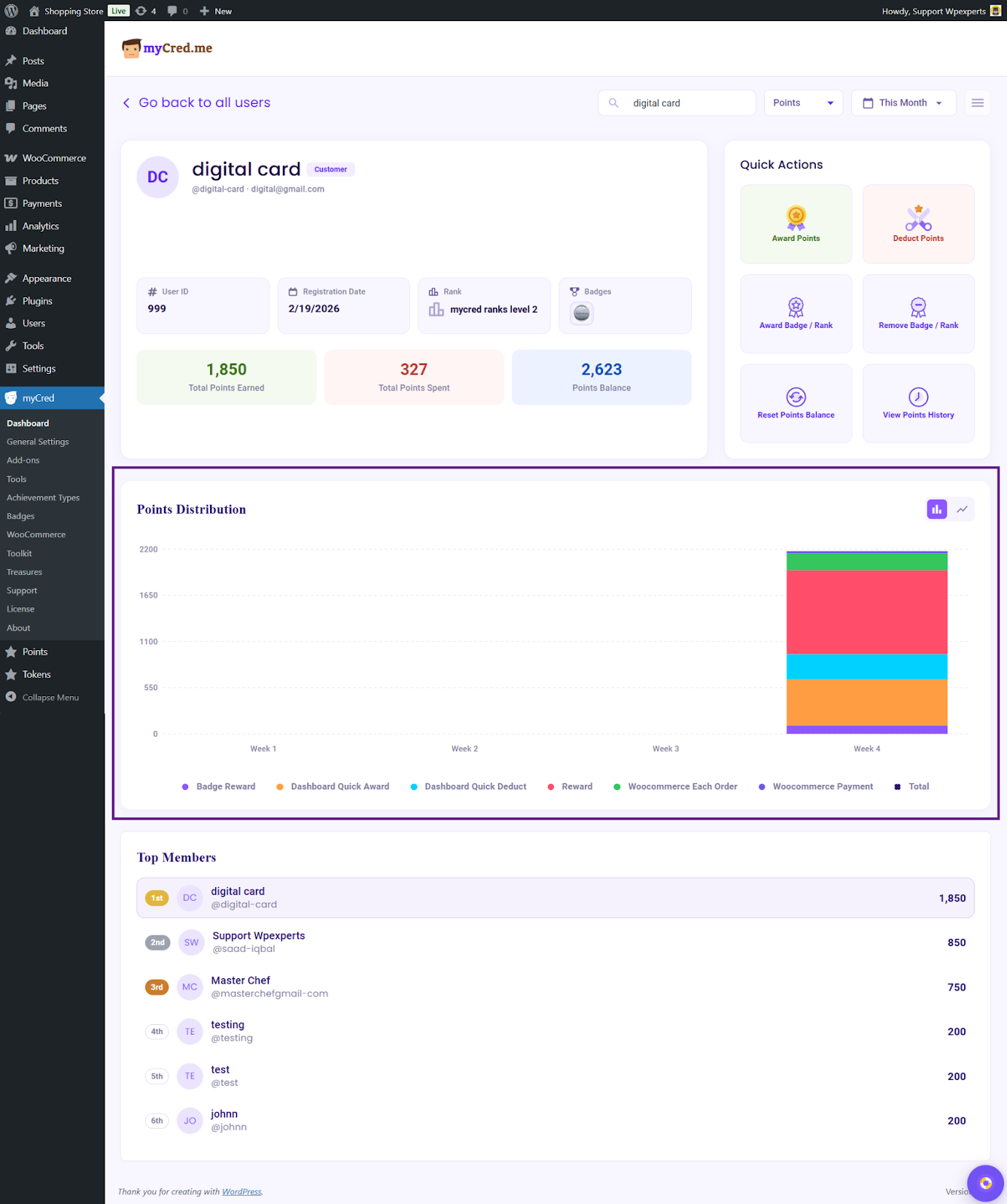
Top Members
The Top Members section shows the selected user’s ranking within the table. This allows the admin to easily evaluate their position and decide whether to assign a badge or rank based on their standing.