Social Share
Social Share
myCred Social Share is a powerful add-on that rewards users with points whenever they share your posts on social media platforms. This add-on allows you to configure point-awarding criteria and control how sharing options are displayed on your website. If you want to engage and reward users for sharing your content, myCred Social Share is the perfect solution.
Back-End Settings
- Go to the Admin Dashboard > myCred > Toolkit.

- Activate the Social Share toggle button.

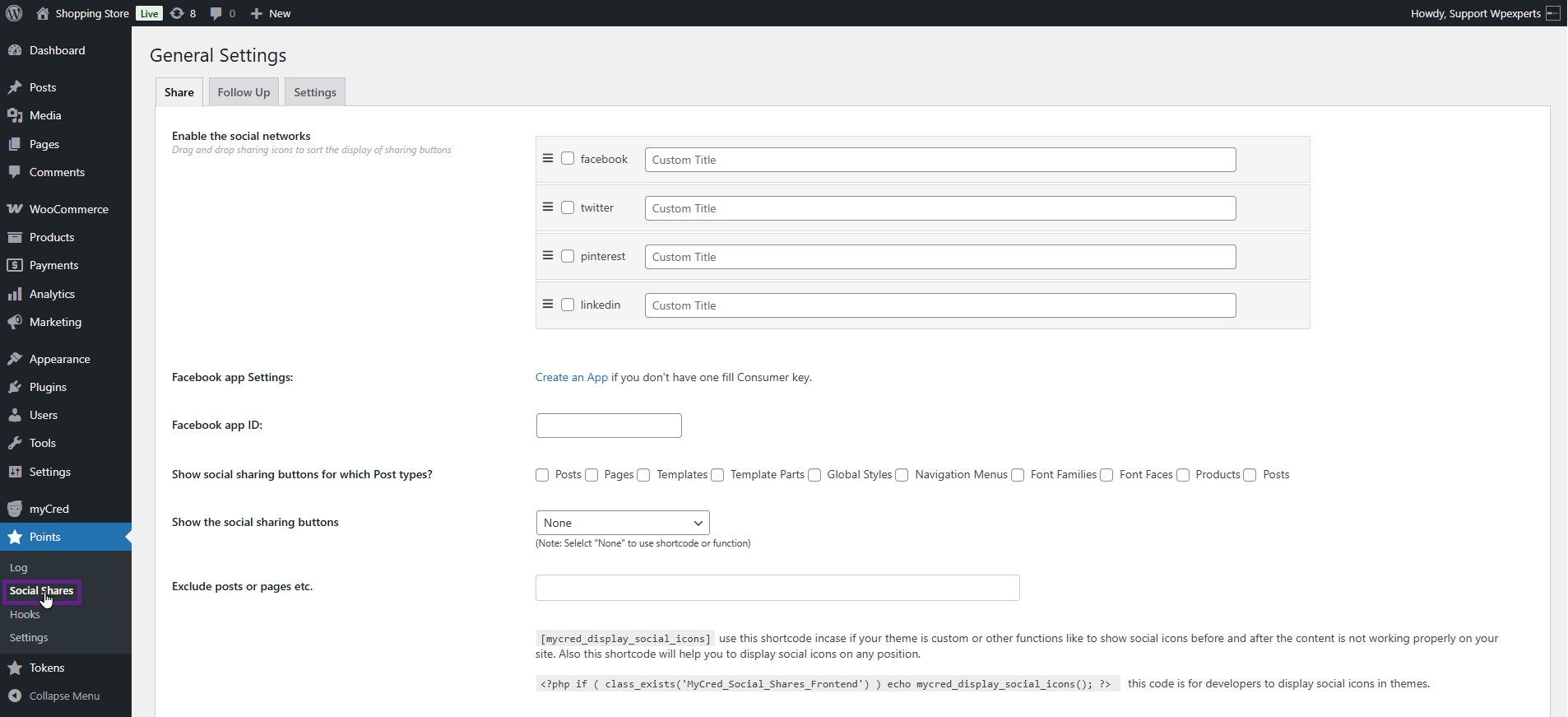
- Now, navigate to the Admin Dashboard > Points > Social Shares.
Share
- Under the Enable the Social Network option, you can enable or disable social networks as needed by using checkboxes in the admin panel.

- Admin can rename the label of a button.
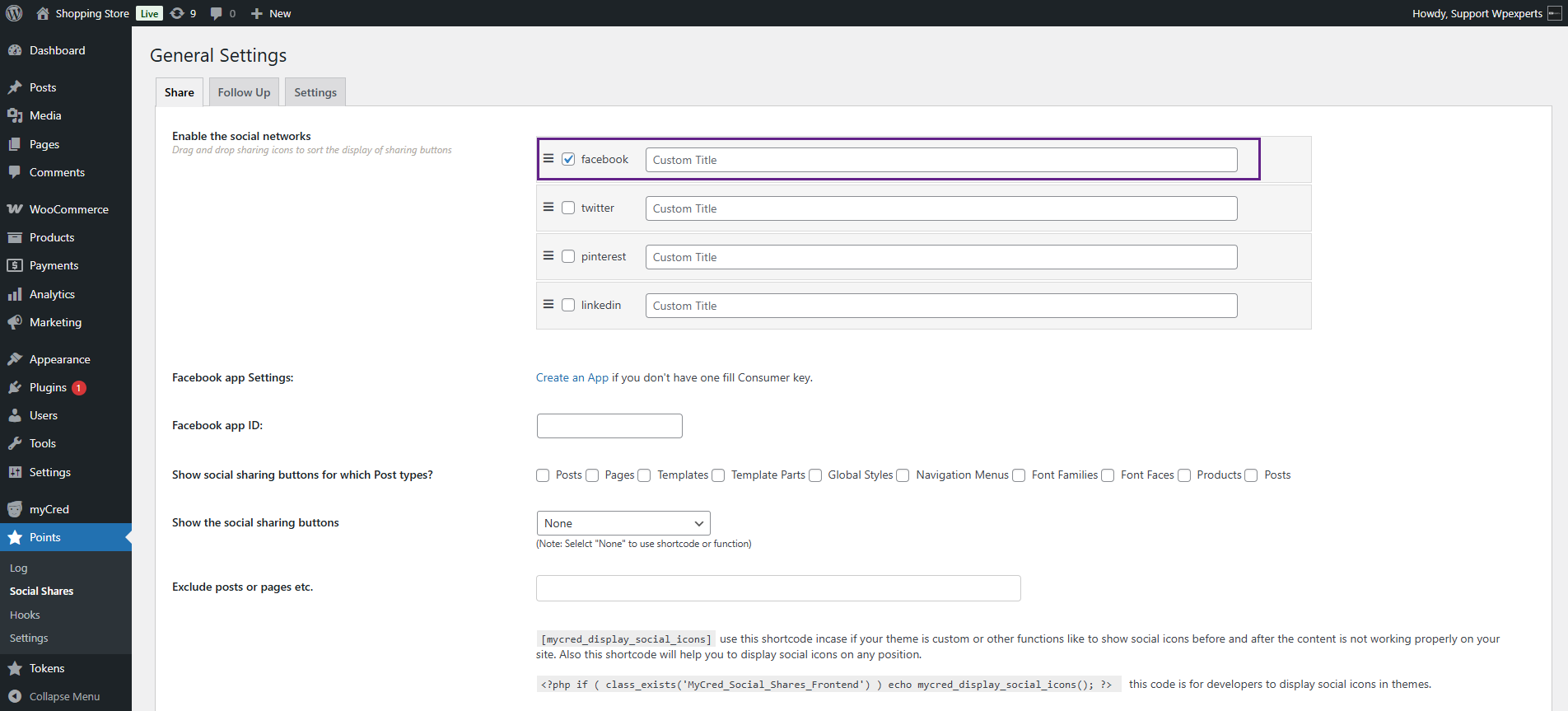
- Admin can rearrange the order of each social network.

- The admin can create an app on Meta.
Note: If you don’t have a Facebook App ID, you can create one by clicking the provided Create an App link.

- Next, enter your Facebook application ID in the Facebook app ID field.

- Under the Show social sharing buttons for which Post types? option, use the checkboxes to enable or disable social sharing for specific post types like posts or pages.
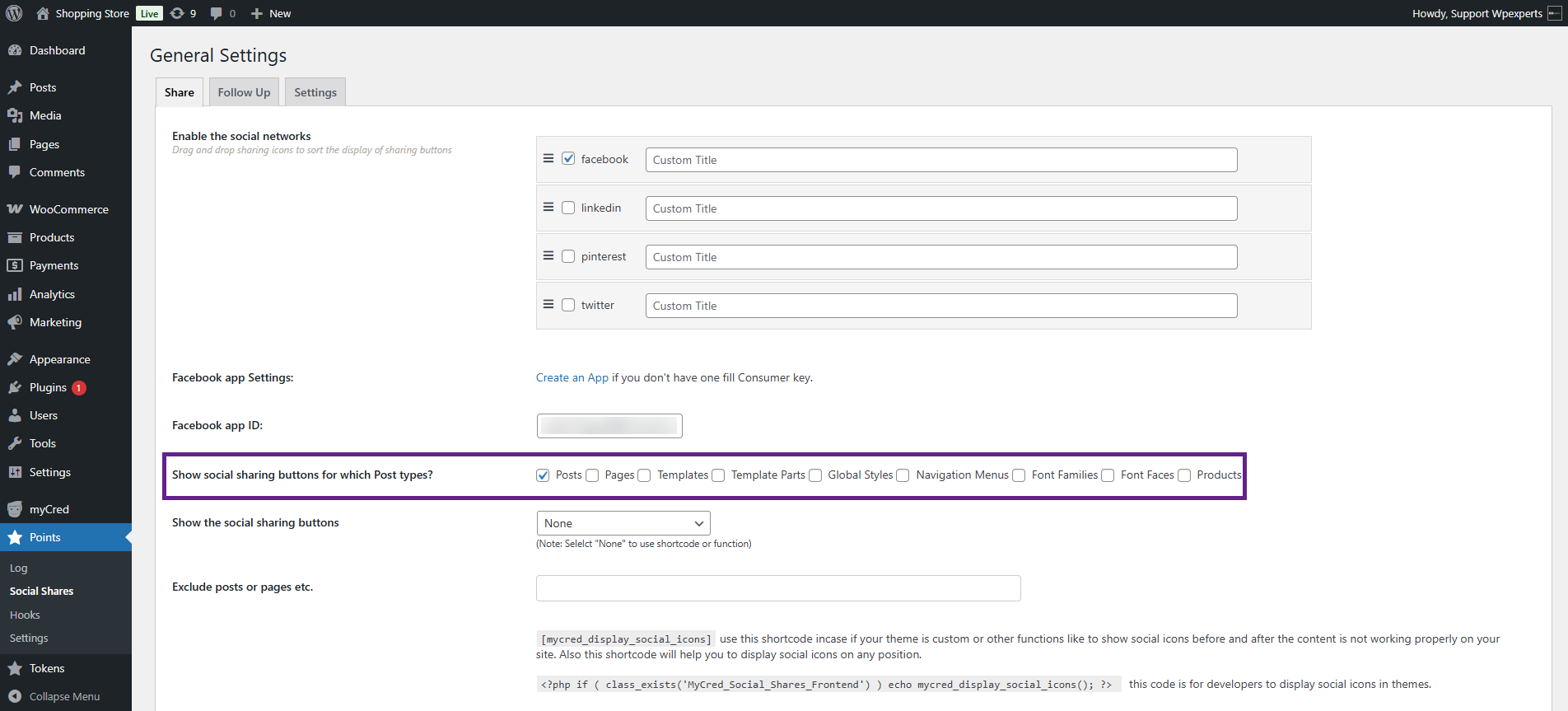
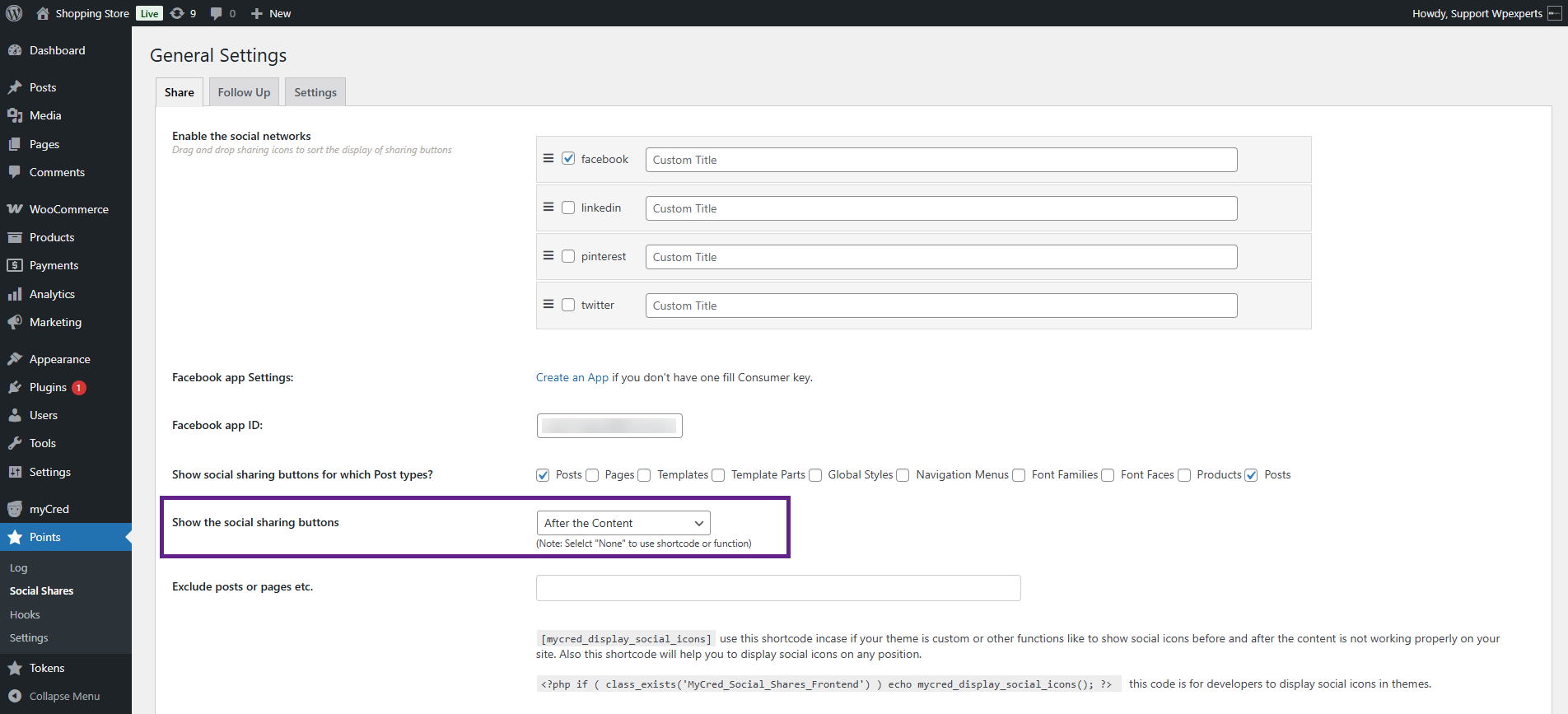
- Choose where to display the social sharing buttons using the Show the Social Buttons dropdown menu.
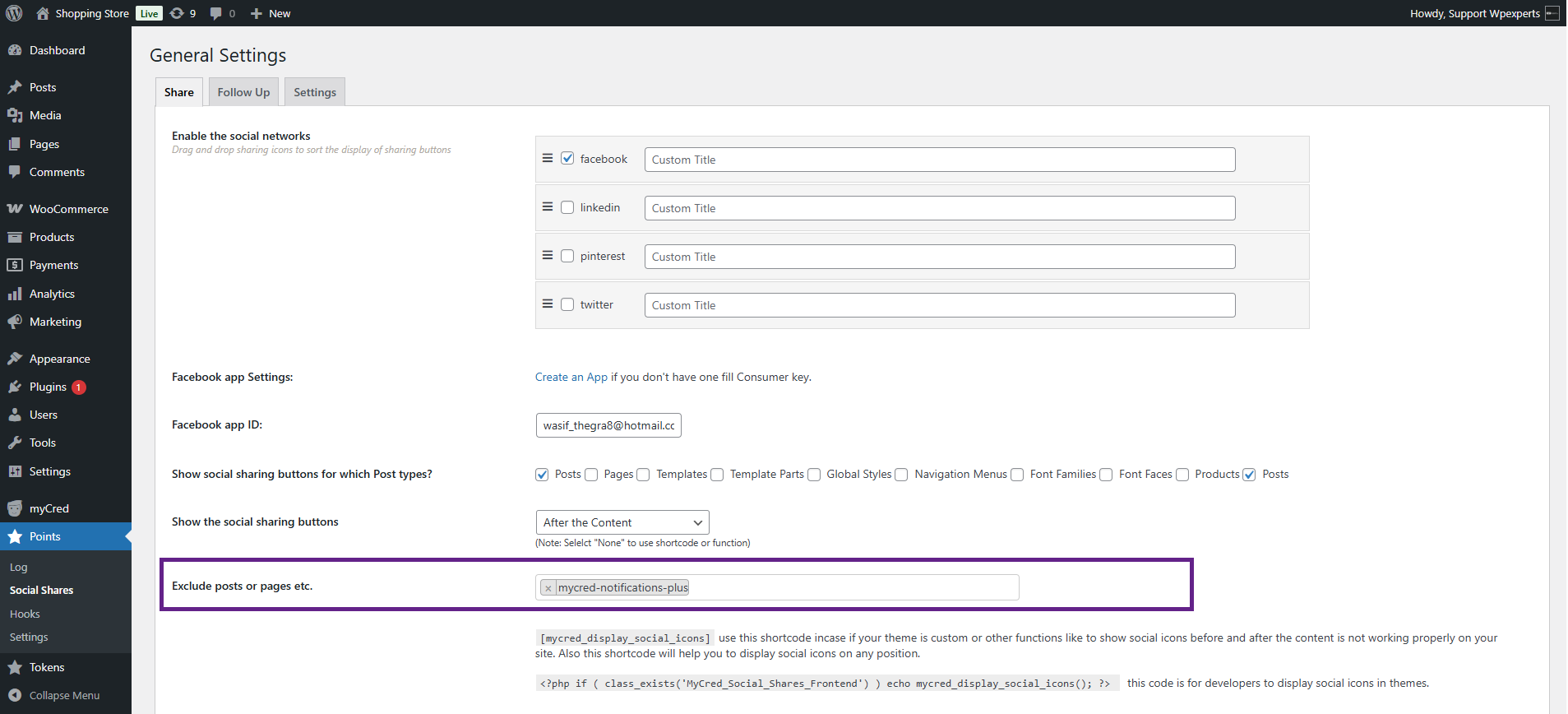
- In the Exclude Posts or Pages field, enter the names of the pages or posts you want to exclude from displaying social sharing buttons.
Note: The admin can use [mycred_display_social_icons] to display the social icons.
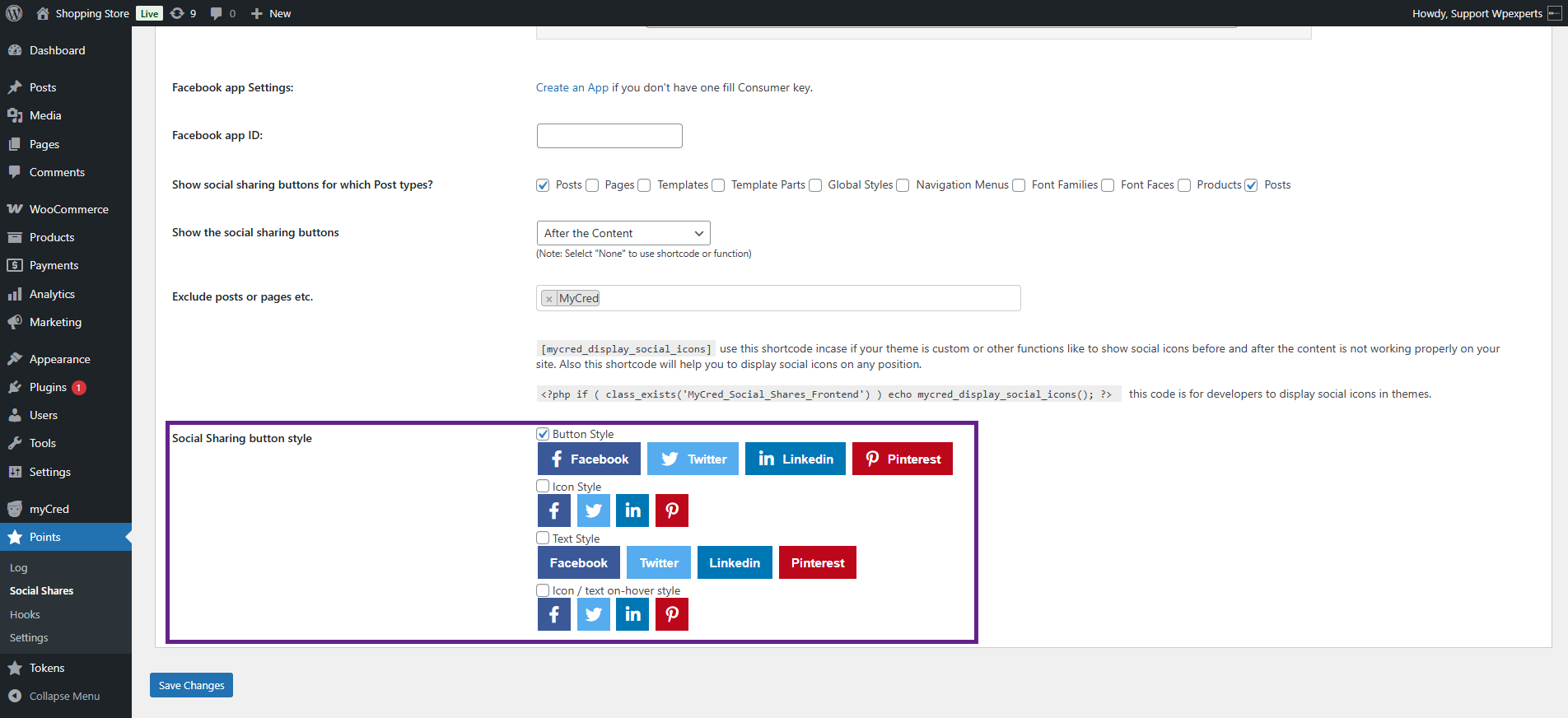
- Finally, select the style of the social sharing button.
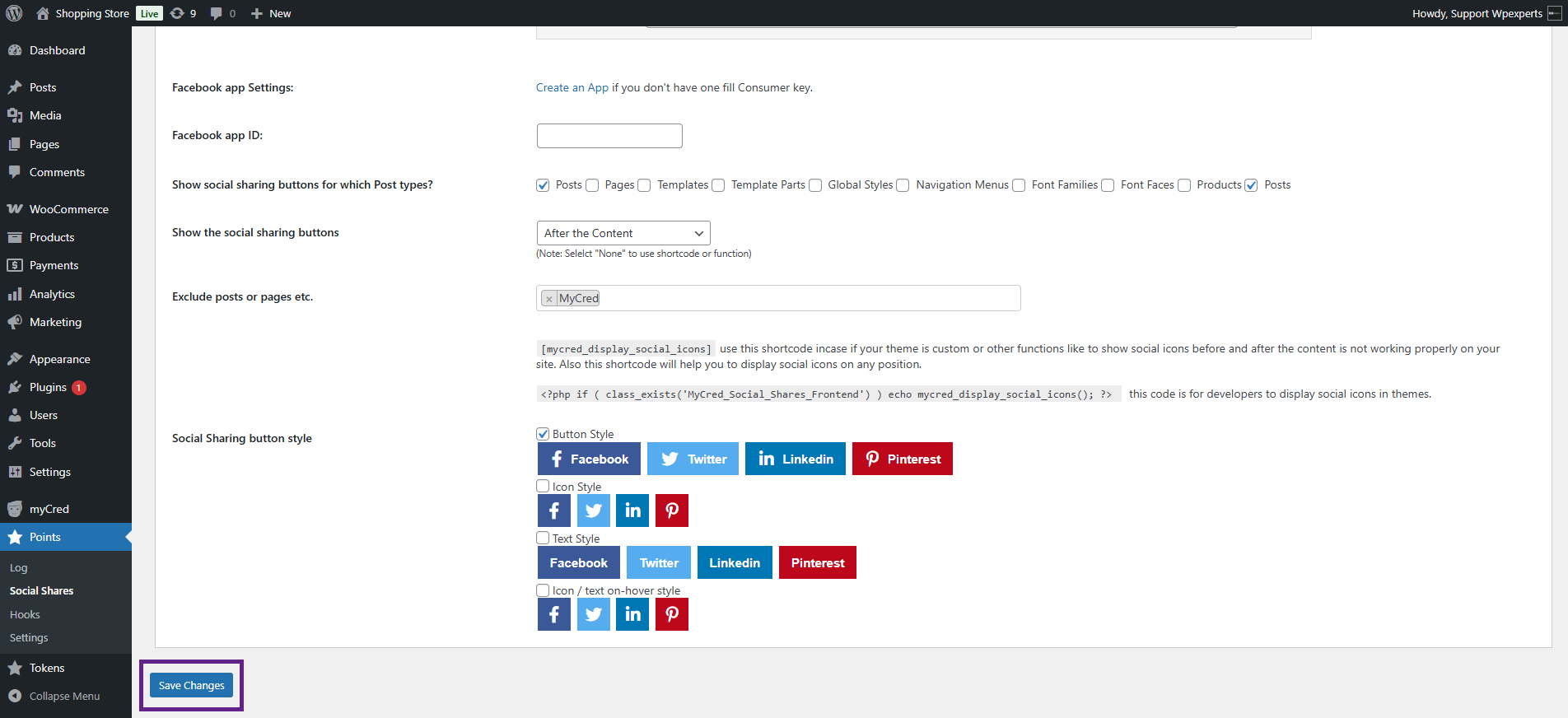
- Once done, click the Save Changes button.
Front-End Impact
- Go to the website.
- Navigate to the post page. Since Post was selected from the Show social sharing buttons for which post types? option, we are proceeding to the post page accordingly.
- As you can see, the social icons are visible beneath the post.

Follow up
- Navigate to the Follow-up sub-tab.
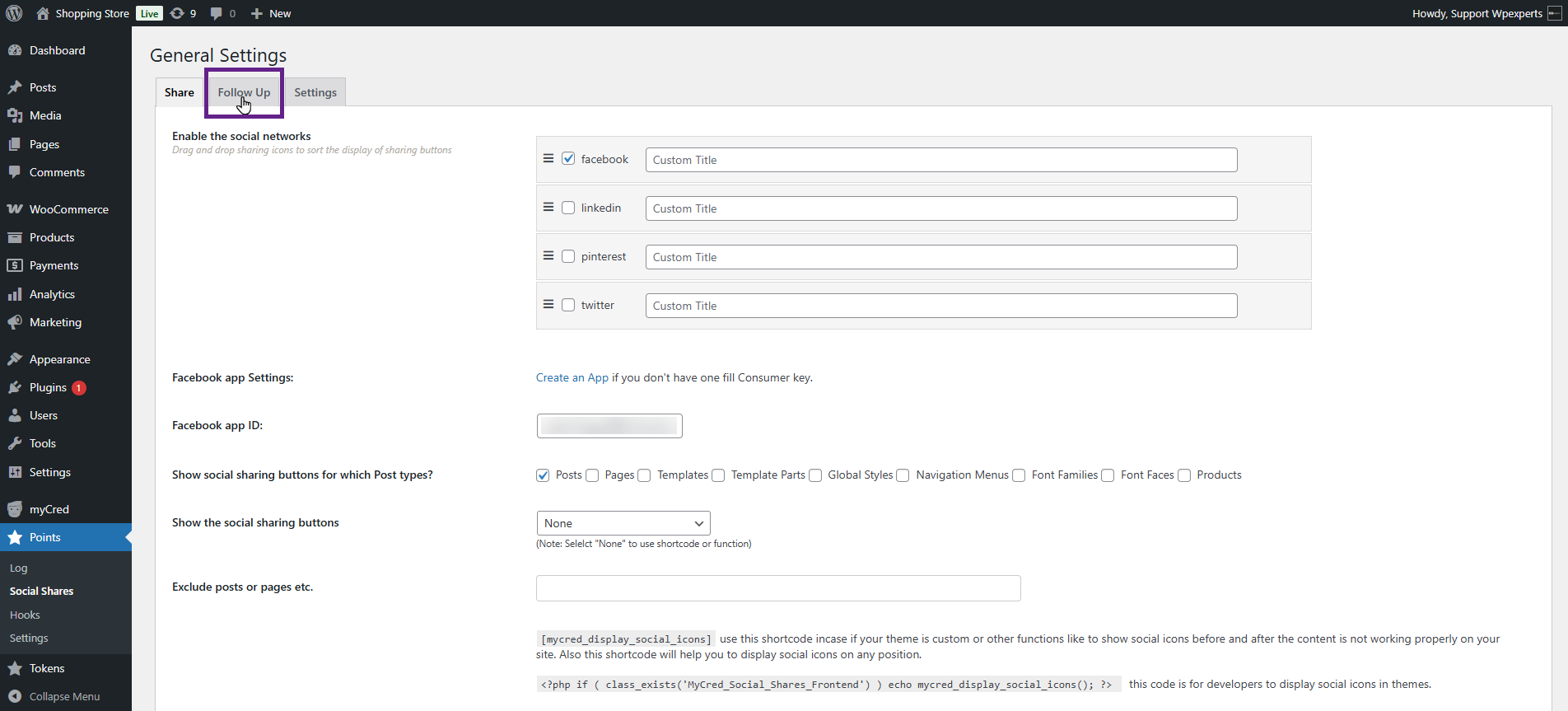
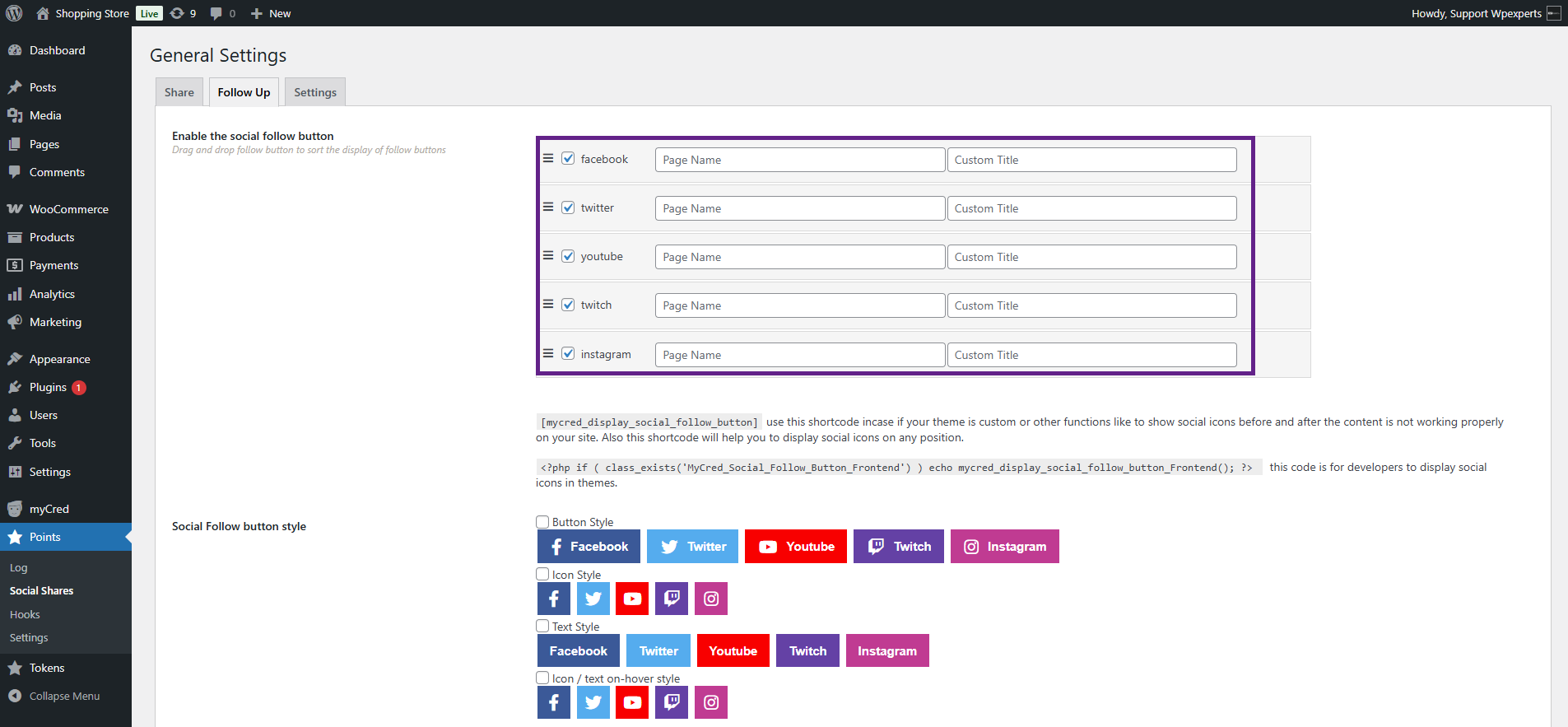
- Under the Enable the social follow button option, you can enable or disable social networks as needed by using checkboxes in the admin panel.

- Admin can rename the title of each social network button.
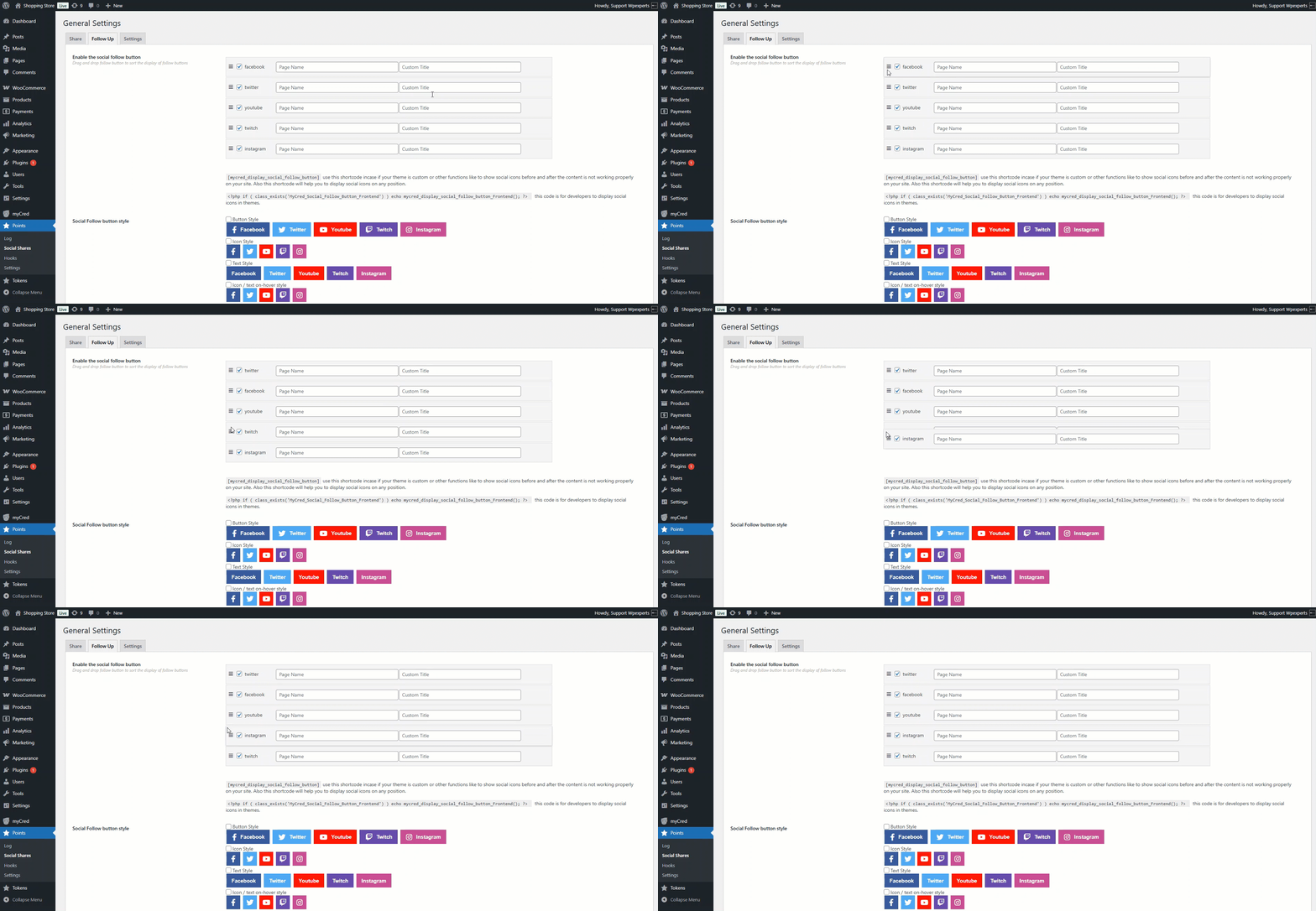
- Admin can drag and drop the follow button to sort the display of each social network.
- Use a shortcode to display the Follow Up icon on a specific location: [mycred_display_social_follow_button].
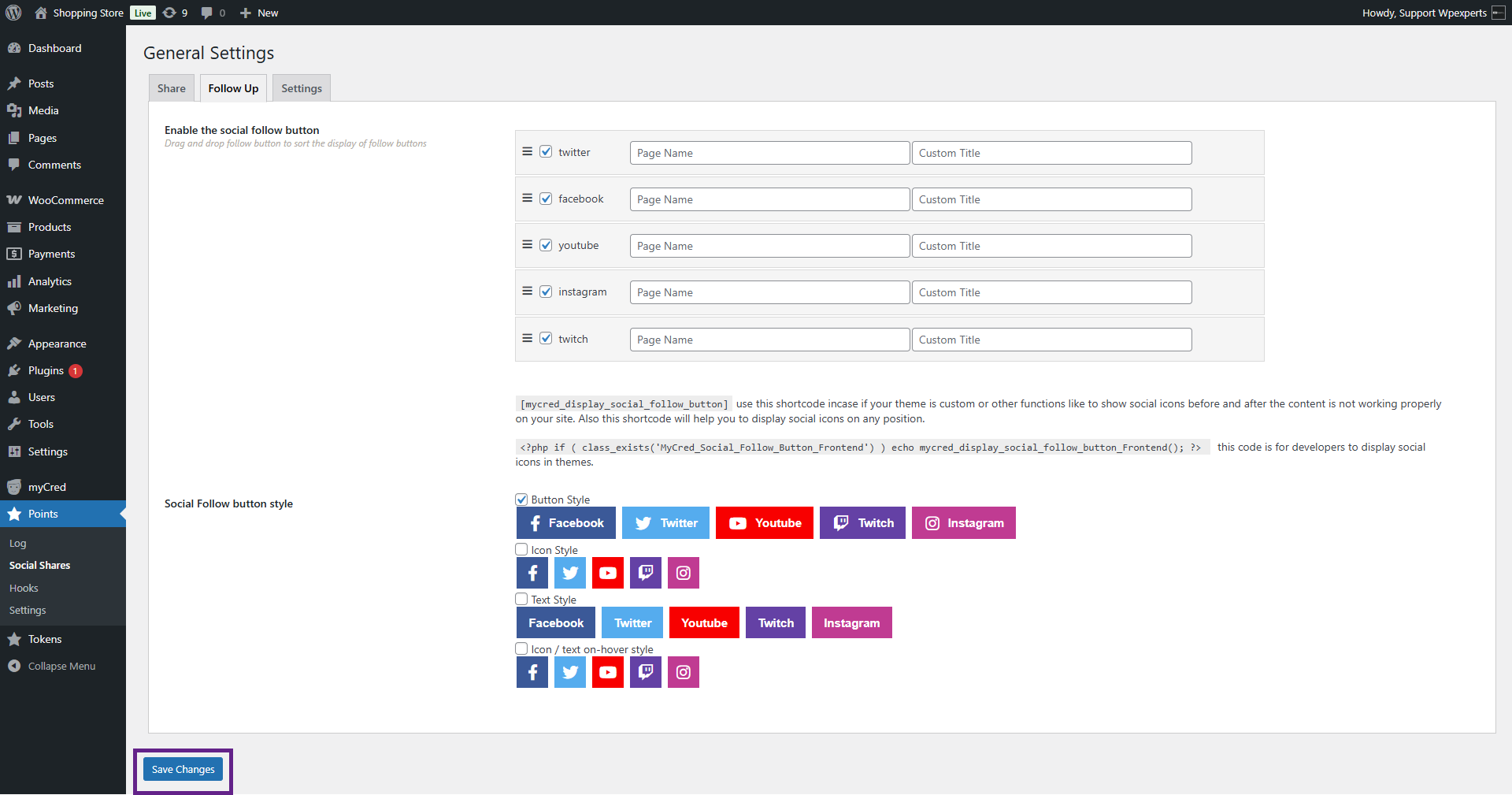
- Finally, select the style of the social sharing button.

- Once done, click the Save Changes button.
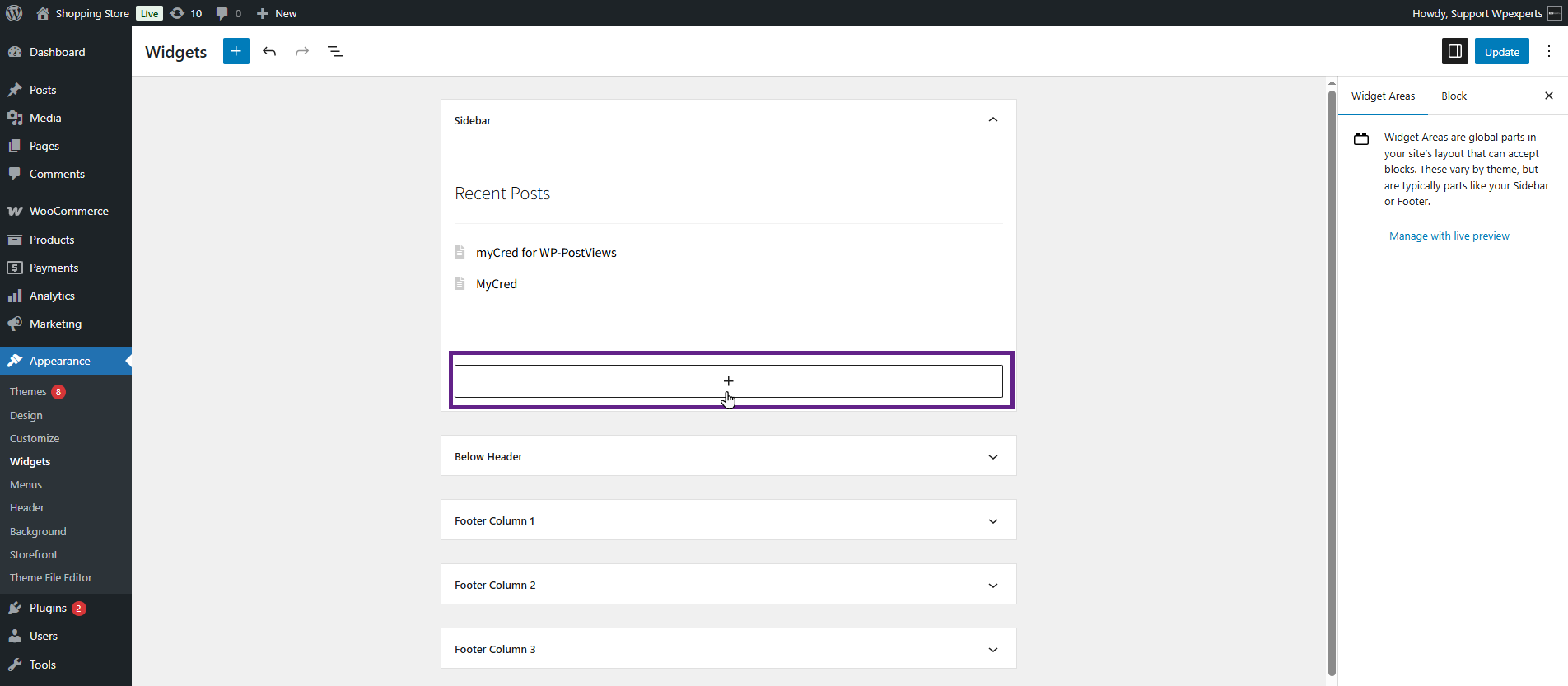
- Now, navigate to the Admin Dashboard > Appearance > Widgets.

- Click the + icon.
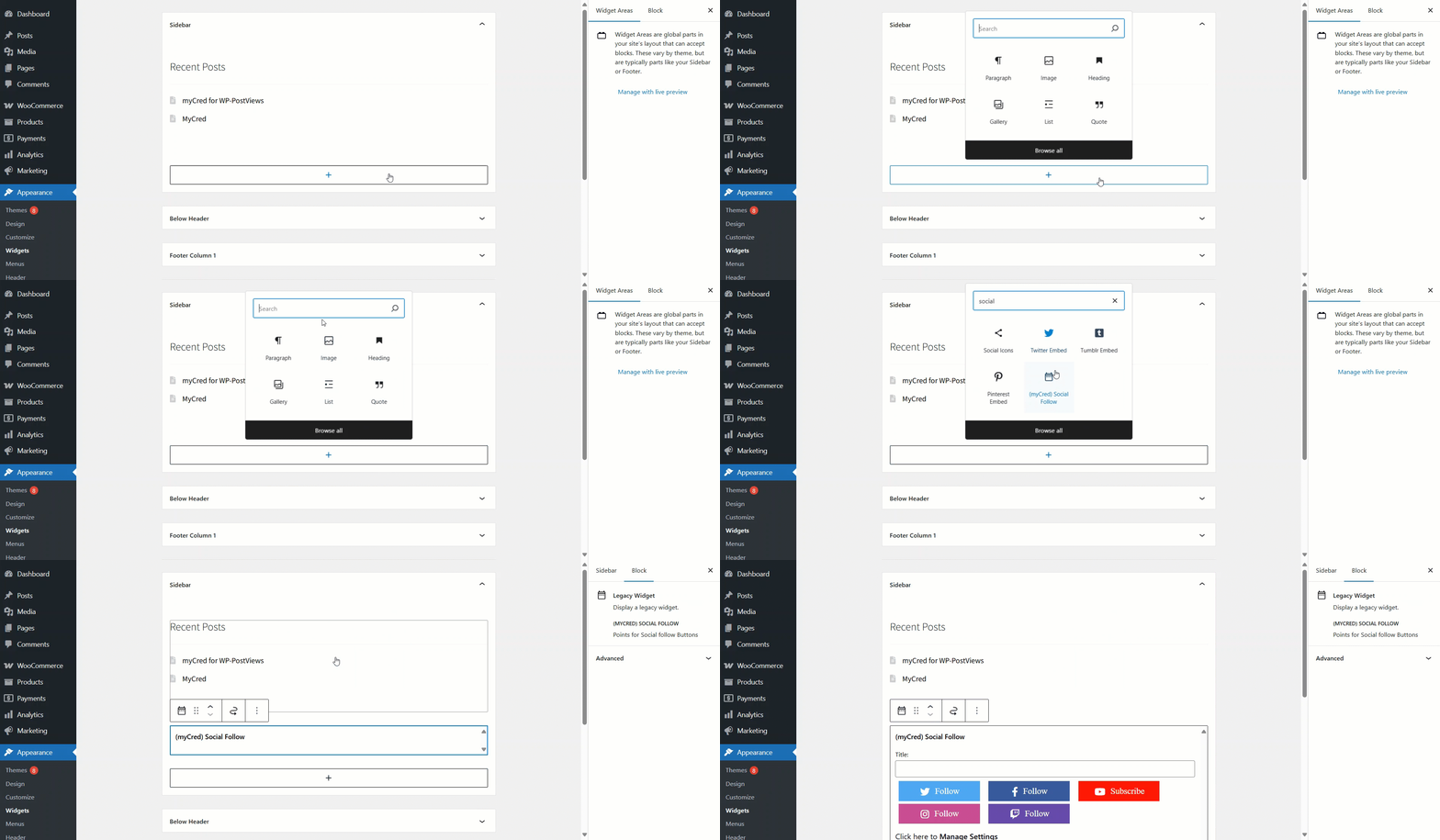
- Search for the myCred Social Follow widget.
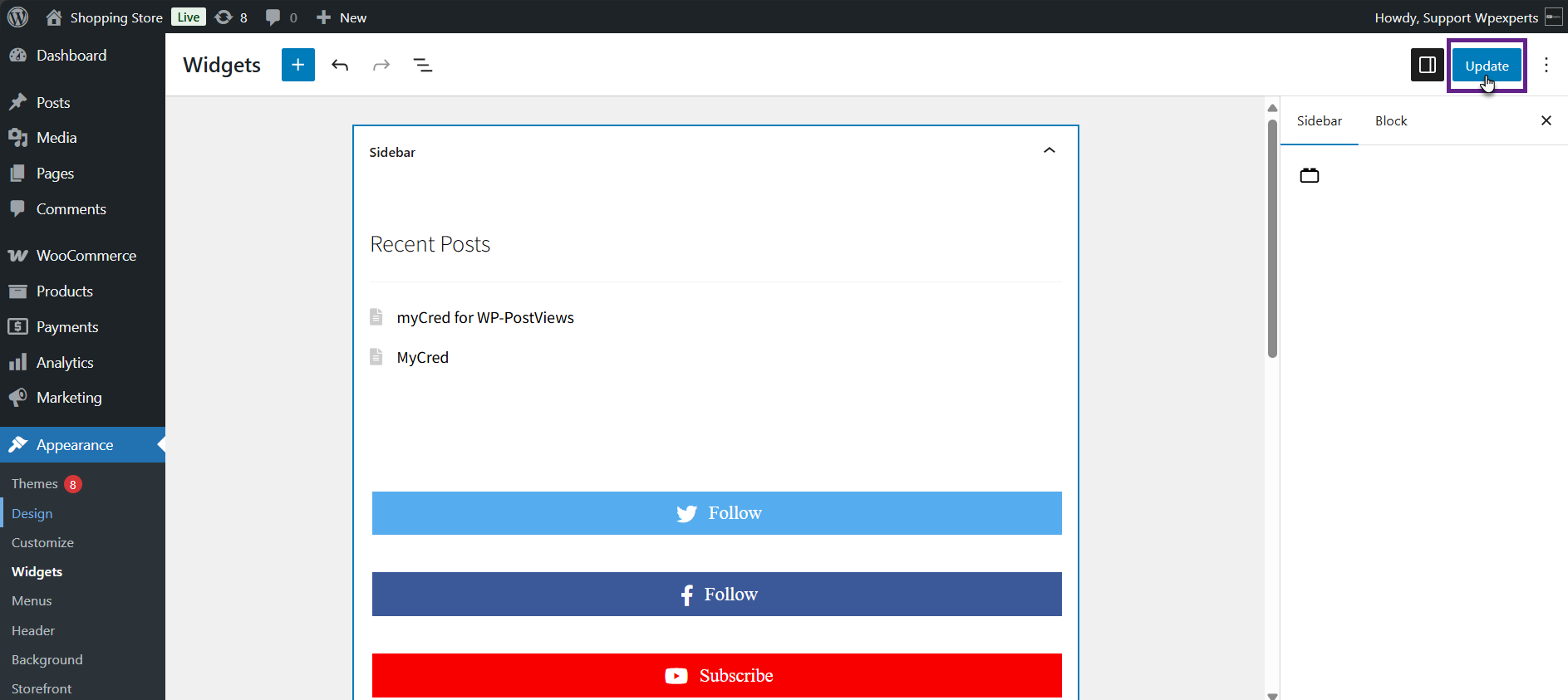
- Once done, click the Update button.
Front-End Impact
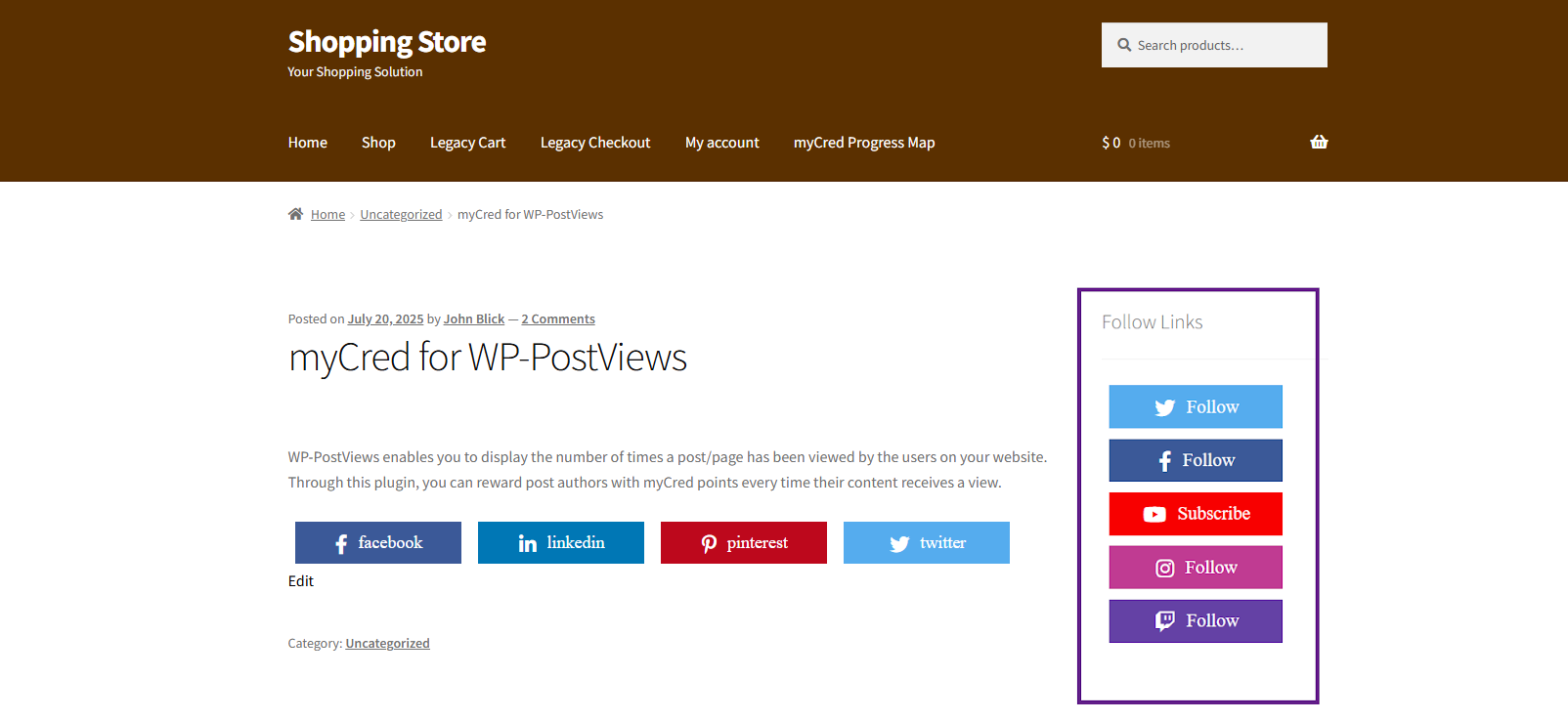
- Go to the website.
- Navigate to the post page.
- As you can see, the social follow icons are visible.
Settings
- Navigate to the Settings sub-tab.

- Within the Settings tab, you’ll find two options:
- Check this option to hide/unhide login notification: Toggle the display of the login notification for users.
- Show share icons: Enable or disable share and follow icons for users who are not logged in.

- Once done, click the Save Changes button.

- Now, navigate to the Admin Dashboard > Points > Hooks.
- Drag and drop the Points for Social Share and Points for Social Follow hooks, then configure their settings according to your preferences.

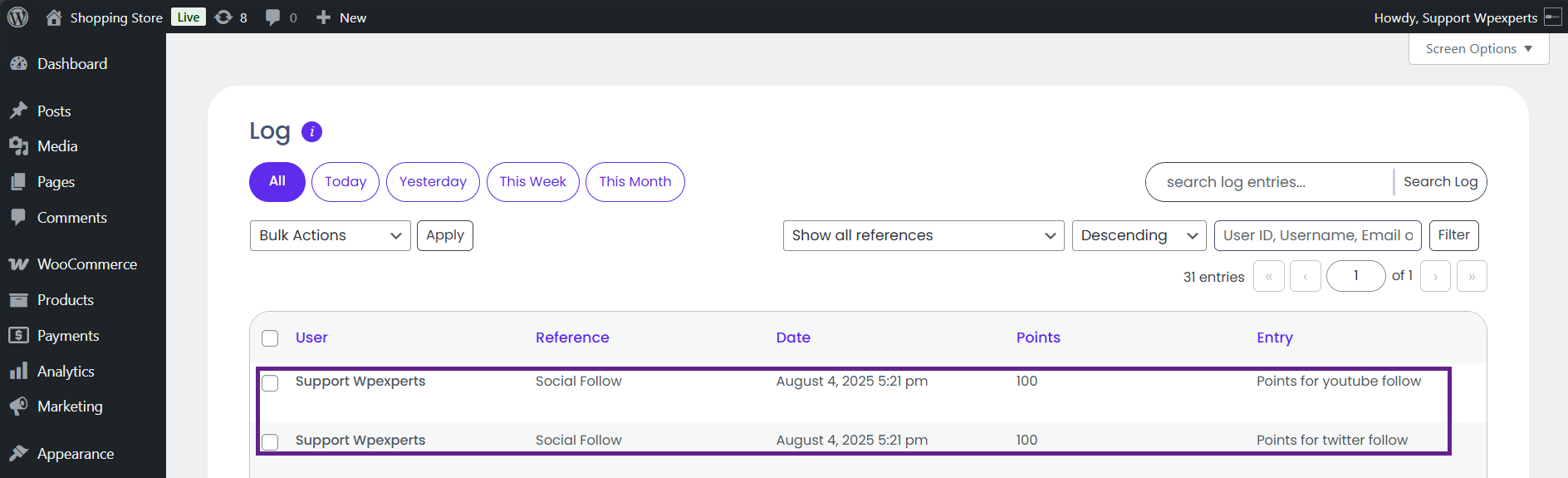
- When a user shares or follows a social account from the front end, they will be awarded points. As shown, the user has successfully received the points.