
myCred Learndash Add-on

Introduction
This plugin allows you to enable build points based on Learndash plugin. Furthermore, the plugin will help users to get points while they complete courses, lessons, topics, or quiz.
Sync and Import LearnDash Points to myCred
myCred LearnDash Points Importer add-on enables synchronization between myCred’s point balance and LearnDash, allowing users to import their points from LearnDash to myCred. Once added, these points can be redeemed for product purchase.
- Override LearnDash points for myCred Point Balance.
- Update point type logs with detailed entries.
- Automatically fetch & display any default or custom point types.
Features
- Award points to completing any topic.
- Award points to completing any lesson.
- Award points on joining any group.
- Award points on completing any course.
- Award points on enrolling in any course.
- Award points on completing any course with the maximum percentage.
- Award points on completing any course within a set range of percentage.
- Award points on completing a specific course.
- Set Limits to attempt Course, No limit/Day/Week/Month (to select anyone frequency).
- Click the Add More if you wish to add more courses in specific settings.
Getting Started
myCred Learndash add-on activation
- Go to WordPress Dashboard > myCred > Toolkit
- Enable the Learndash add-on

Note: The Learndash add-on must be activated for the Hooks to function.
Hooks Activation
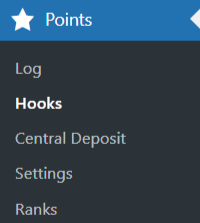
- Go to WordPress Dashboard > Points > hooks
- There are two sections here:
- Available Hooks
- Active Hooks
- The following hooks will appear in the Available Hooks section:
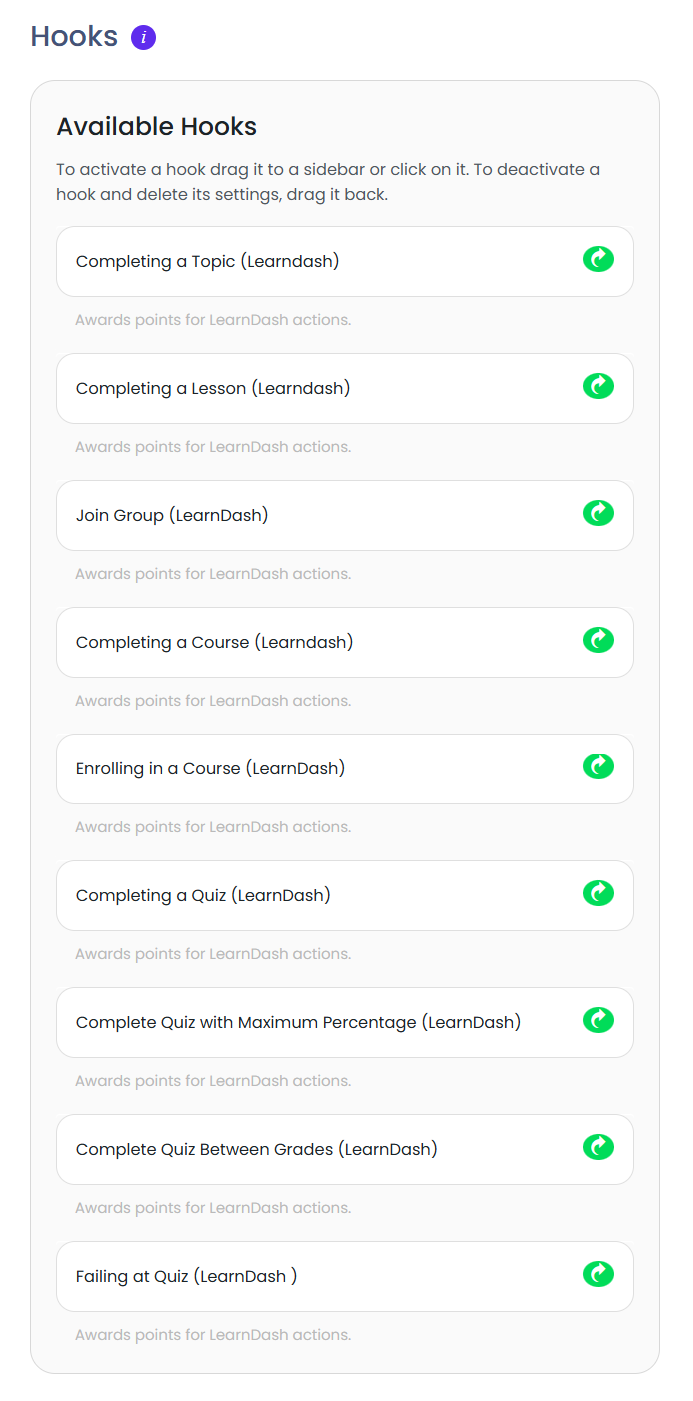
- Drag and drop these Hooks in the Active Hooks section.

Hooks configuration
Setting up of hooks
- Once the hooks are in the Active Hooks section, click on the hooks to view the further options
Completing a Topic (Learndash)
- This hook is triggered when a user completes a topic within a course, lesson, quizzes etc.
- Click on the hook to open its configuration.
- Admin can set the Points which will be awarded whenever the event is triggered.

Completing a Lesson (Learndash)
- This hook is triggered when a user completes a lesson.
- Click on the hook to open its configuration.
- Admin can set the Points which will be awarded whenever the event is triggered.
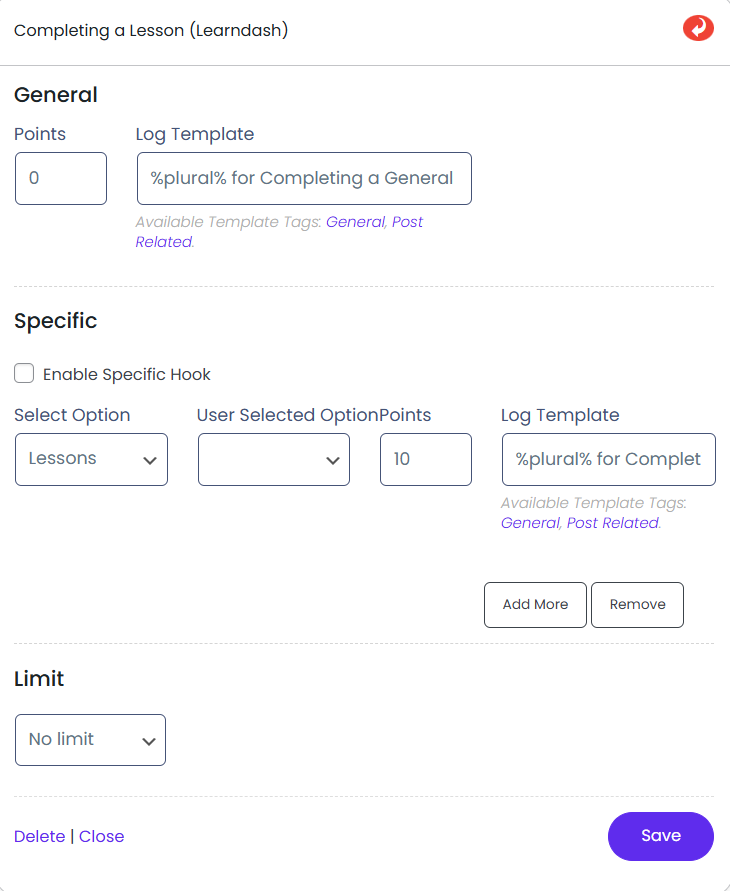
Join a Group (Learndash)
- This hook is triggered when a user joins a group.
- Click on the hook to open its configuration.
- Admin can set the Points which will be awarded whenever the events are triggered.
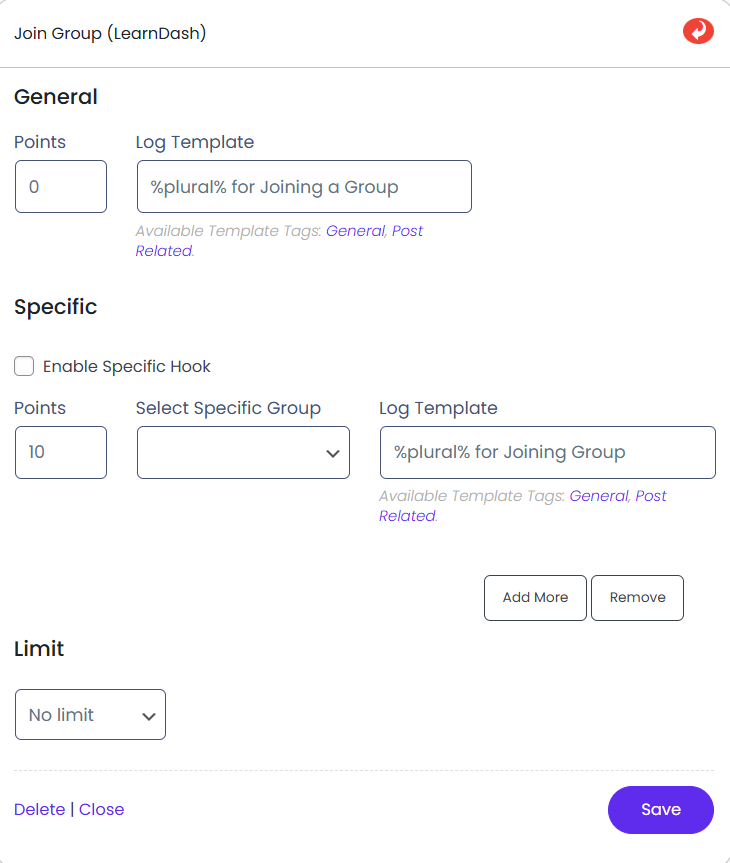
Completing a course (Learndash)
- This hook is triggered when a user completes a course.
- Click on the hook to open its configuration.
- Admin can set the Points which will be awarded whenever the event is triggered.

Enrolling in a course (Learndash)
- This hook is triggered when a user enrolls in a course.
- Click on the hook to open its configuration.
- Admin can set the Points which will be awarded whenever the event is triggered.

Completing a Quiz (Learndash)
- This hook is triggered when a user finishes a quiz.
- Click on the hook to open its configuration.
- Admin can set the Points which will be awarded whenever the event is triggered.
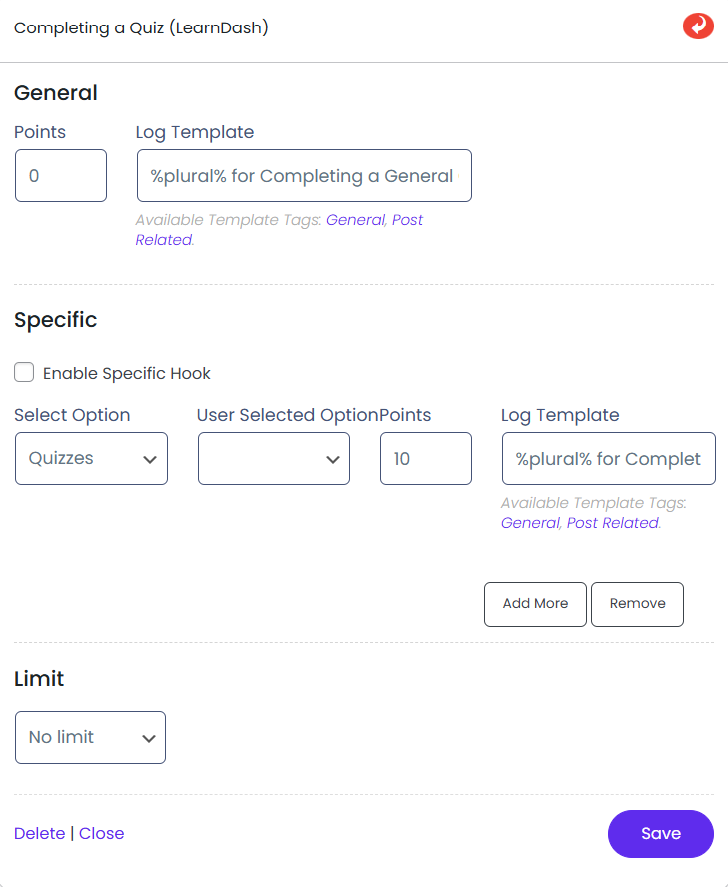
Completes Quiz with Maximum Percentage (learndash)
- This hook is triggered when a user completes a quiz with the maximum percentage.
- Click on the hook to open its configuration.
- Admin can set the Points that will be awarded whenever the event is triggered.

Completes Quiz with between grades (learndash)
- This hook is triggered when a user completes a quiz between a set grade criteria.
- Click on the hook to open its configuration.
- Admin can set the Points which will be awarded whenever the event is triggered.

Failing at Quiz (Learndash)
- This hook is triggered when a user fails at a quiz.
- Click on the hook to open its configuration.
- Admin can set the Points which will be awarded whenever the event is triggered.

Awarding Badges
- Go to myCred ➞ Add-ons ➞ Activate Badge Add-on
- Go to myCred ➞ Badges ➞ Addnew
- Fill out the details.
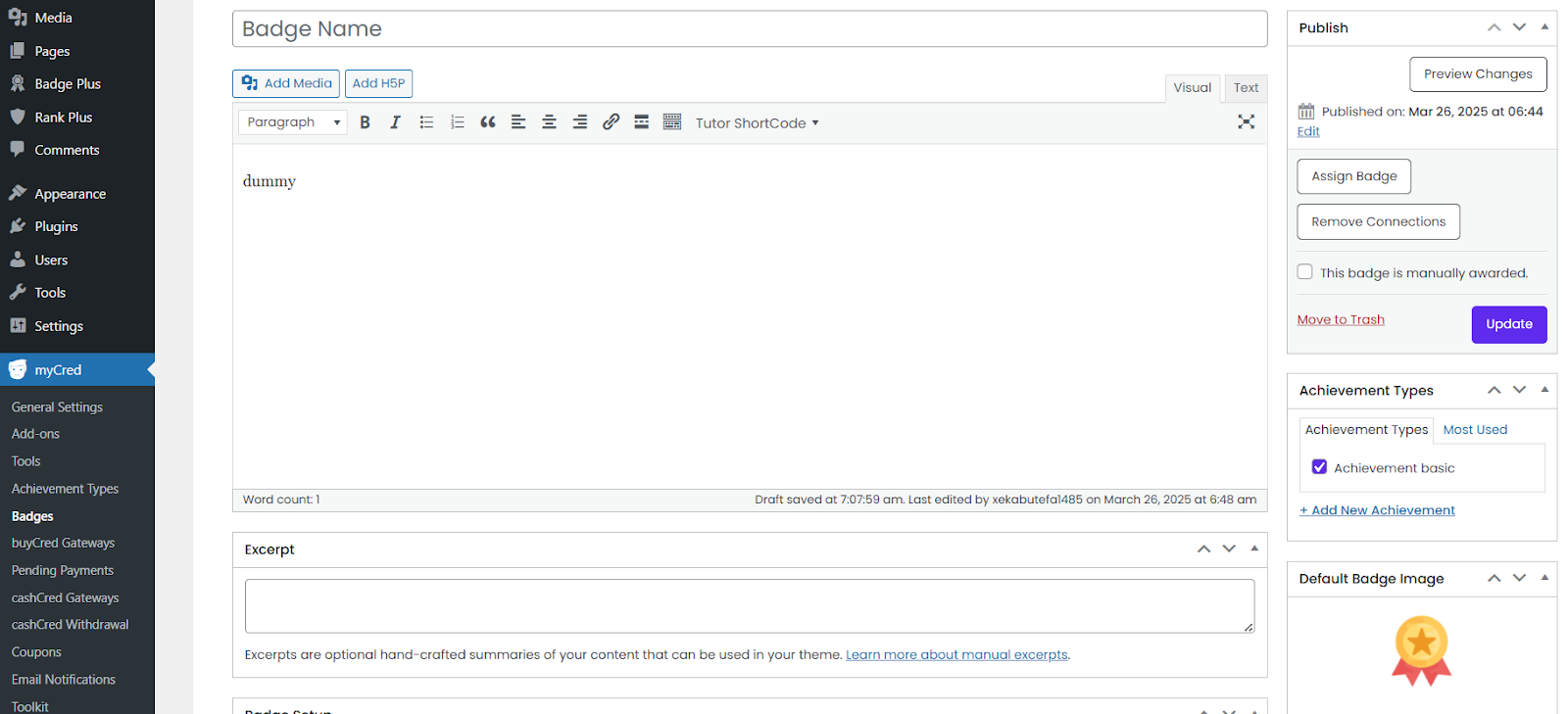
- Select references of what action you want to award a badge to.
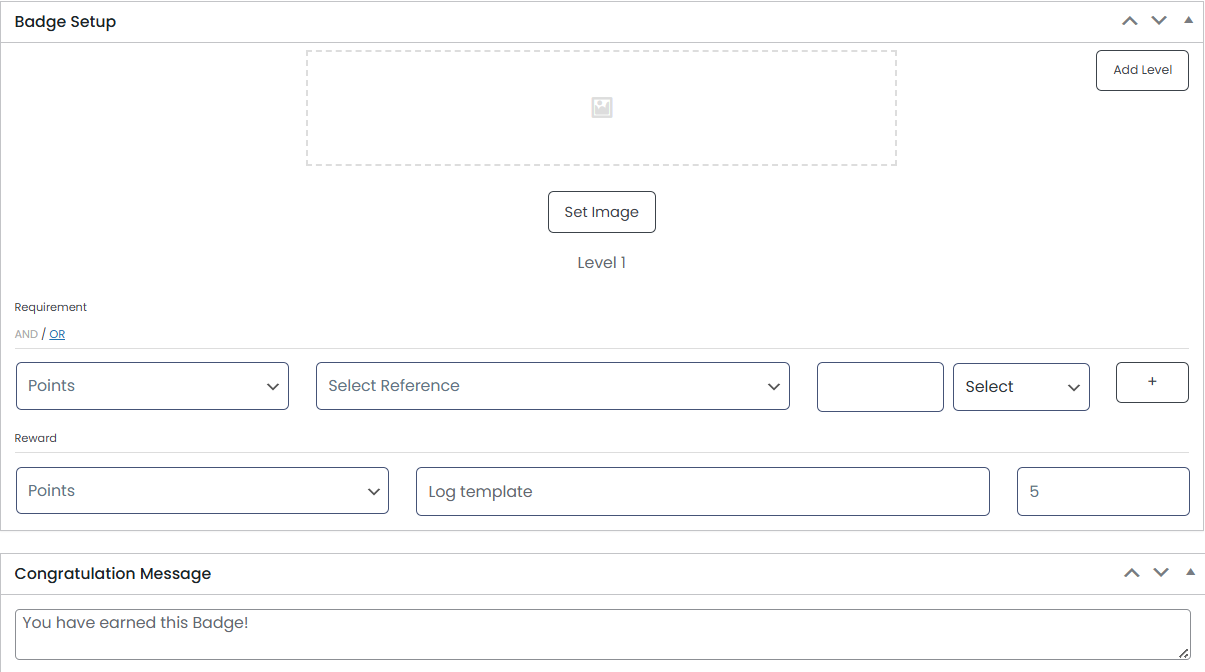
- Publish or Update