
Totalpoll
TotalPoll

This document provides a comprehensive guide for installing, enabling, and configuring the Total Poll addon within the Points and Rewards system. It includes detailed steps for setting up the integration, configuring point distribution, and monitoring user activity through logs.
1. Installation and Activation
Step 1: Access the Toolkit
- Log in to your platform’s administrative dashboard.
- Navigate to the Toolkit section from the main menu.
Step 2: Locate the Total Poll Addon
- In the Toolkit interface, use the search bar to locate the addon titled “Total Poll.”
- Once located, click on the addon to view its details.
Step 3: Enable the Addon
- Click the Enable button to activate the Total Poll addon.
- Upon successful activation, the addon will be integrated with the Points and Rewards system.

Configuration Steps
After enabling the addon, proceed with the configuration to define how users will earn points for participating in polls.
Step 4: Access the Points Hook Configuration
- Go to the main admin menu and click Points.
- From the dropdown or sub-menu, select Hooks.

- A new hook labeled “Total Poll” should now appear in the list.

Step 5: Define Points Logic
Within the Total Poll hook settings, configure the following parameters:
- Points Awarded
Specify the number of points a user should receive when they vote for the majority (winning) option in a poll. - Point Limits
Set the maximum number of points a user can earn from this hook to prevent excessive rewards. - Optional Conditions
Apply filters or restrictions, such as user roles, categories, or vote frequency, if needed.

3. Logging and Monitoring
Step 6: Configure Log Template
To ensure proper tracking and auditability of poll-related point transactions:
- Navigate to the Log Template settings within the Points system.
These records will appear in the Logs Table, offering transparency and traceability.

4. User Workflow
The following describes the end-user experience:
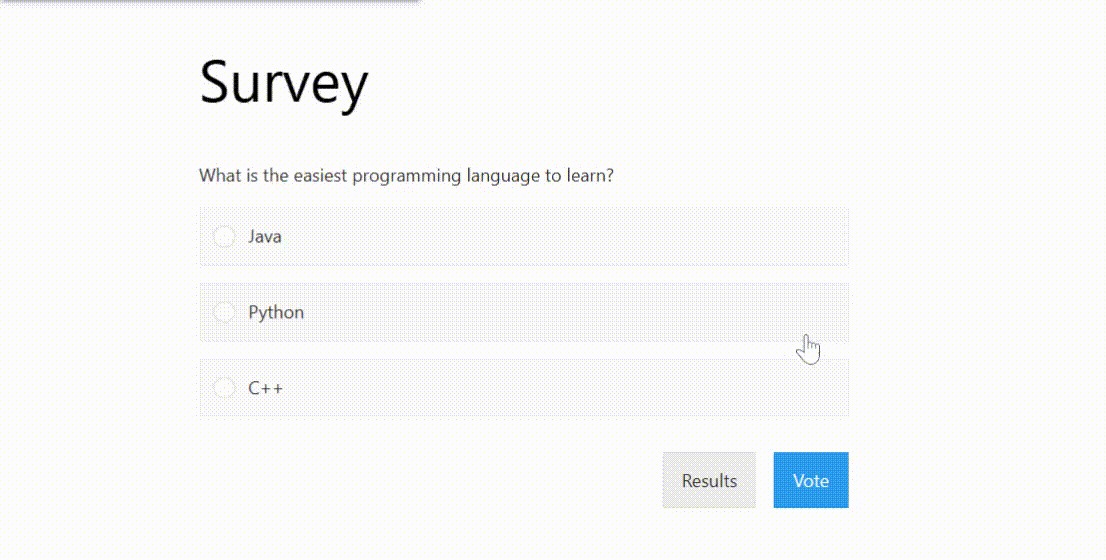
- A user votes in a poll created using the Total Poll addon.
- Once the poll ends and the majority choice is identified:
- If the user voted for the winning option, the system automatically awards them the configured points.
- Point limitations and conditions are enforced based on the configured hook settings.
- If the user voted for the winning option, the system automatically awards them the configured points.
- The transaction is logged, including the user’s details and the points they earned.

For assistance with setup or troubleshooting, refer to your platform’s documentation or contact the technical support team.