Reward your users with points for successfully purchasing WooCommerce referral products.
Note: The admin can paste the shortcode onto a page to create a dedicated product referral page. For additional guidance, please refer to this section.
Back-End Settings
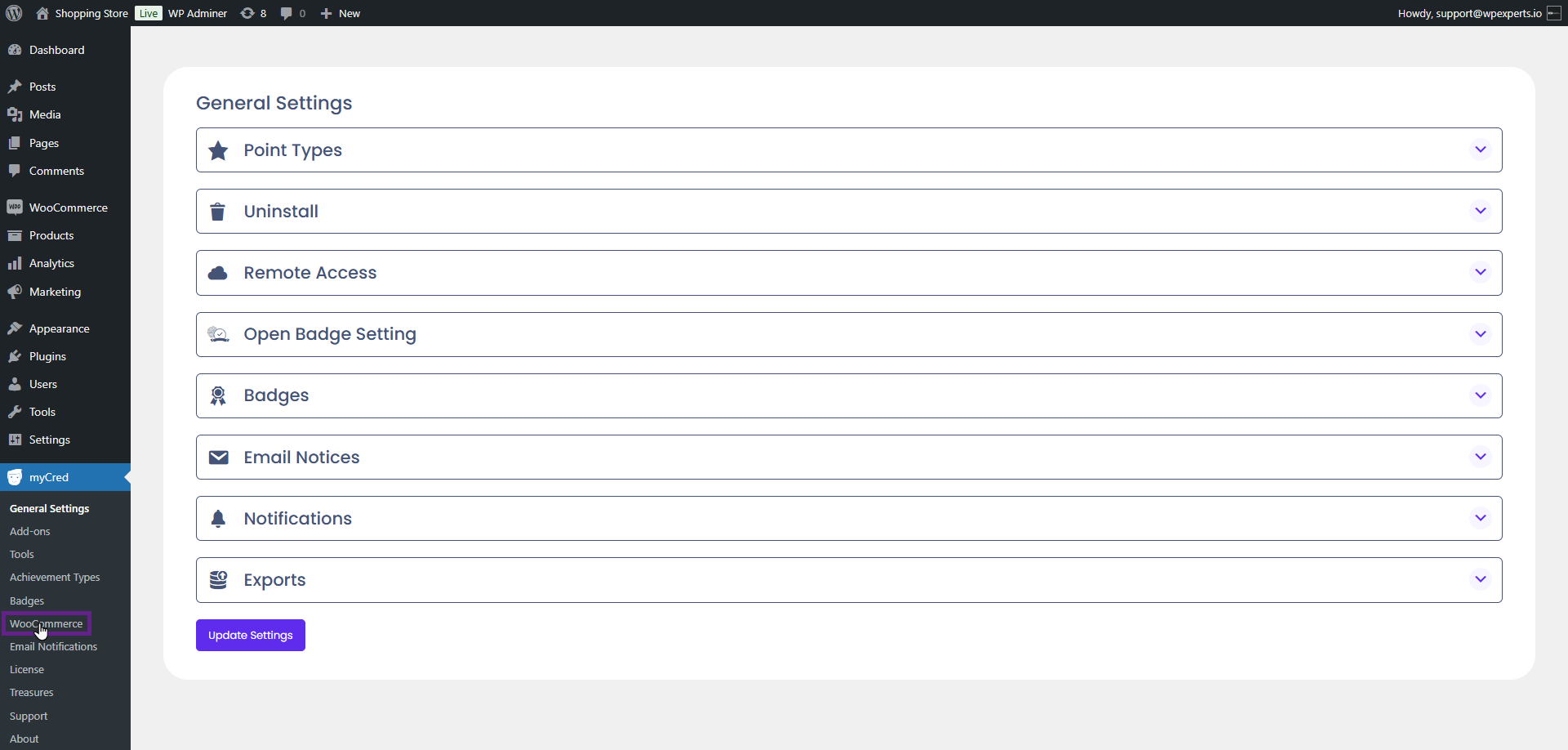
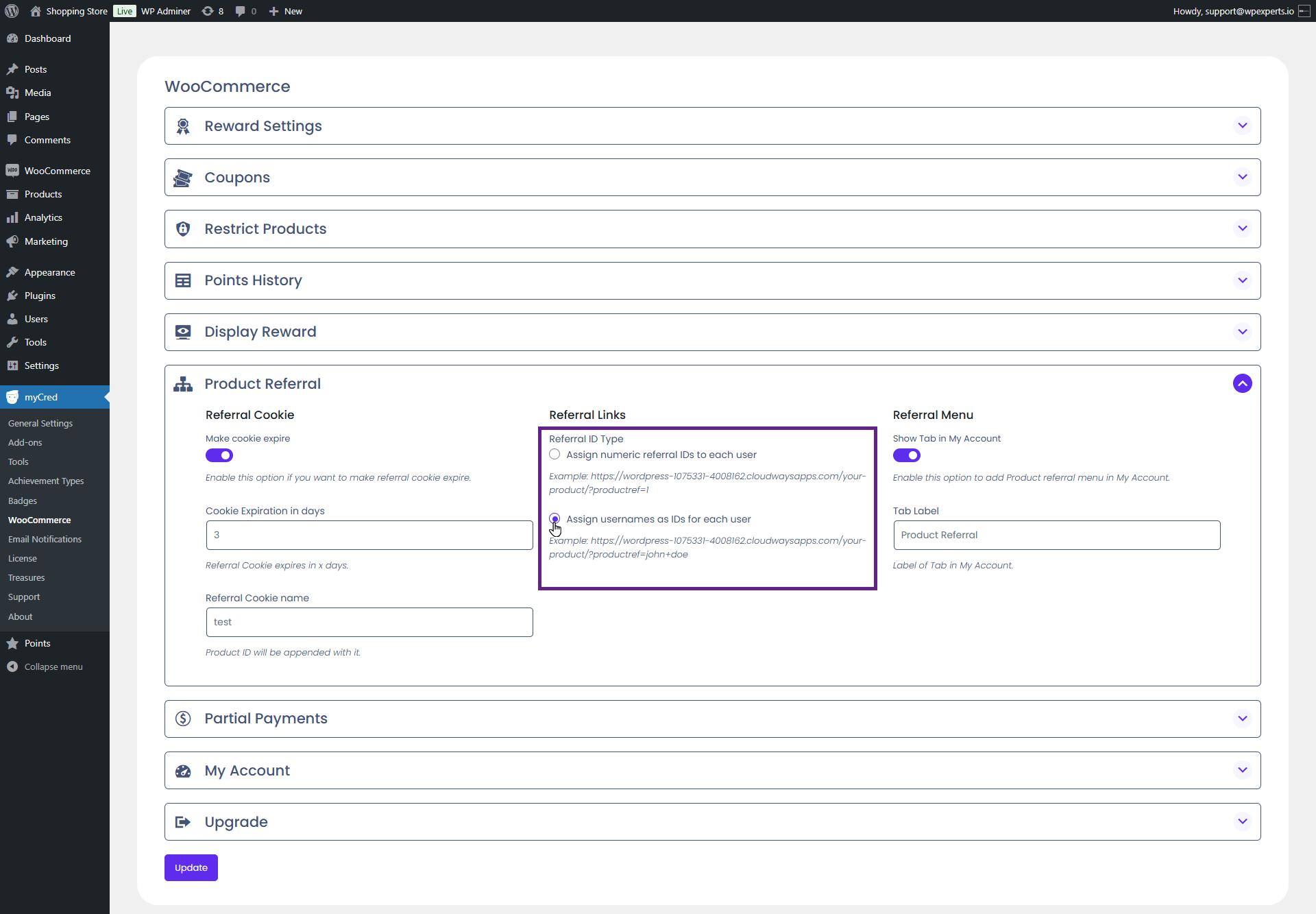
Go to the Admin Dashboard > myCred > WooCommerce.
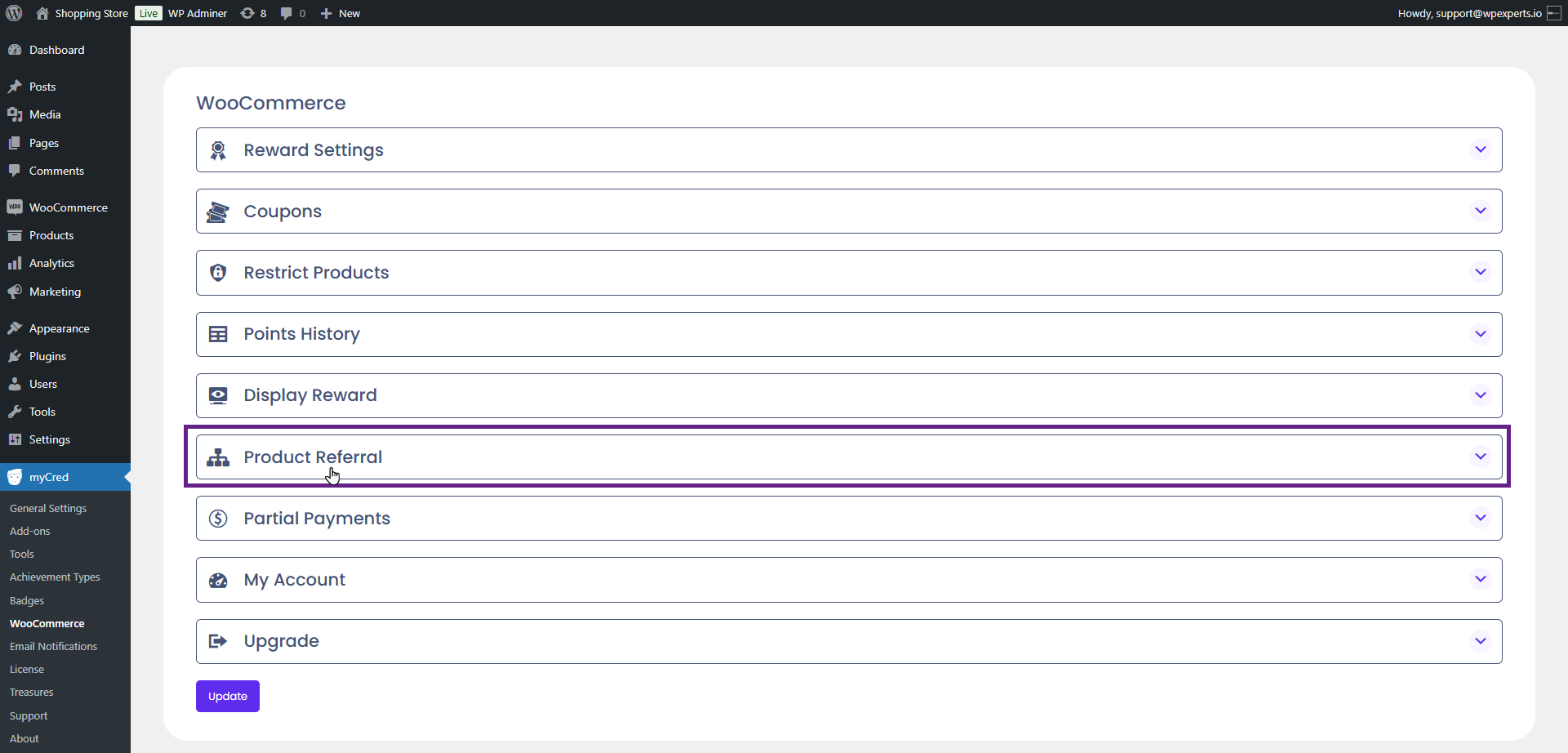
Navigate to the Product Referral section.
Referral Cookie
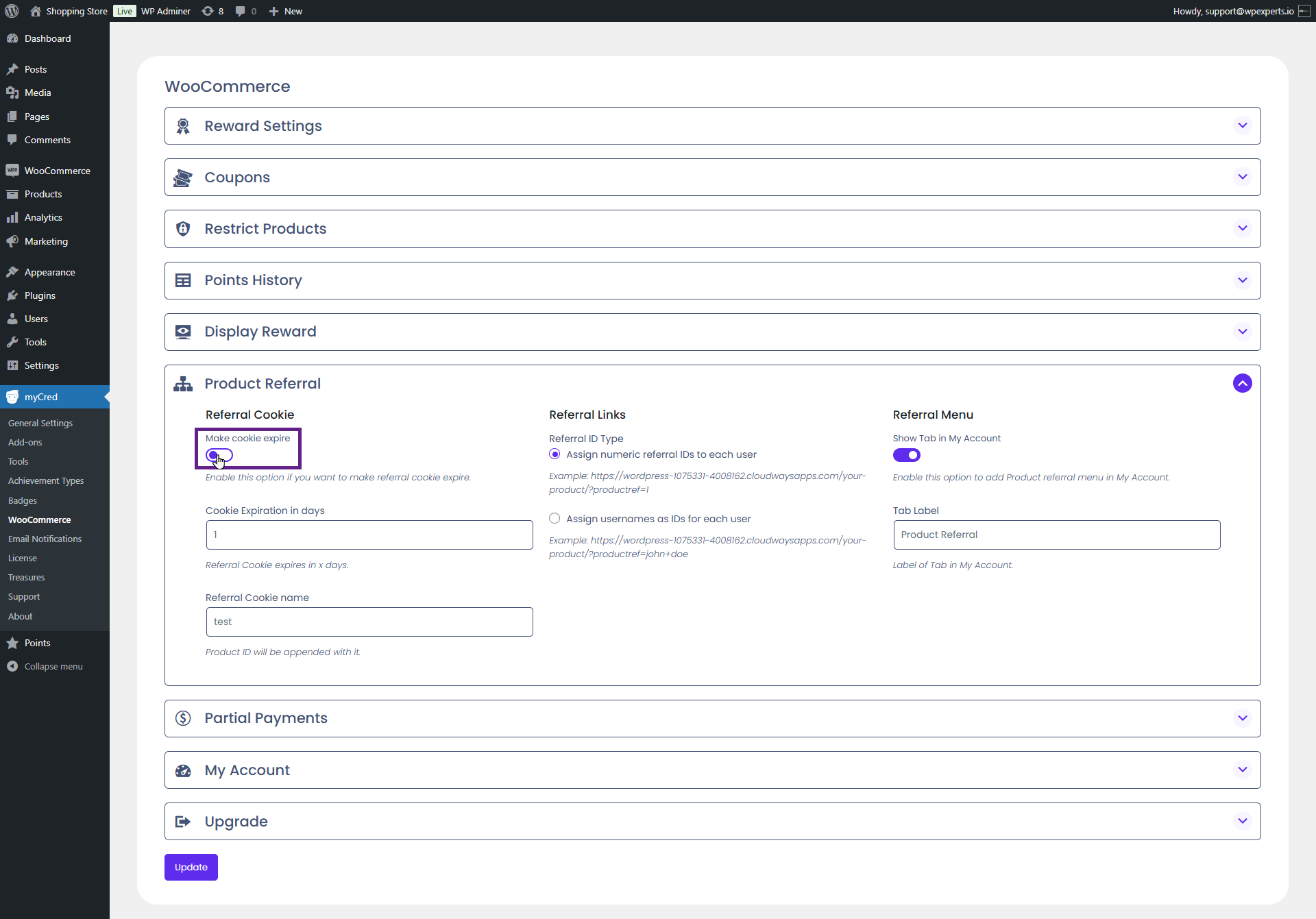
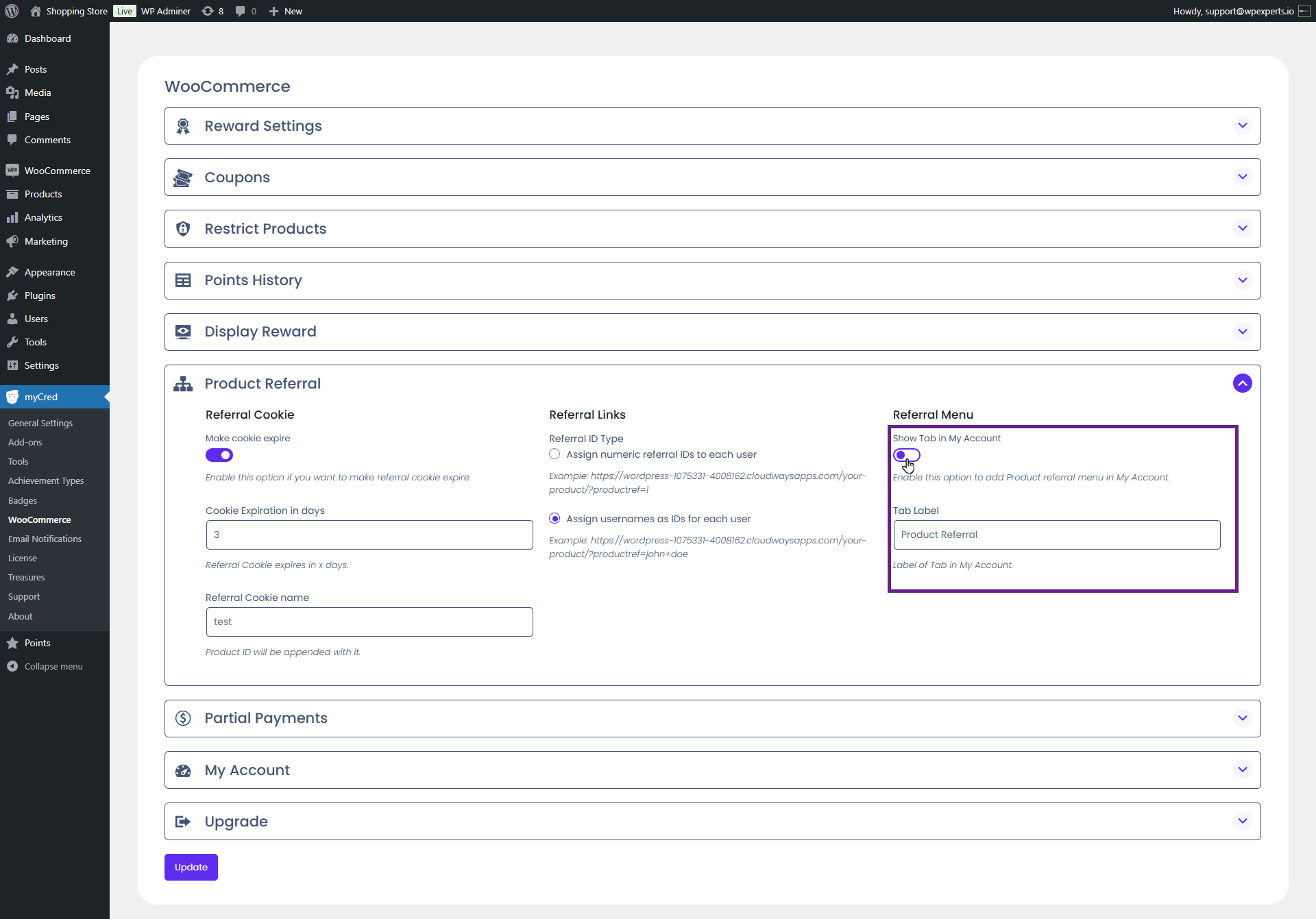
Within the referral cookie section, the admin has the option to set the referral cookie to expire if desired.
Back-End Settings
Enable the Referral Cookie toggle button.
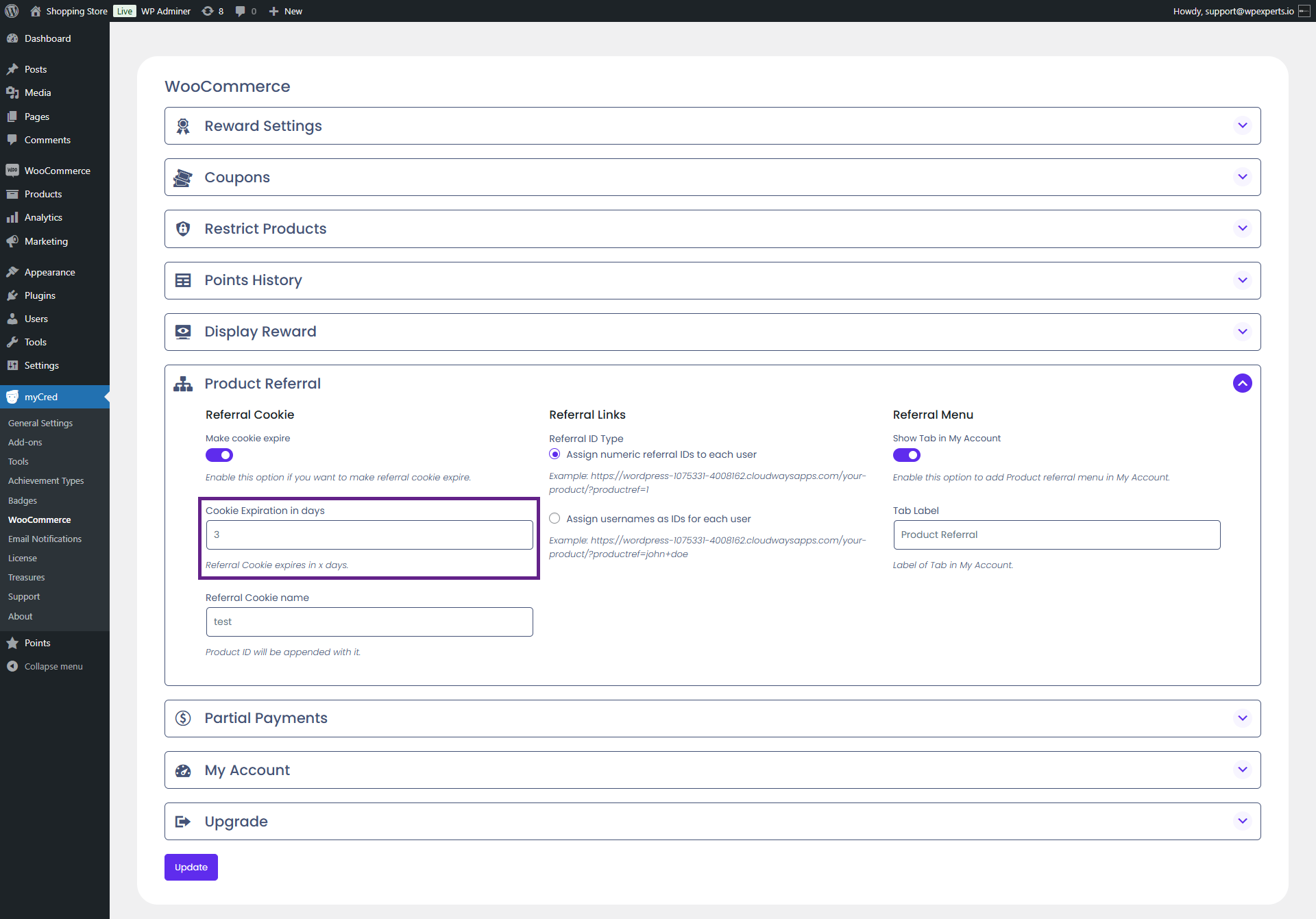
Specify the cookie expiration in days.
Enter the Referral Cookie name.
Referral Links
The admin can select the type of referral ID, with two available options:
Assign numeric referral IDs to each user
Assign usernames as referral IDs for each user
Back-End Settings
Select the type of the referral ID.
Front-End Impact
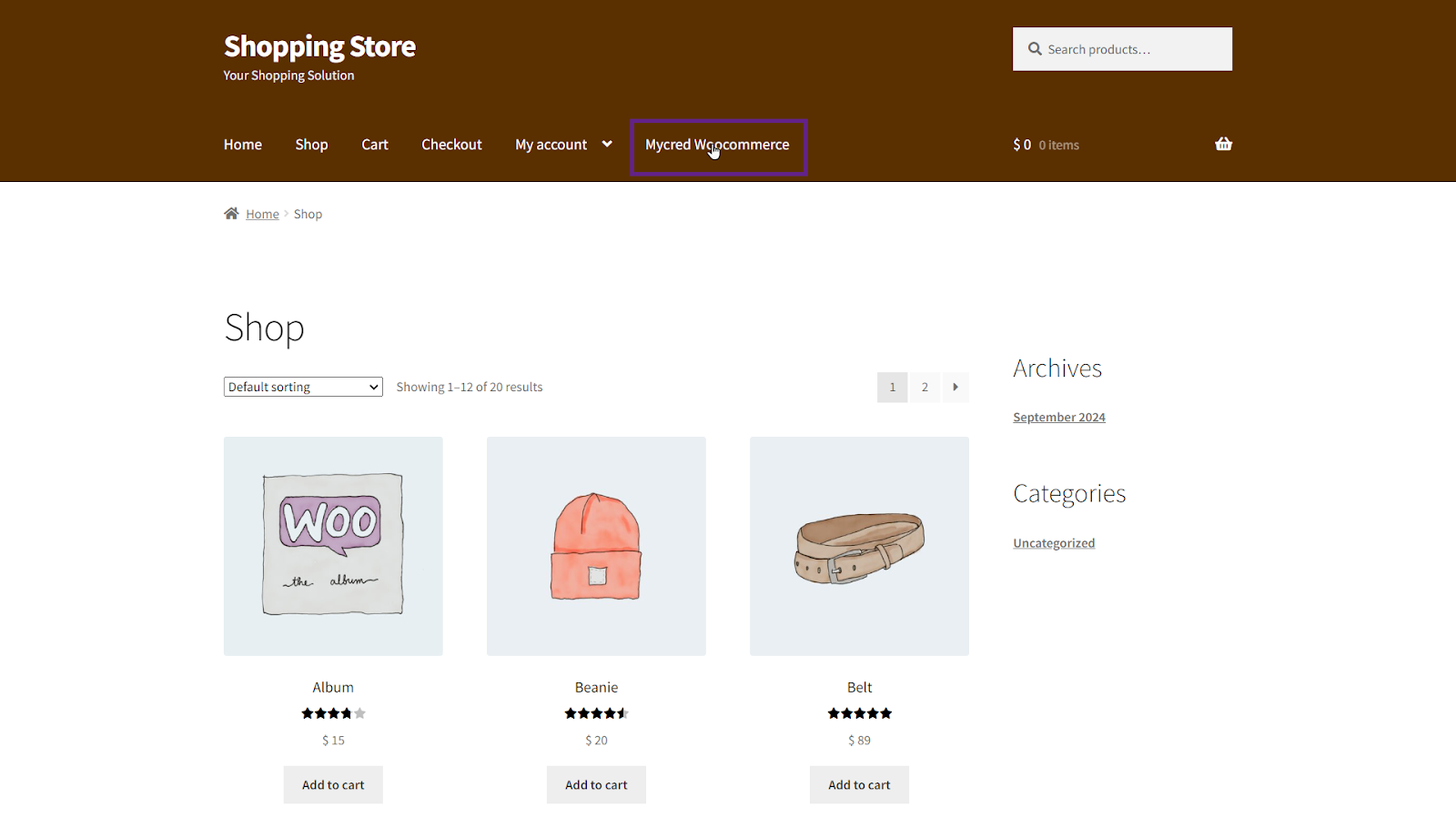
Go to the website.
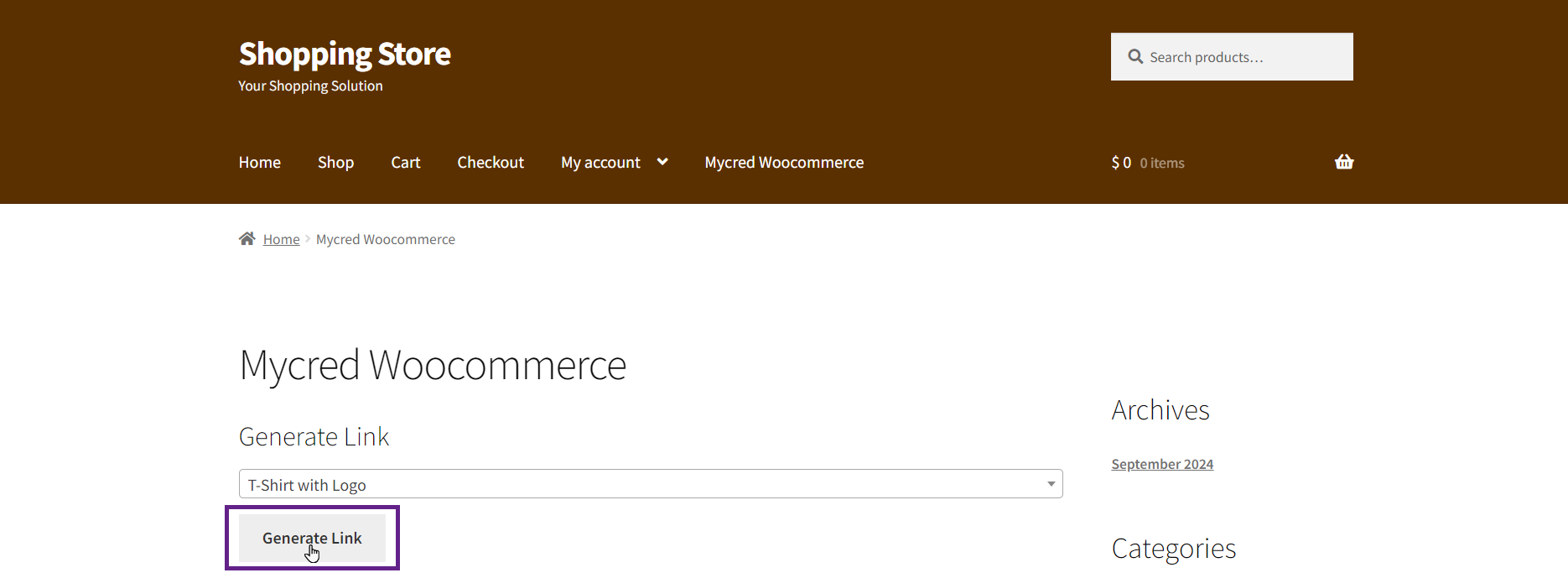
Navigate to the Mycred Woocommerce page.
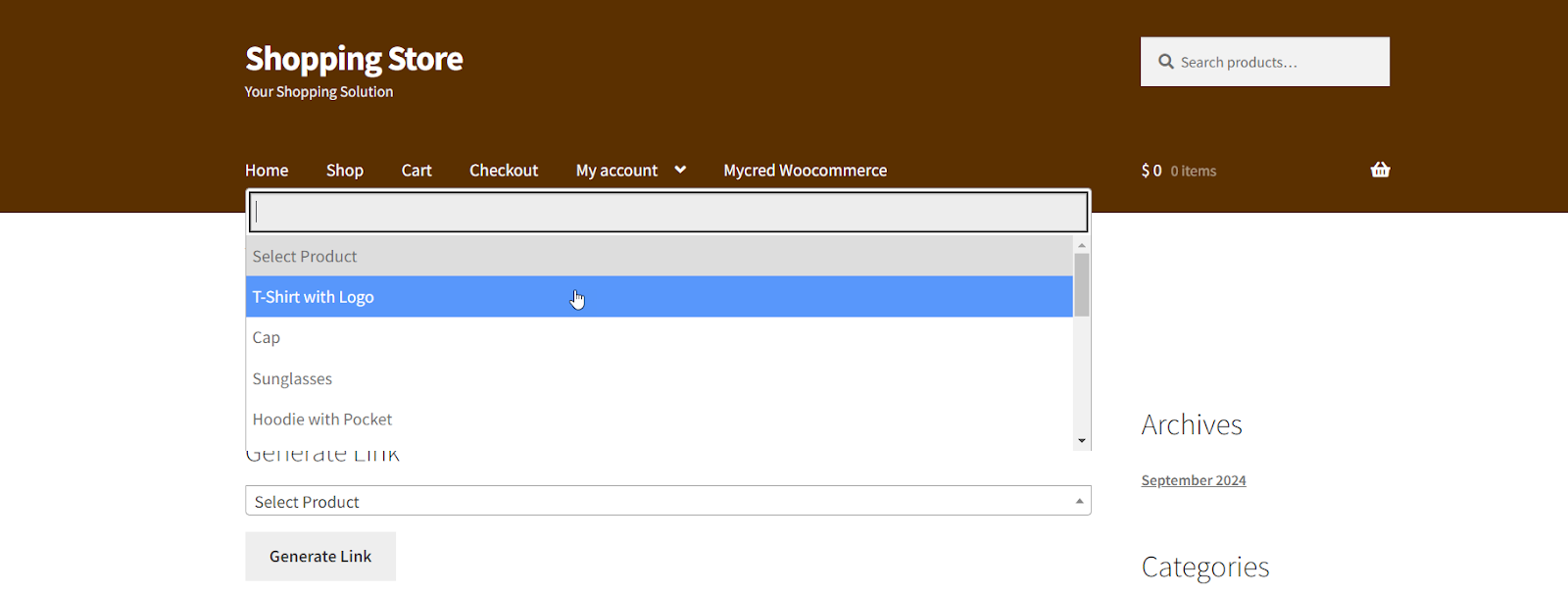
Select a product from the dropdown menu.
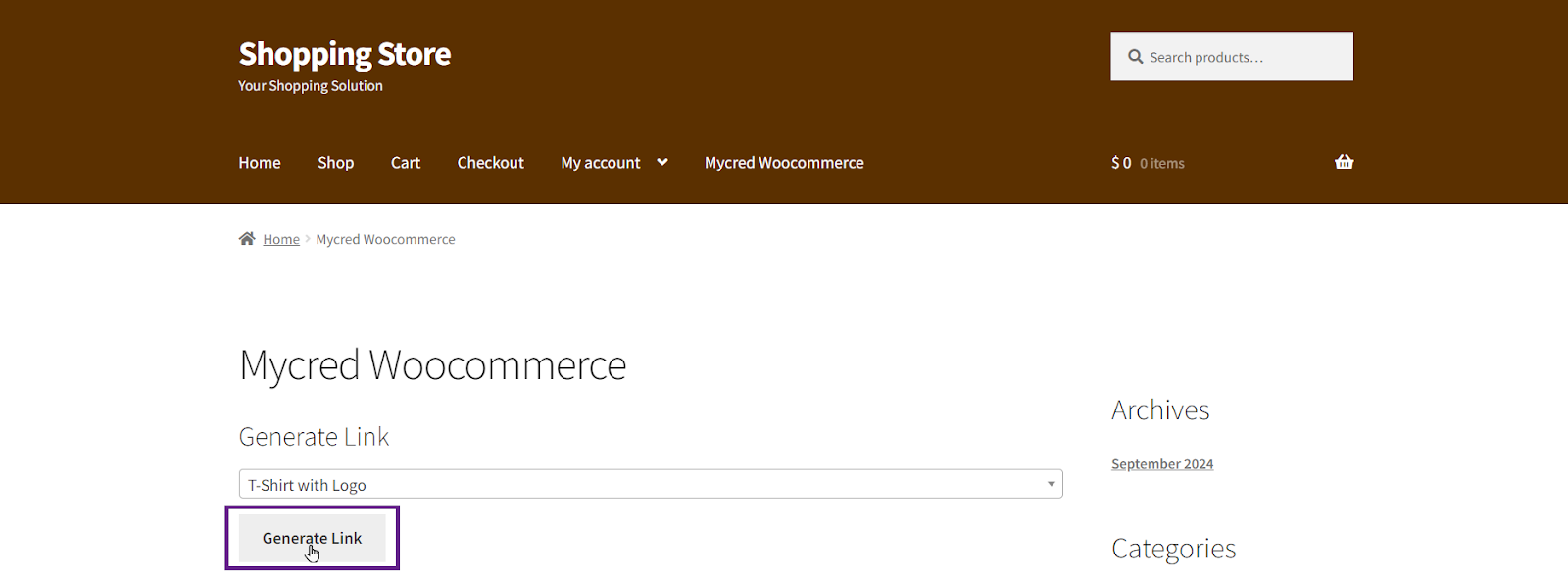
Once done, click the Generate Link button.
A referral link will then be generated based on the username.
Referral Menu
This option allows the admin to display the product referral menu on the My Account page.
Back-End Settings
Enable the Referral Menu toggle button.
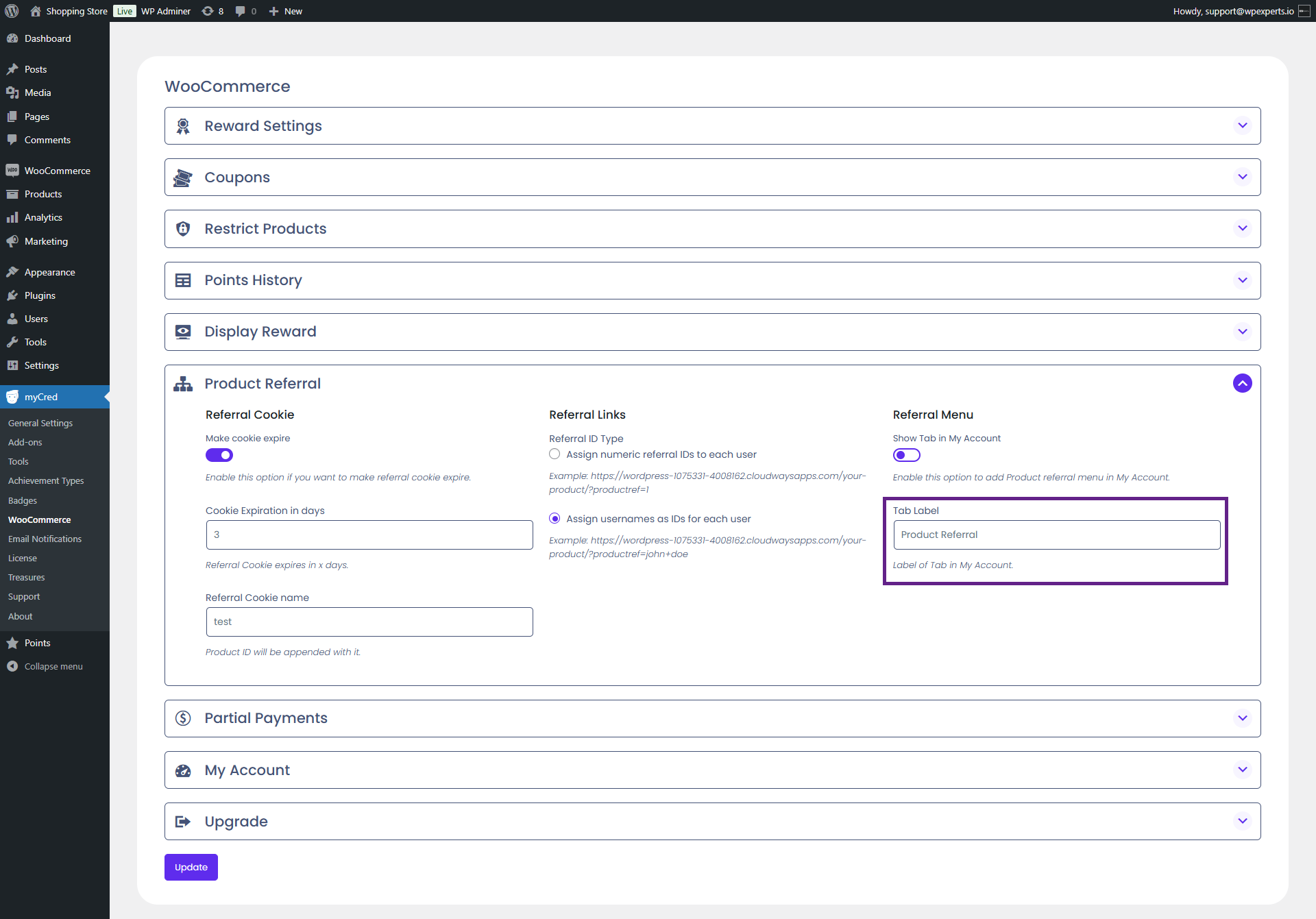
The admin can change the label of the tab from the Tab Label field.
Front-End Impact
Go to the website.
Navigate to the My Account page.
As you can see, the Product Referral tab is now visible.
Shortcode
Back-End Settings
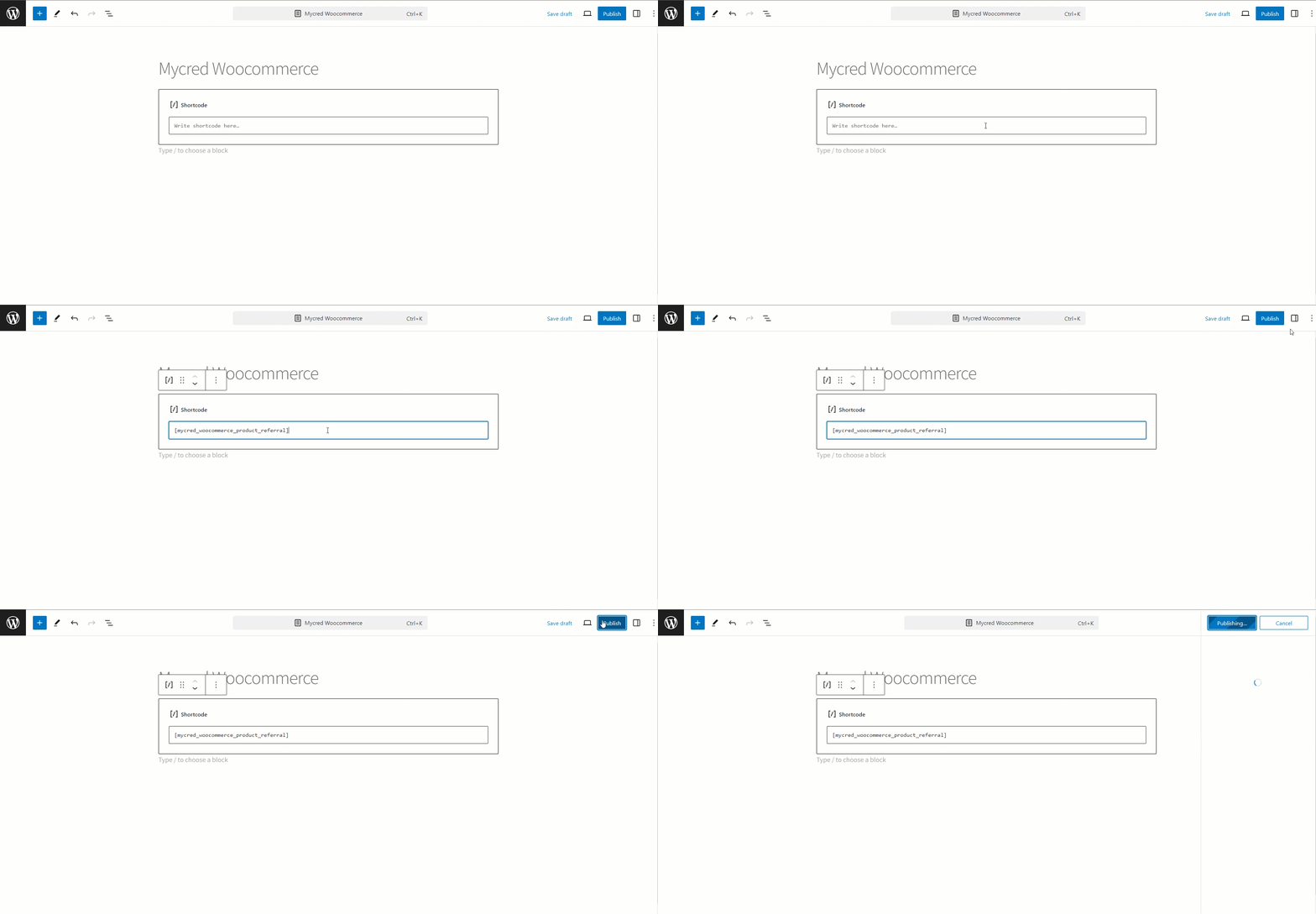
Go to Admin Dashboard > Pages > Add New Page.
Copy and paste the following shortcode: [mycred_woocommerce_product_referral].
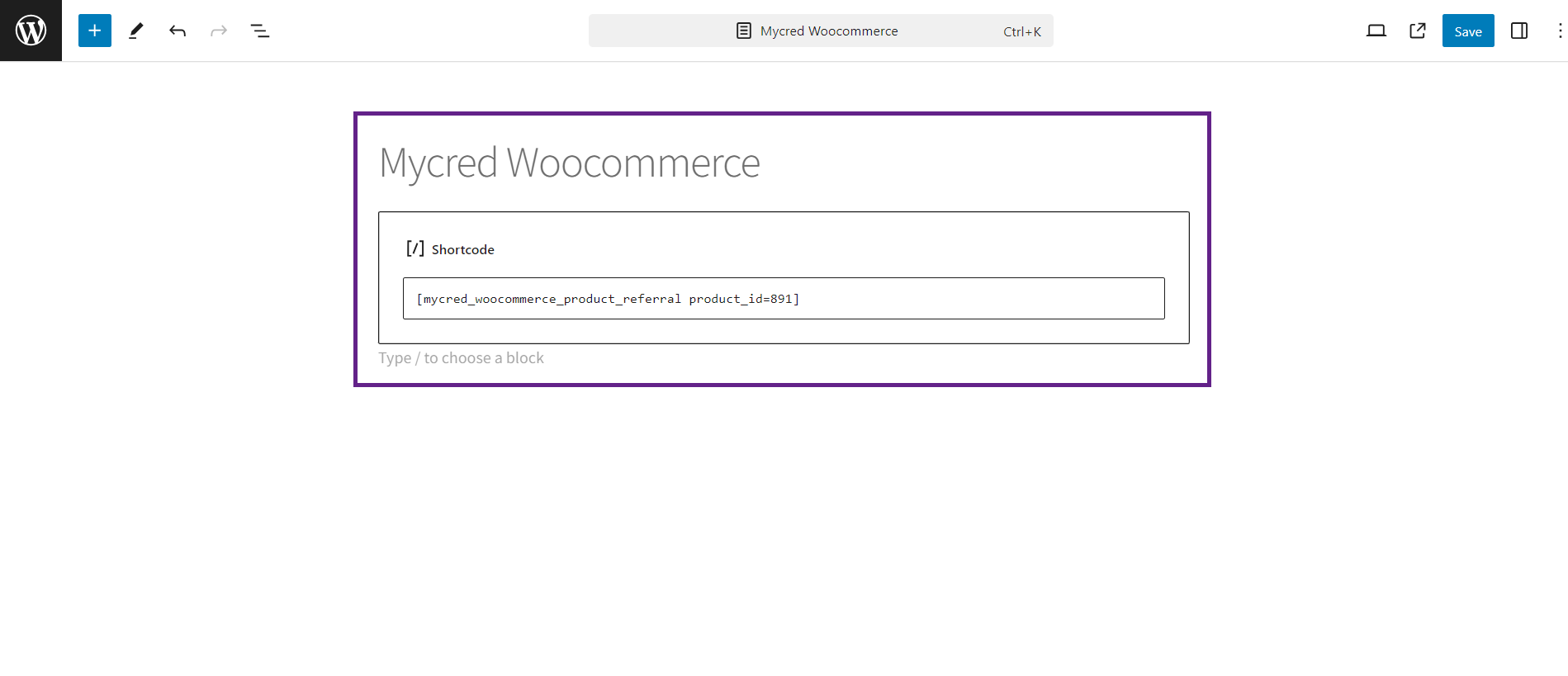
The admin can also insert a referral shortcode for a specific product.
Note: In our case, we use the general shortcode, not the specific referral product shortcode.
Front-End Impact
Go to the website.
Navigate to the Mycred Woocommerce page.
Select a product from the dropdown menu.
Once done, click the Generate Link button.
The referral link will then be displayed.
Hooks
The WooCommerce Product Referral hook enables the admin to reward the referrer and the referee when a referred product is purchased.
Back-End Settings
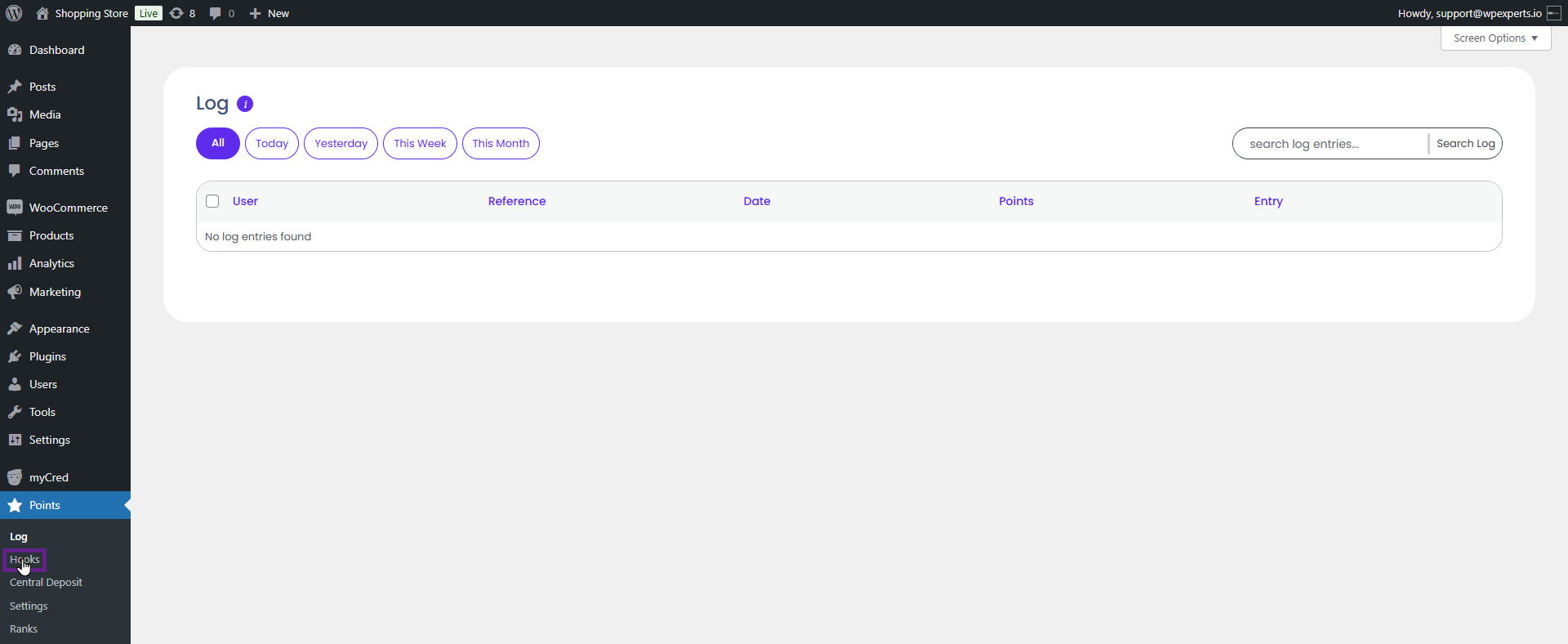
Go to Admin Dashboard > Points > Hooks.
Drag and drop the WooCommerce Product Referral hook into the Active Hooks section.
Set the points and limit for Referrer and Referre.
Front-End Impact
Go to the website.
Navigate to the Mycred Woocommerce page.
Now select a product.
Once done, click the Generate Link button.
A link will be generated. Copy the link and share it with the referee.
Note: This hook only applies to new users. The referrer and referee will receive points only when a new user makes their first purchase of the referred product.
Front-End Impact ( Referee)
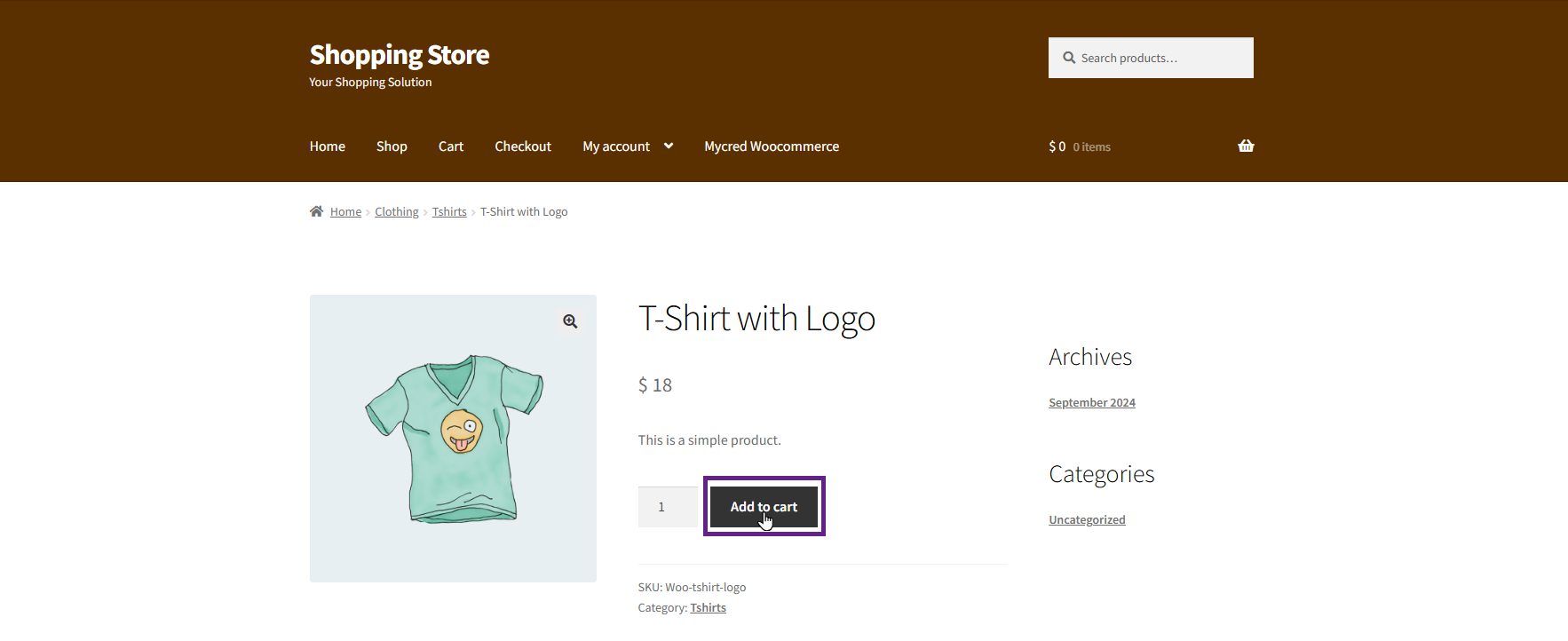
Add the referral product to the cart.
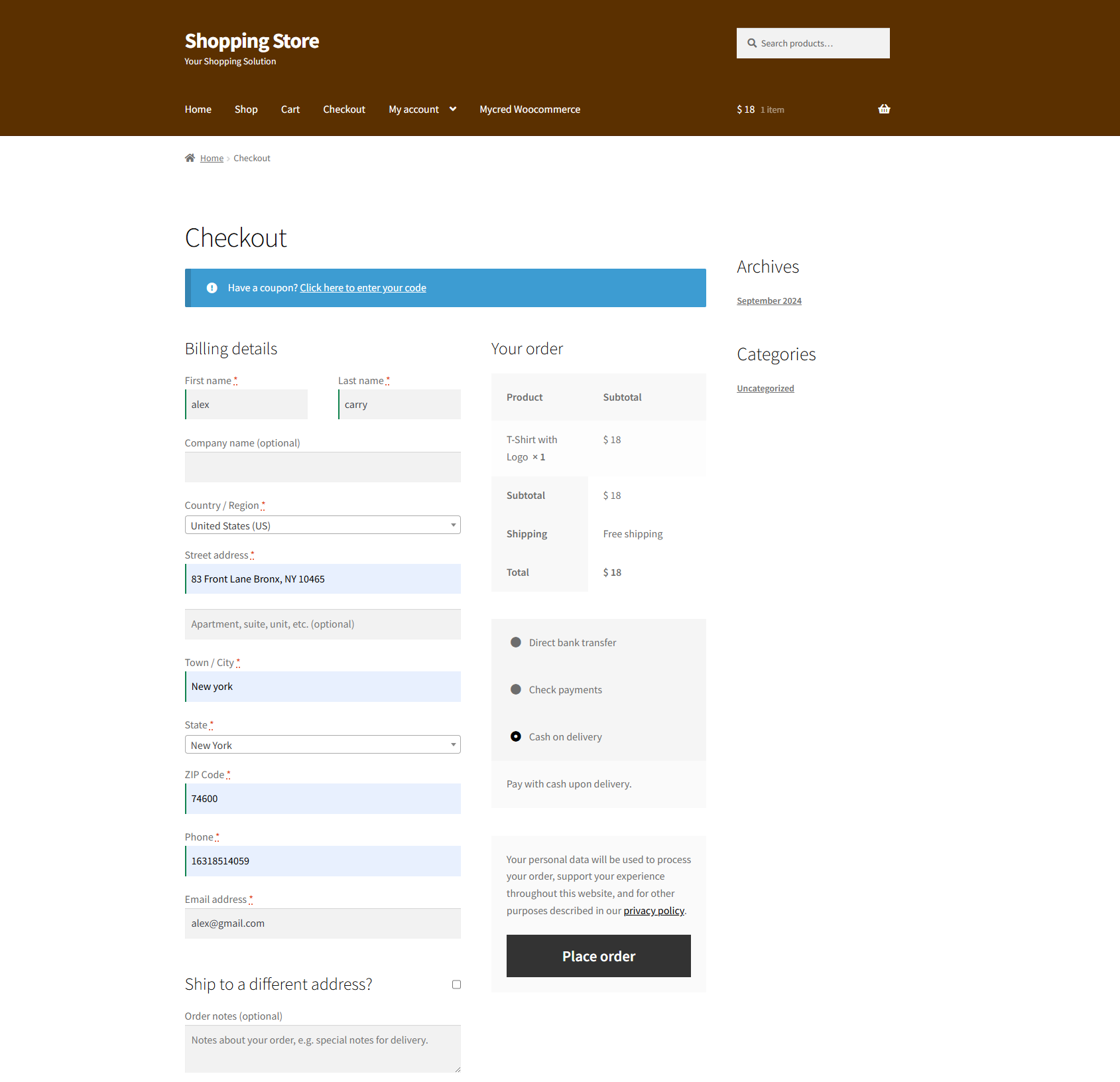
Proceed to the Checkout page.
Now click the Place Order button.
Once done, the user will receive the points.
Front-End Impact ( Referrer)
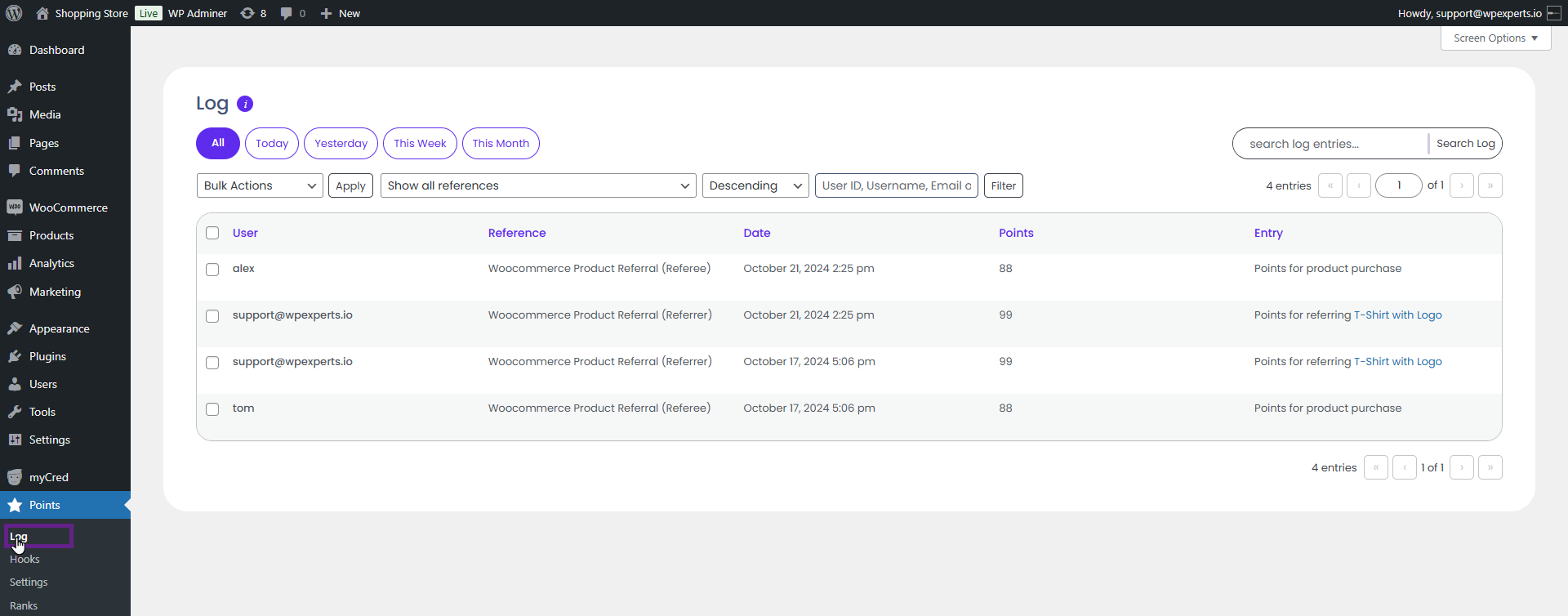
The admin can view the earned points in the log.
Go to the Admin Dashboard > Points > Log.
As you can see, the admin has received the points for the referral.