WC Vendor
WC Vendor
The WC Vendors integration with the myCred plugin allows the admin to choose from three commission types and calculate values accordingly. It also enables adding commission based on product ratings.
The admin can set commission in two ways: either on a specific product or as a global commission. A global commission will apply to all products. Please note that the WC Vendors Pro version is required for using the global commission feature.
Back-End Settings
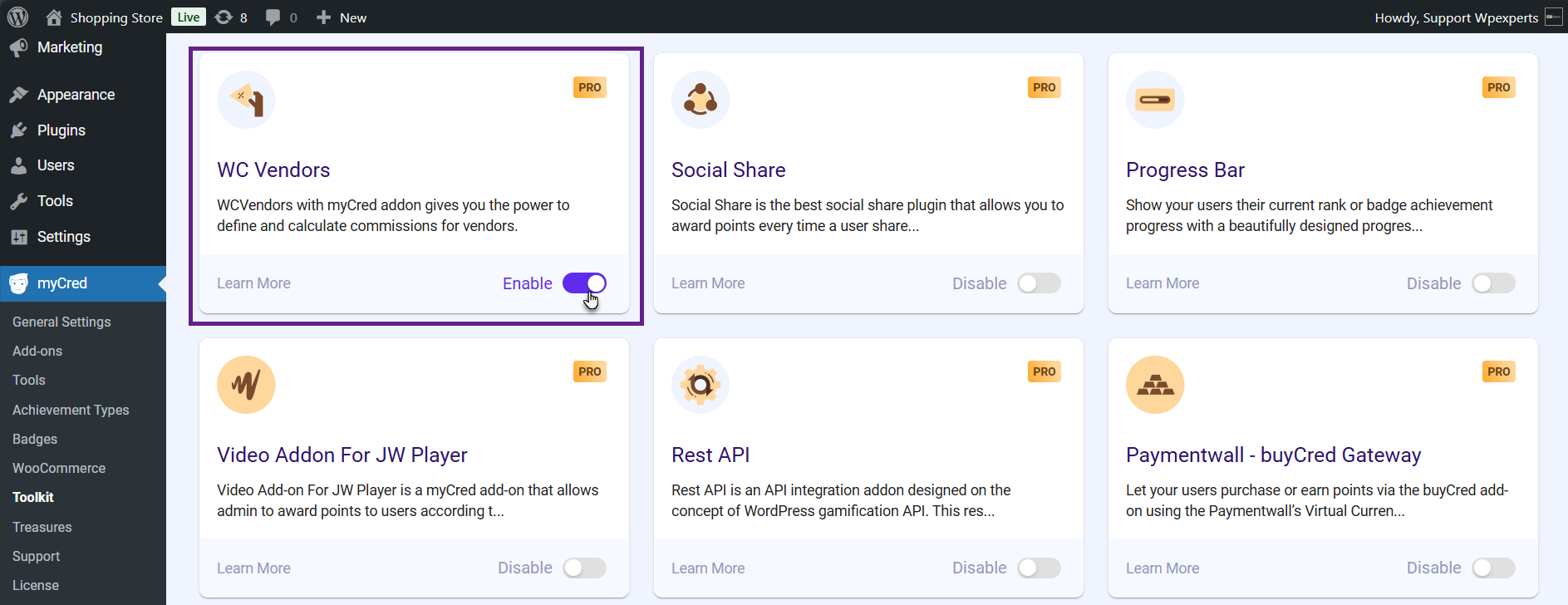
- Go to the Admin Dashboard > myCred > Toolkit.

- Activate the WC Vendors toggle button.
Note: Make sure the WC Vendors Marketplace plugin is installed.
- Now, go to the Admin Dashboard > Products > All Products.

- Add or edit a product.

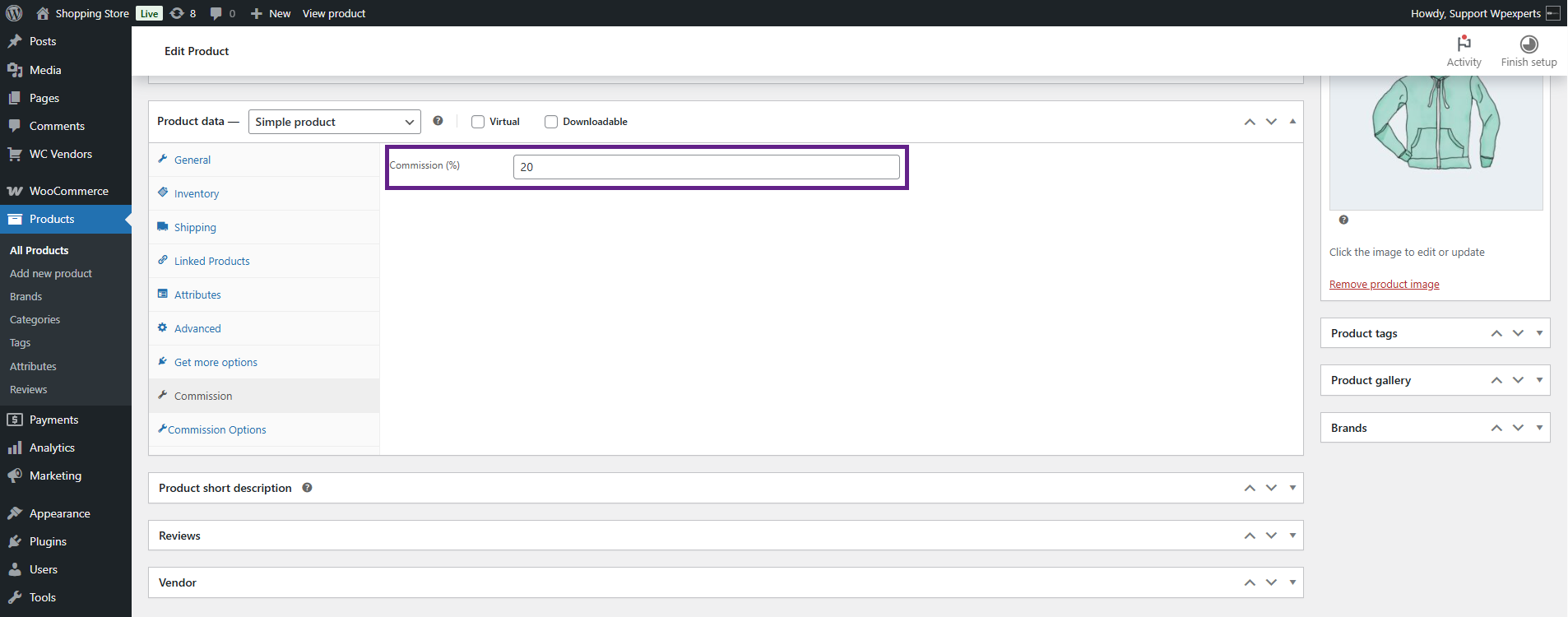
- Navigate to the Commission tab.

- Enter the commission percentage value.
- Next, go to the Commission Options tab.
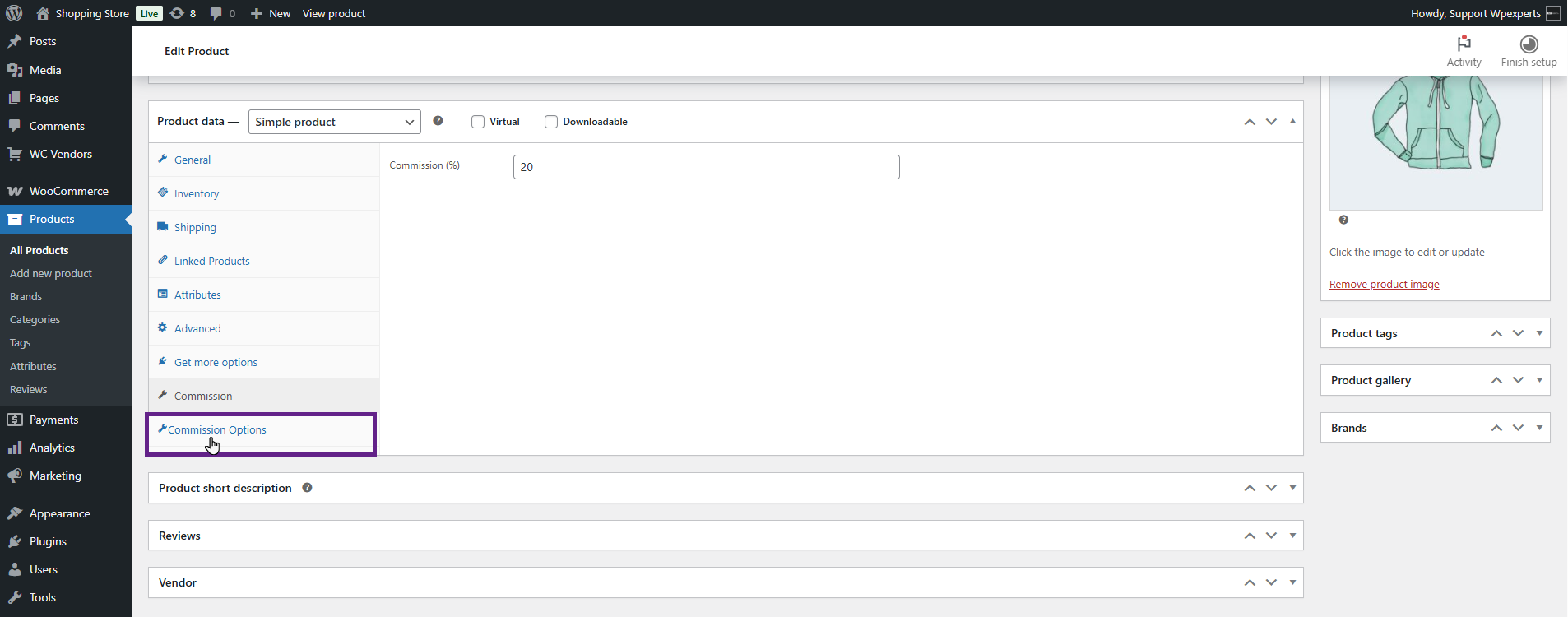
- Under the Commission Options tab, there are three choices: Commission in Points, Commission in Cash, or Commission in Points & Cash.
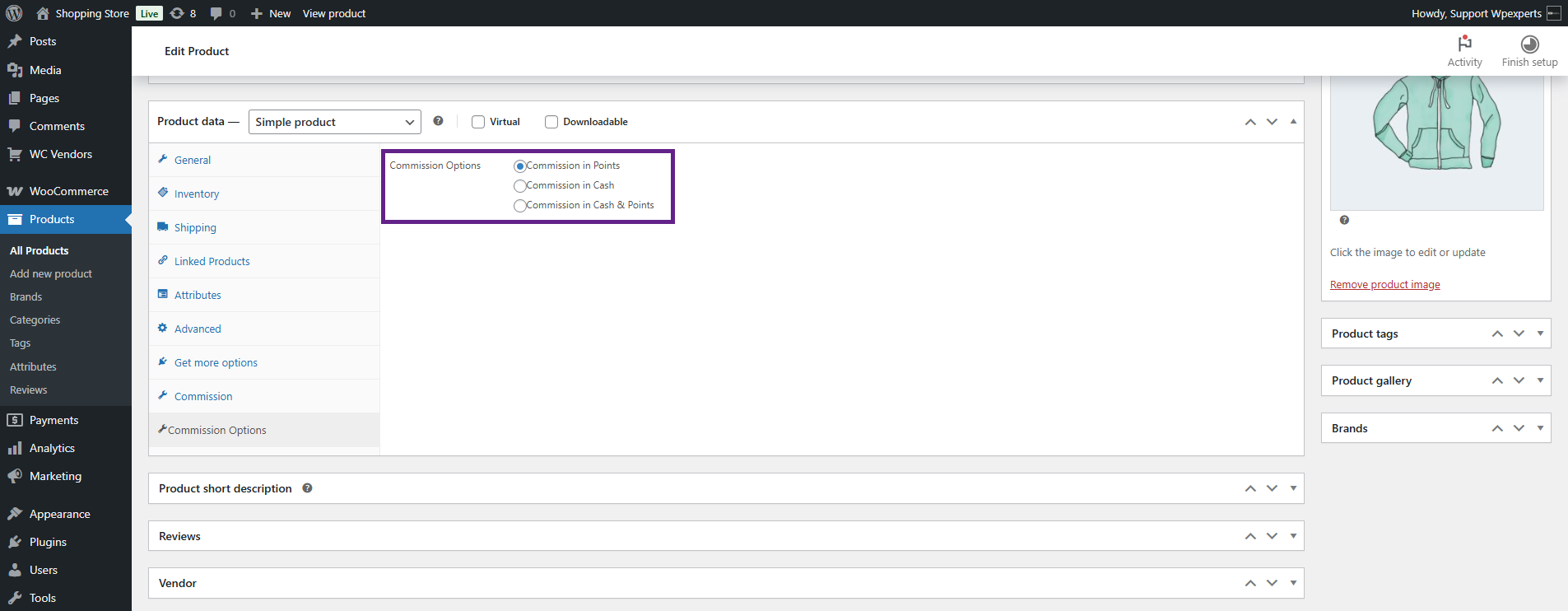
- Select the commission type. In this case, we have selected the Commission in Points option.

- Next, select the vendor.
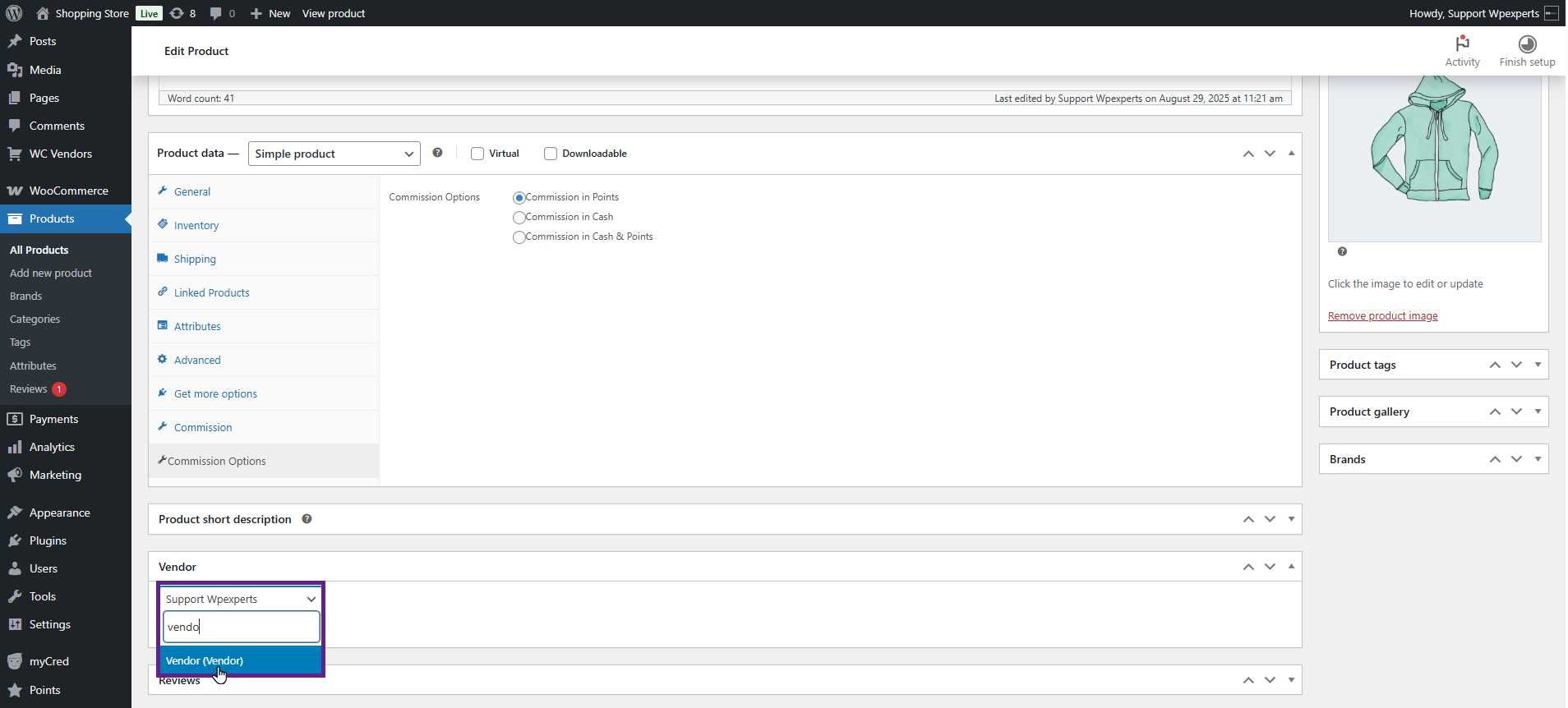
- Once done, click the Update button.

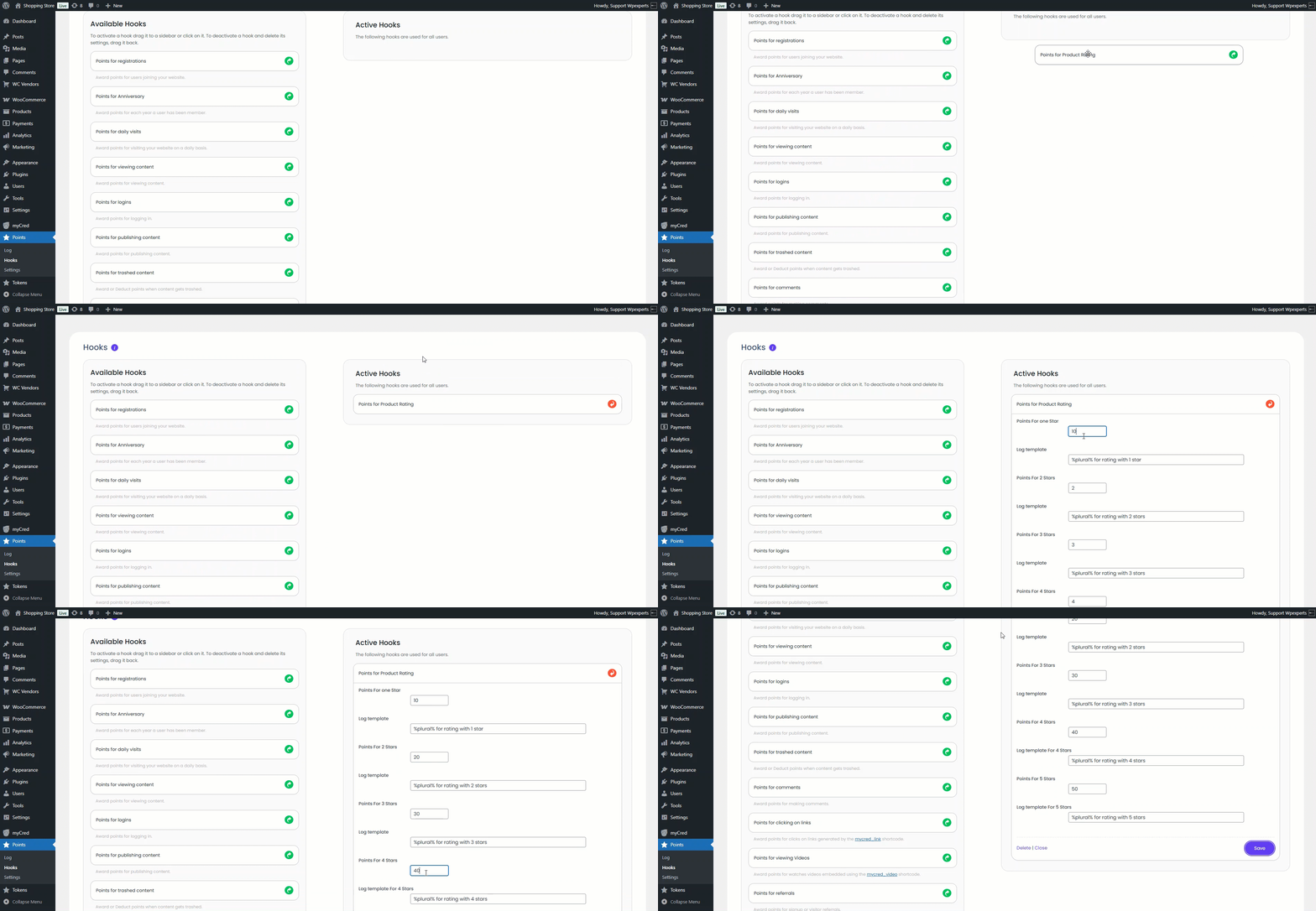
- Now, navigate to the Admin Dashboard > Points > Hooks.
- Drag and drop the Points for Product Rating hook into the Active section, and adjust the settings according to your needs.
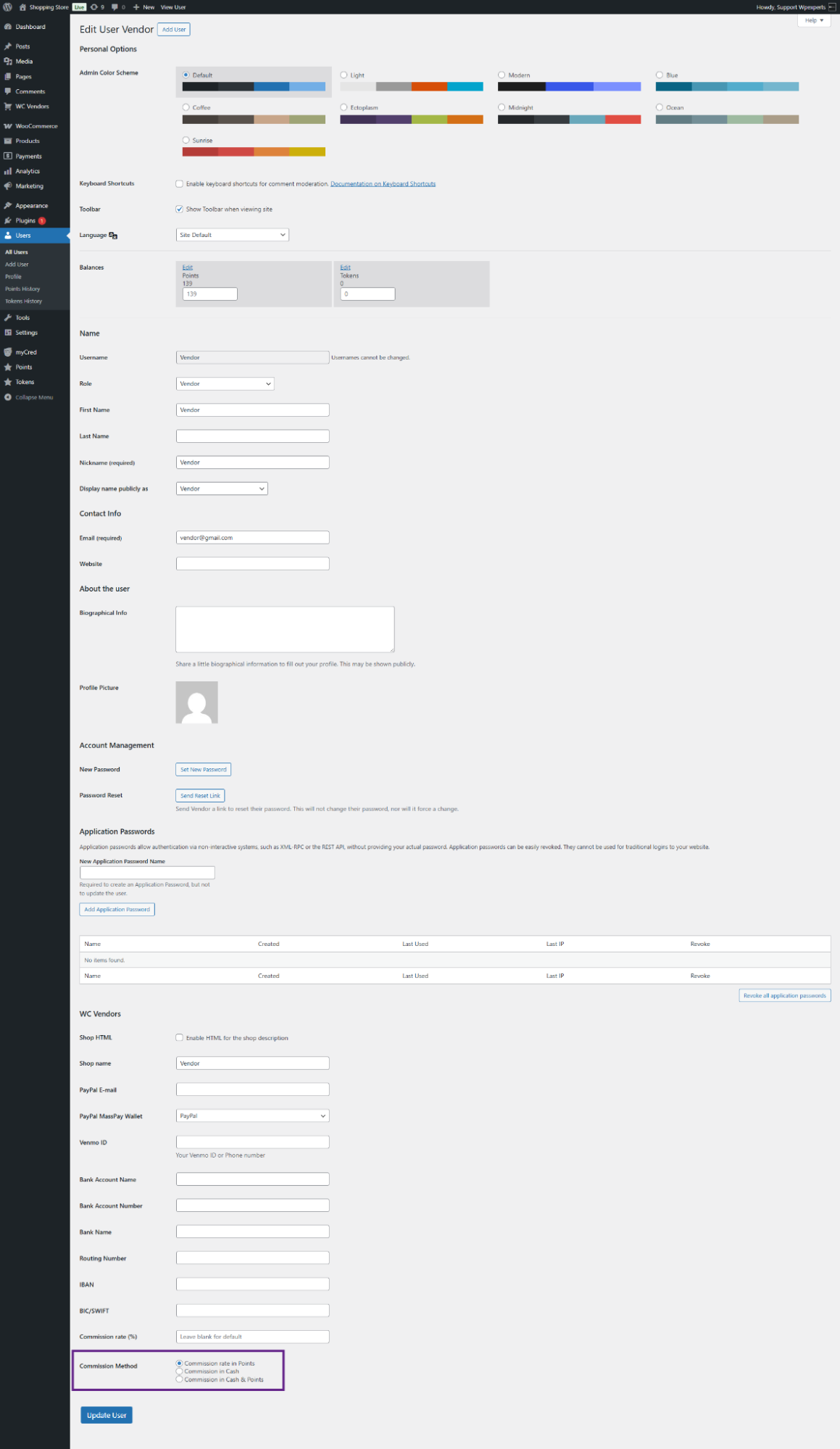
- The admin can set commission based on user roles. To do this, navigate to Admin Dashboard > Users > All Users and select the vendor. Within the vendor’s settings, the admin can choose the commission method.
System Impact
- Go to the website.
- Navigate to the Shop page.
- Purchase the product on which the commission has been applied.
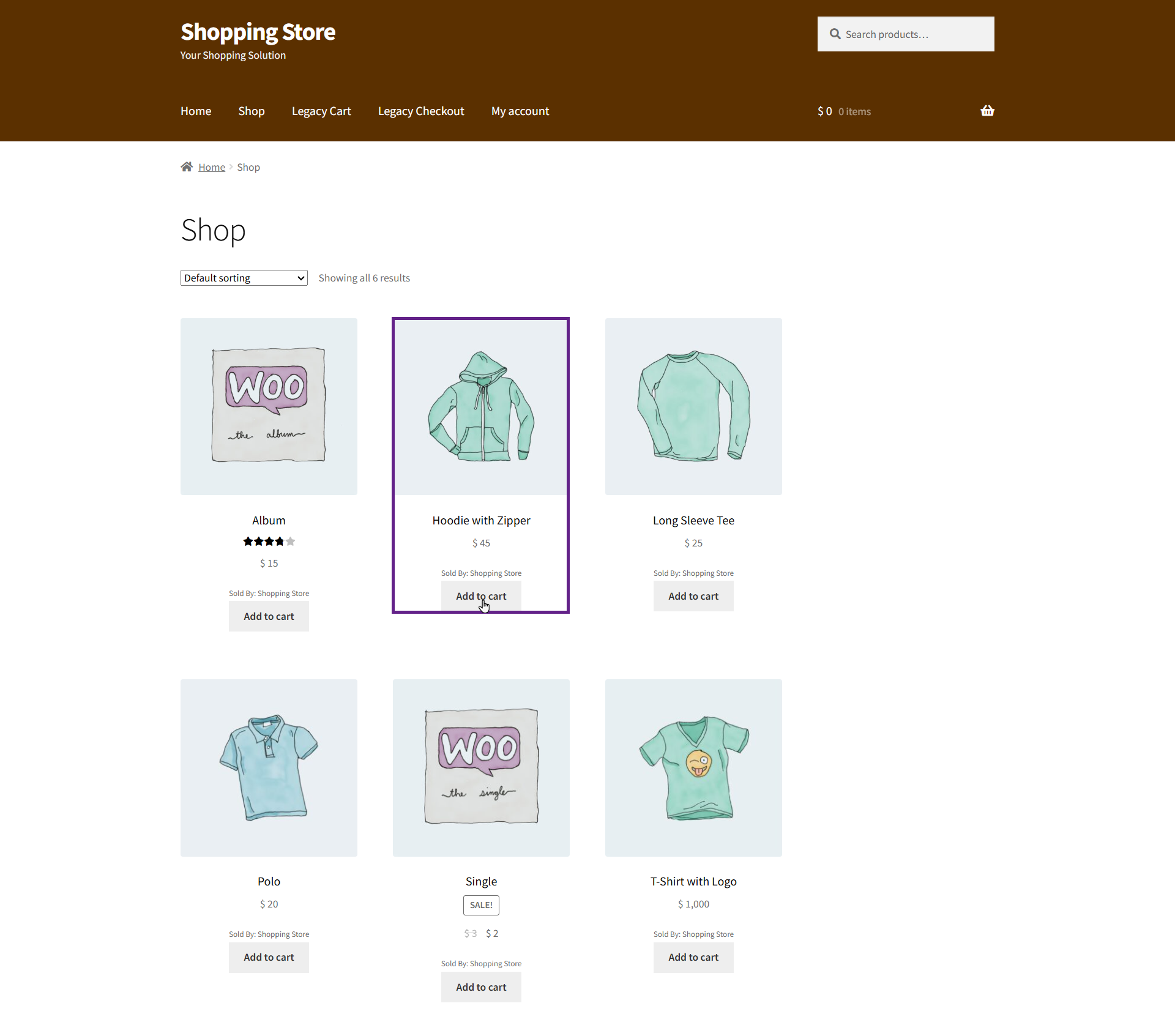
- Once purchased, the vendor will receive the defined commission. In our case, the vendor will receive a 20% commission on the product price in the form of points. To verify this, navigate to Admin Dashboard > Users > All Users.
- Edit the vendor profile.

Before:
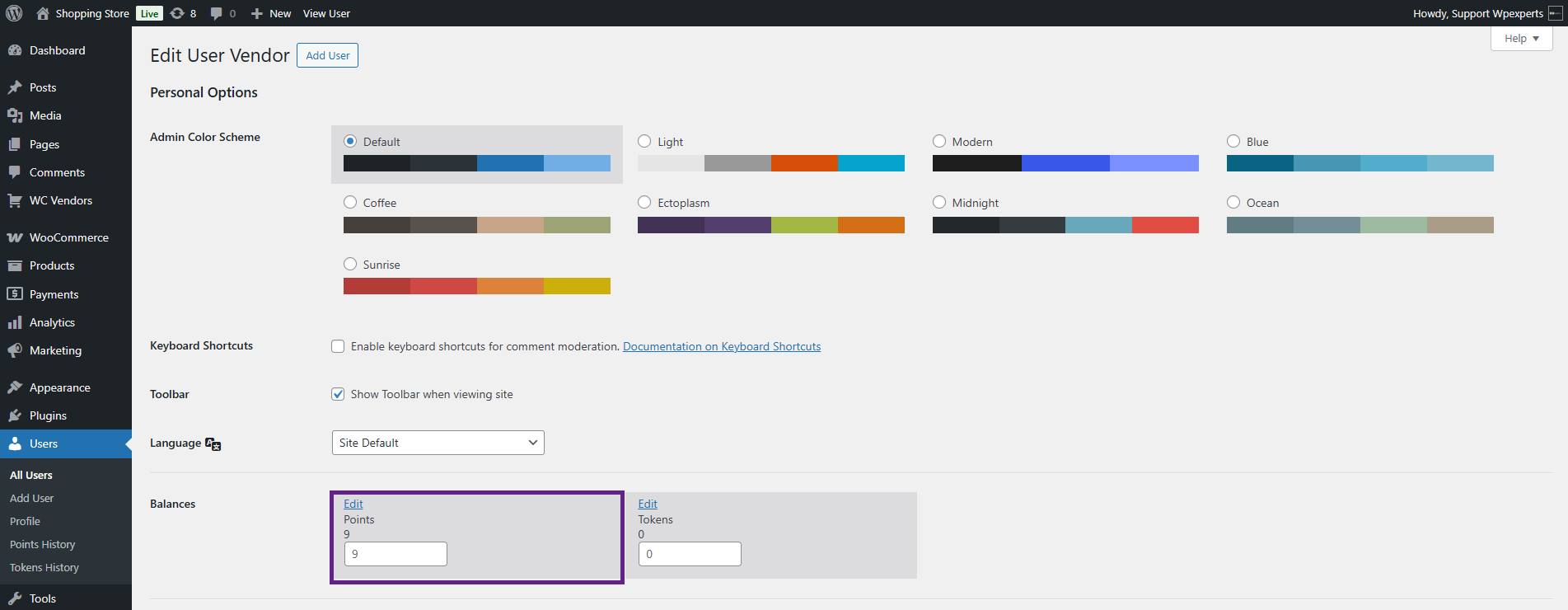
- As you can see, the vendor currently has 0 points.

After:
- After the user purchased the product, the vendor received their commission. In this case, the commission rate is 20%. For example, if a product costs $45, then 20% of 45 is 9, so the vendor is awarded 9 points.
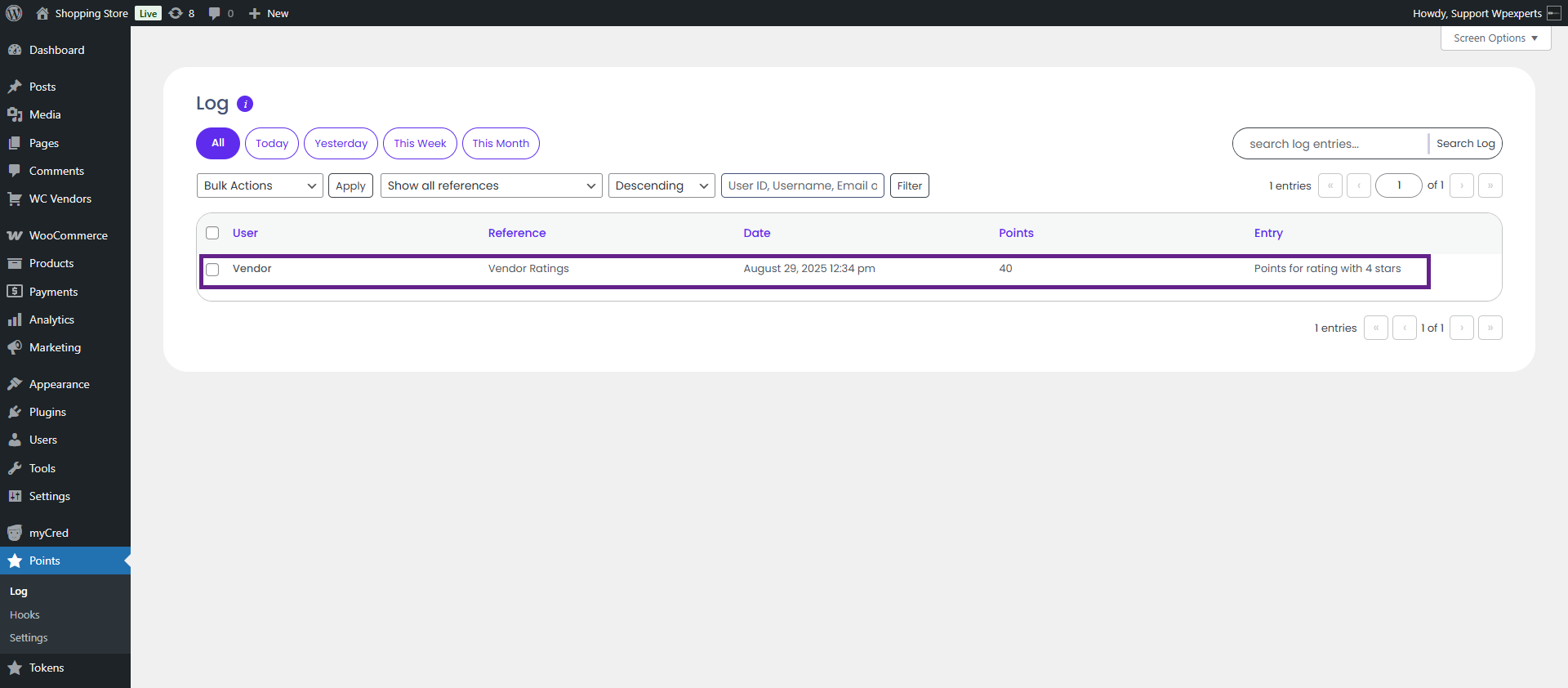
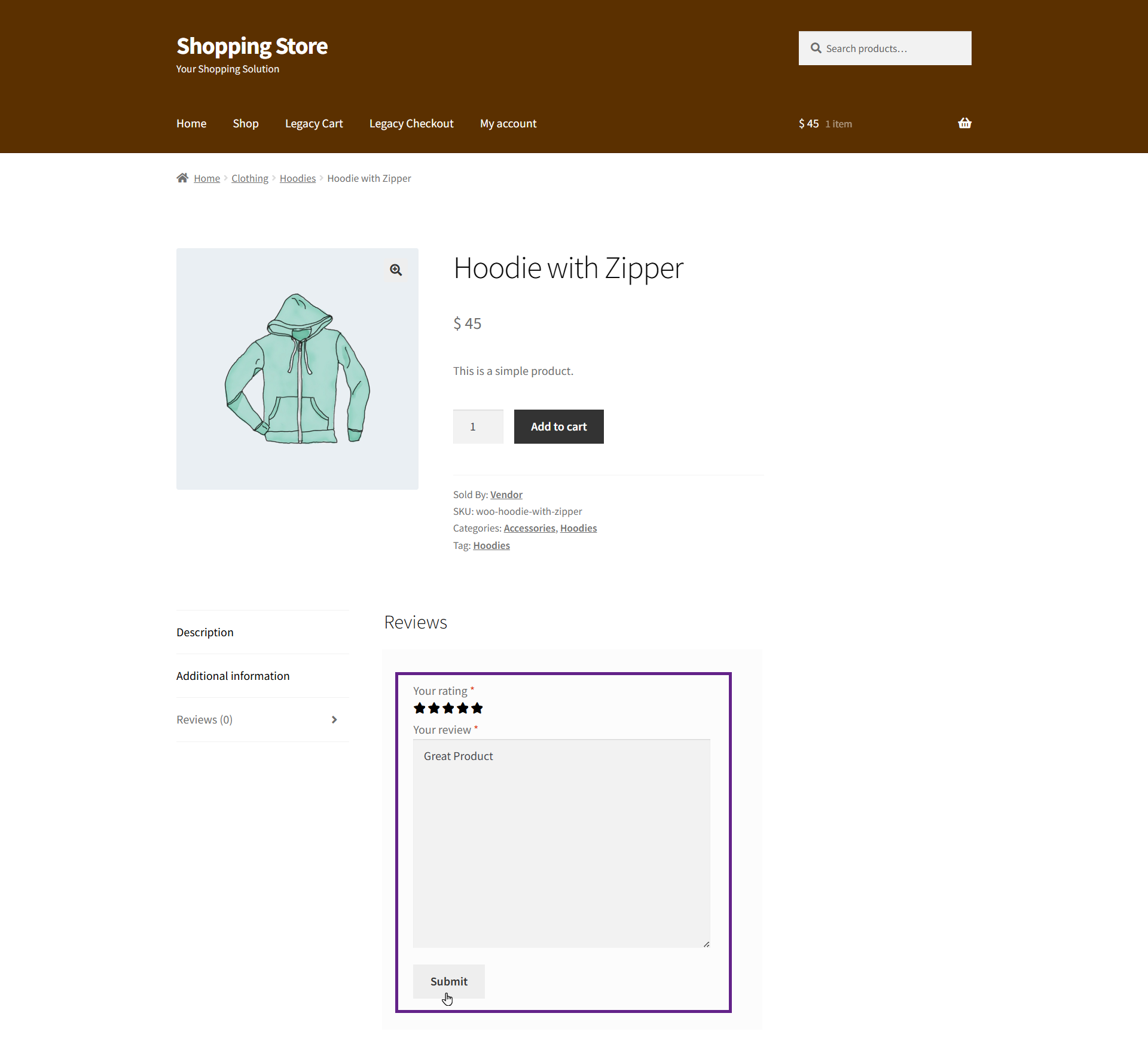
- Now, when a commission-based product is rated and the Points for Product Rating hook is enabled, the vendor will be awarded points.
- Now, navigate to the Admin Dashboard > Points > Log.
- As you can see, the vendor has received the points.