
myCred Anspress Integration
myCred Anspress Integration

Integration Purpose
The integration introduces the use of the myCred point awarding mechanism in the Anspress plugin, which allows me to award myCred points when different events are triggered in Anspress.
Hooks have been given in myCred Hooks settings to set up for the Anspress events and can be triggered when a User asks a question, when a User gives an Answer when a User gets an upvote for the answer, and vice versa. Limits can also be set for these events to trigger the points awarding mechanism for a set number of times via hooks.
Installation:
Navigate to the myCRED Toolkit, search for AnsPress, and simply enable the AnsPress Add-on.
Pre-Requisites
Plugin Features
- Multiple Hooks for multiple Anspress Events
- Support for multiple Point Types.
- Set Limits for Awarding Points when Anspress Events are triggered
- Detailed logs to keep track of the points being awarded to the users.
Hooks Configuration
- Go to Admin Dashboard > Default Point Type (most likely to appear as Points if you haven’t changed its name) > Hooks
- There are two sections here, Available Hooks and Active Hooks.

- The following Available Hooks we’ll use by simply dragging and drop them into the Active Hooks section and then setting up the hooks.

POINTS FOR ASKING AN ANSPRESS QUESTIONS HOOK
- The function of this hook is to it will award points to the user whenever the user asks a new question using the Anspress platform.
- Drag and drop the Points for asking Anypress question hook from the Available Hooks section to Active Hooks.
- Once done, click on the hook to open its configuration.
- Admin can set the Points that will be awarded whenever the event is triggered.
- Limits can be set as per Day, Week, Month, In Total or No Limit to award points whenever the event is triggered.
- Once done, click on the Save button.

Frontend Impact
- Go to your Site.
- A Question page would be automatically generated.
- Click on the Ask question button.
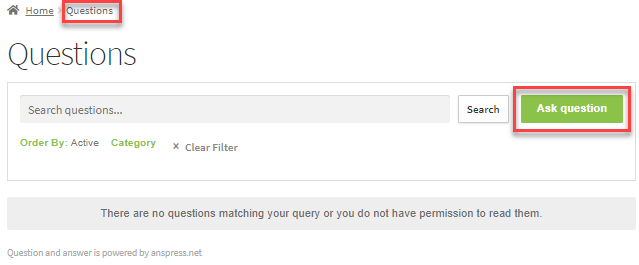
- Enter your question and its description, You can edit the privacy of the question by making it public and private (only visible to the Admin and Moderator).
- You can also attach images to your question.
- Once done, click on the Submit Question button.
POINTS FOR A NEW ANSWER IN ANSPRESS HOOK
- The function of this hook is to it will award points to the user whenever the user answers a question using the Anspress platform.
- Drag and drop the Points for a new answer in Anspress hook from the Available Hooks section to the Active Hooks.
- Once done, click on the hook to open its configuration.
- Admin can set the Points that will be awarded whenever the event is triggered.
- Limits can be set as per Day, Week, Month, In Total or No Limit to award points whenever the event is triggered.
- Once done, click on the Save button.

Frontend Impact
- Go to your Site.
- Go to the Question page and click on the question that you want to answer.
- Now that you opened the question, there is an answer box at the bottom of the question.

- Click on the box to write your answer.
- Enter your answer, You can also edit the privacy of the answer by making it public and private (only visible to the Admin and Moderator).
- You can also attach images to your answer.
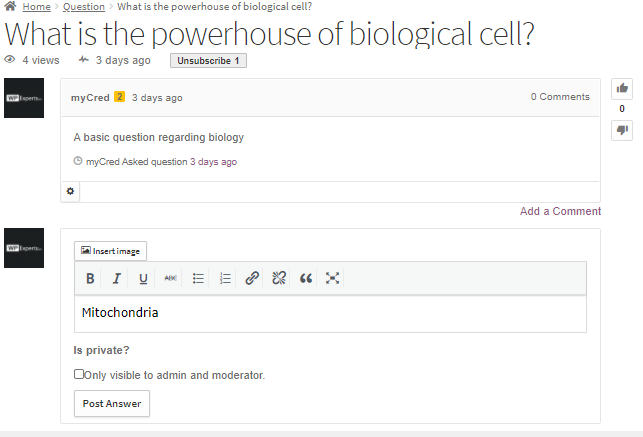
- Once done, click on the Post Answer button.
- The user who posted the answer will be awarded points

POINTS FOR SELECTING THE BEST ANSWER IN ANSPRESS HOOK
- The function of this hook is that when it’s activated then the plugin will award points to the user who selects the best answer using the Anspress platform.
- Drag and drop the Points for selecting best answer in Anspress hook from the Available Hooks section to Active Hooks.
- Once done, click on the hook to open its configuration.
- Admin can set the Points which will be awarded whenever the event is triggered.
- Limits can be set as in per Day, Week, Month, In Total or No Limit to award points whenever the event is triggered.
- Once done, click on the Save button.

Frontend Impact
- The user will go to the Site
- Then the user will go to the Question page and click on any question.
- Then go to the answer section of that question.
- At the bottom right side of the answer box, there will be a Select option.

- Click on the Select option.
- Once done, the option would turn into Green color and the label would be changed to Unselect.
- The user who selected the answer as the best answer would get awarded points when the event is triggered.
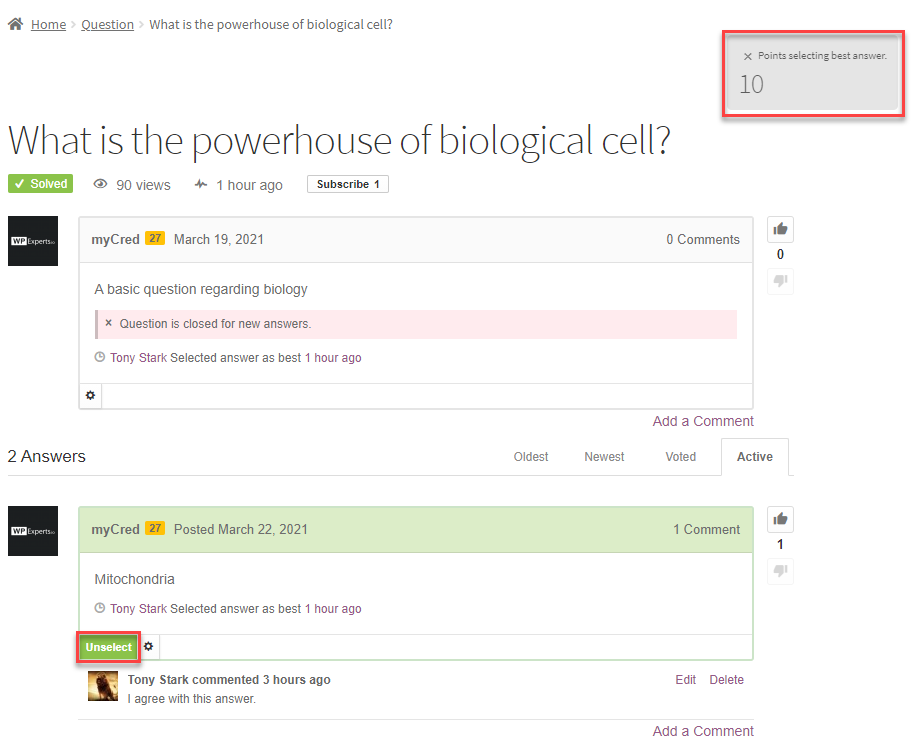
- In case you want to choose another answer as the best answer, simply click on the Unselect button and choose another answer.
- You can only select one answer as best to that particular question.
POINTS FOR GETTING ANSWER SELECTED AS BEST IN ANSPRESS HOOK
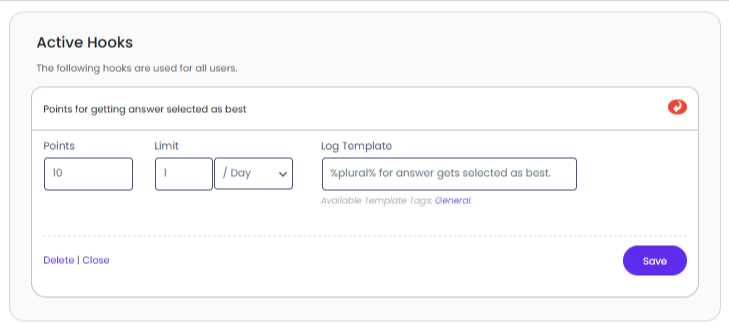
- The function of this hook is that when it’s activated, the plugin will award points to the user who gets their answer selected as best by other users using the Anspress platform.
- Drag and drop the Points for getting the answer selected as best in Anspress hook from the Available Hooks section to Active Hooks.
- Once done, click on the hook to open its configuration.
- Admin can set the Points that will be awarded whenever the event is triggered.
- Limits can be set as per Day, Week, Month, In Total, or No Limit to award points whenever the event is triggered.
- Once done, click on the Save button.
Frontend Impact
- The user will go to the Site
- Then the user will go to the Question page and click on any question.
- Then go to the answer section of that question.
- At the bottom right side of the answer box, there will be a Select option.

- Click on the Select option.
- Once done, the option would turn into Green color and the label would be changed to Unselect (In case you want to choose another answer as the best answer).
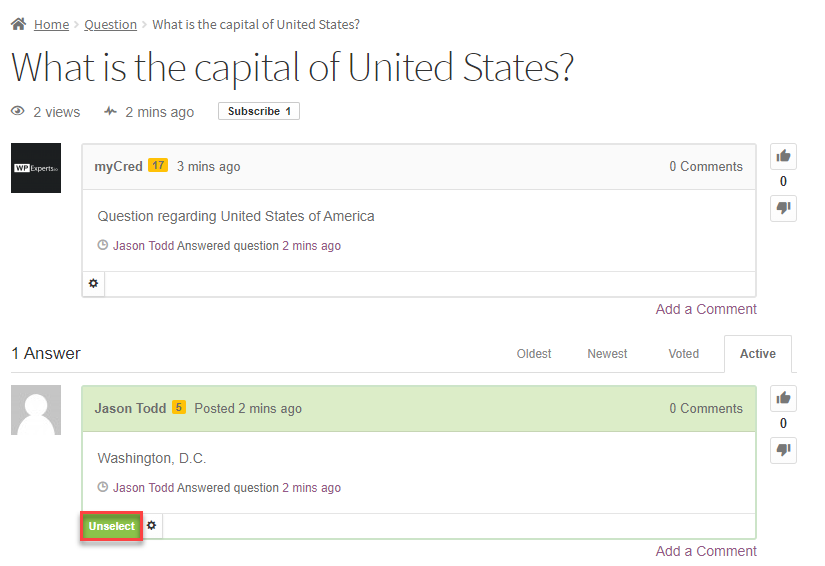
- The user who is the author of that answer will be awarded points when the event is triggered.
- The author of that comment will be notified of awarded points once logged in.

POINTS FOR VOTING UP IN ANSPRESS HOOK
- The function of this hook is that when it’s activated then the plugin will award points as a user votes up a question or answer using the Anspress platform.
- This hook will award points to the user that has voted up a question or answer only.
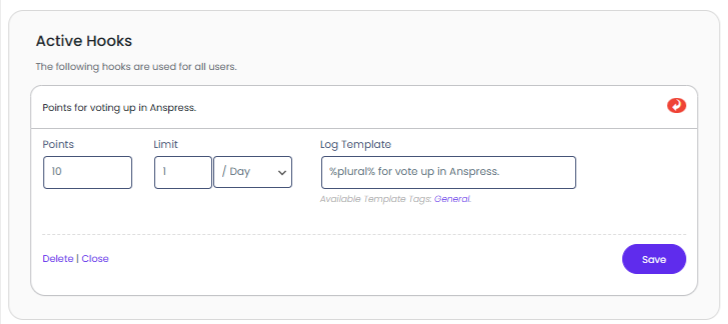
- Drag and drop the Points for voting up in Anspress hook from the Available Hooks section to Active Hooks.
- Once done, click on the hook to open its configuration.
- Admin can set the Points which will be awarded whenever the event is triggered.
- Limits can be set as in per Day, Week, Month, In Total or No Limit to award points whenever the event is triggered.
- Once done, click on the Save button.
Frontend Impact
- The user will go to the Site.
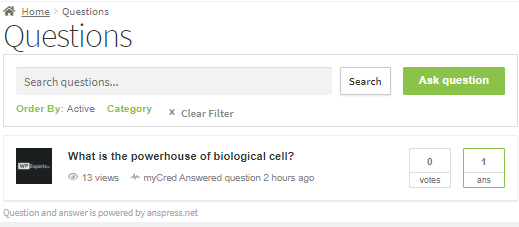
- Then the user will go to the Question page and click on any question.
- Now that the user has opened the question, there are buttons Thumbs Up and Thumbs Down beside the Question box and the Answer box for voting purposes.
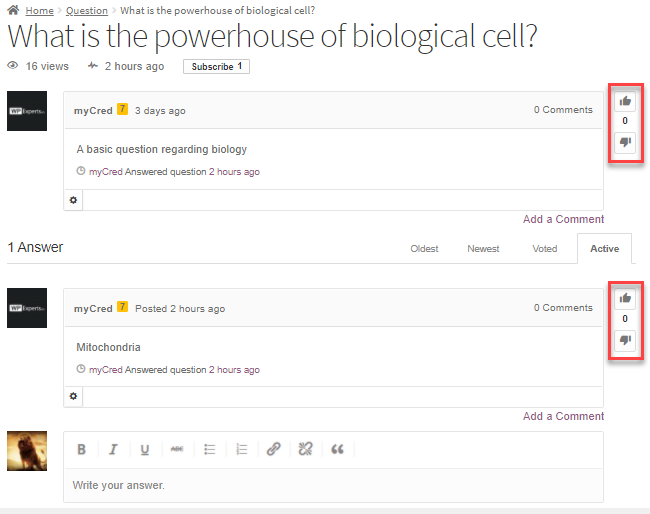
- The User will then click on the Thumbs Up button. (Here the user just clicked on the Thumbs Up button of the Question Box published by user name myCred).
- The user will be awarded points when the event is triggered.
POINTS FOR GETTING A VOTE UP IN ANSPRESS HOOK
- The function of this hook is that when it’s activated then the plugin will award points to the user who gets votes up on question or answer by other users using the Anspress platform.
- This hook will award points to the user that published a question or answer using the Anspress platform only, not the user who voted up the respective question or answer.
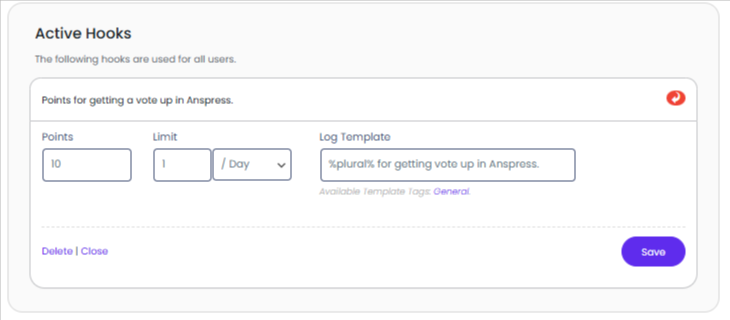
- Drag and drop the Points for getting a vote up in Anspress hook from the Available Hooks section to Active Hooks.
- Once done, click on the hook to open its configuration.
- Admin can set the Points which will be awarded whenever the event is triggered.
- Limits can be set as in per Day, Week, Month, In Total or No Limit to award points whenever the event is triggered.
- Once done, click on the Save button.
Frontend Impact
- The user will go to your Site.
- Then the user will go to the Question page and click on any question.
- Once done, the question box and the answer box will be also visible to the user.
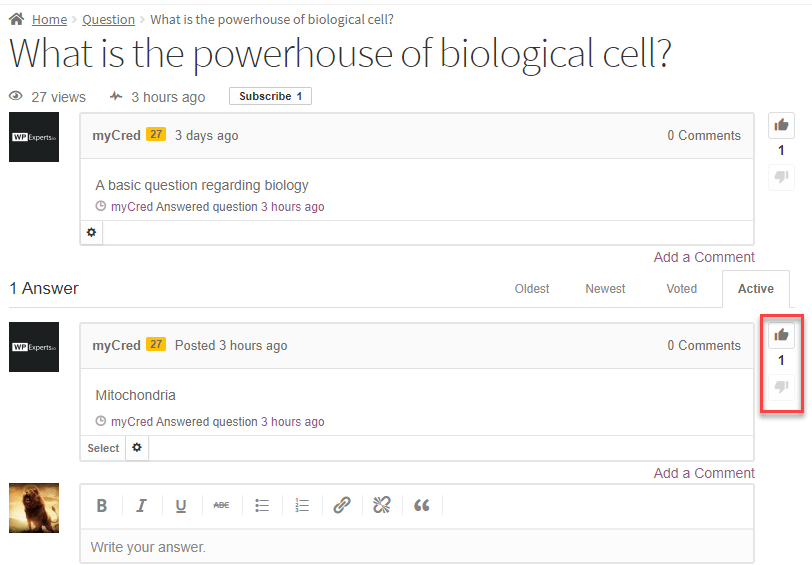
- Thumbs Up and Thumbs Down buttons will be beside both the question box and the answer box for voting purposes.
- The User will then click on the Thumbs Up button. (Here the user just clicked on the Thumbs Up button of the Answer Box published by user name myCred).
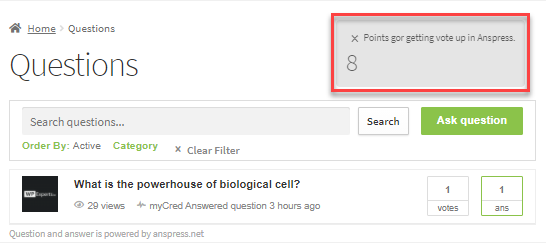
- Now, whenever the publisher of that respective answer will open the site so he would be awarded points for getting his answer a vote up.

POINTS FOR VOTING DOWN IN ANSPRESS HOOK
- The function of this hook is that when it’s activated, then the plugin will award points as the user votes down a question or answer using the Anspress platform.
- This hook will award points to the user only that has voted down a question or answer.
- Drag and drop the Points for voting down in Anspress hook from the Available Hooks section to Active Hooks.
- Once done, click on the hook to open its configuration.
- Admin can set the Points which will be awarded whenever the event is triggered.
- Limits can be set as in per Day, Week, Month, In Total or No Limit to award points whenever the event is triggered.
- Once done, click on the Save button.

Frontend Impact
- The user will go to the Site.
- Then the user will go to the Question page and click on any question.
- Once done, the user will be able to view the question box and along with the answer boxes.
- Thumbs Up and Thumbs Down buttons will be beside both the question box and the answer boxes for voting purposes.
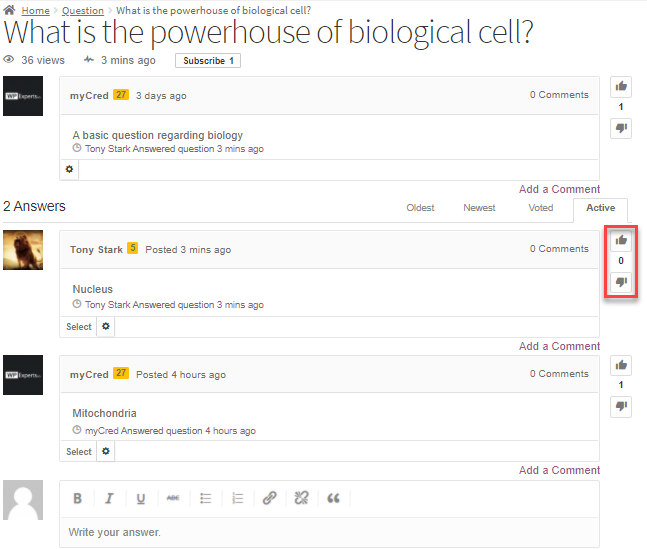
- The User will then click on the Thumbs Down button. (Here the user just clicked on the Thumbs Down button of the Answer Box published by user name Tony Stark).
- The user will be awarded points when the event is triggered.
POINTS FOR GETTING VOTING DOWN IN ANSPRESS HOOK
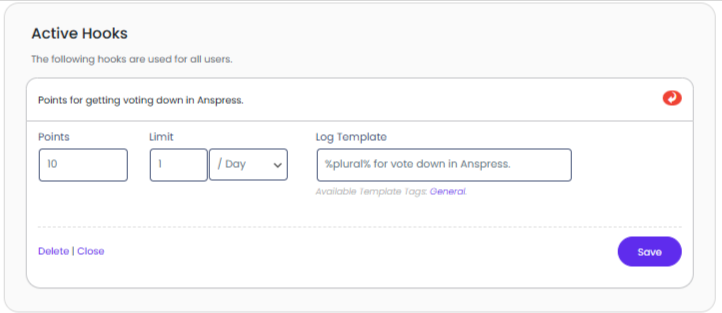
- The function of this hook is that when it’s activated then the plugin will award/deduct points from the user who gets votes down on question/answer published by other users using the Anspress platform
- This hook will award/deduct points from the user that published a question or answer using the Anspress platform only, not the user who voted down the respective question or answer.
- Drag and drop the Points for getting voting down in Anspress hook from the Available Hooks section to Active Hooks.
- Once done, click on the hook to open its configuration.
- Admin can set the Points which will be awarded whenever the event is triggered.
- Limits can be set as in per Day, Week, Month, In Total or No Limit to award points whenever the event is triggered.
- Once done, click on the Save button.
Frontend Impact
- The user will go to the Site.
- Then the user will go to the Question page and click on any question.
- Once done, the question box and the answer box will be also visible to the user.
- Thumbs Up and Thumbs Down buttons will be beside both the question box and the answer box for voting purposes.
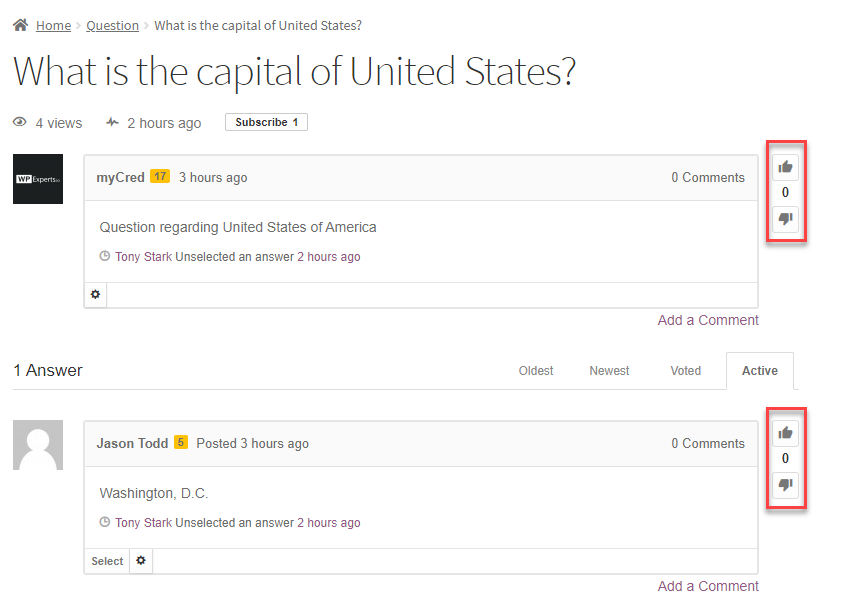
- The User will then click on the thumbs-down button. (In the screenshot given below, the user just clicked on the Thumbs Down button of the Question Box published by the user name myCred).
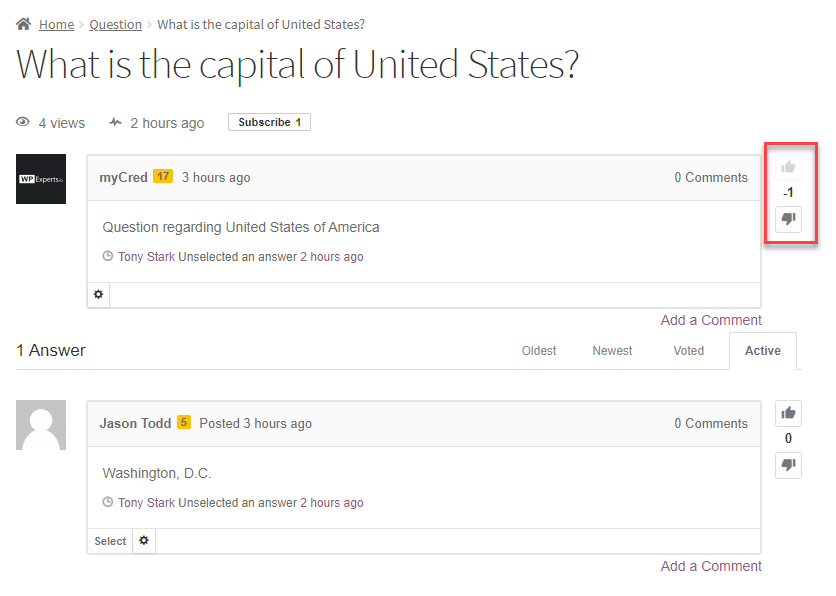
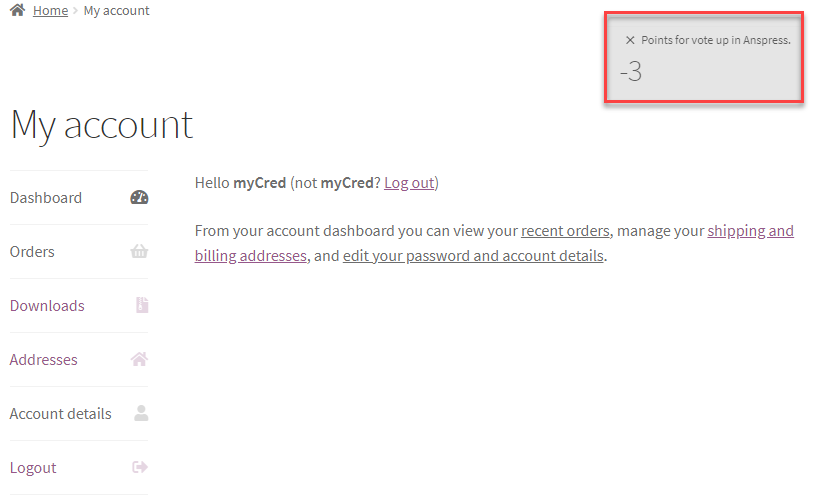
- The User (myCred) who is the author of that question will be awarded/deducted points when the event is triggered.
- The author of that question will be notified of awarded/deducted points once logged in.
POINTS FOR PUBLISHING COMMENTS IN ANSPRESS HOOK
- The function of this hook is that when it’s activated, the plugin will award/deduct points from the user who gets votes down on questions/answers published by other users using the Anspress platform
- Drag and drop the Points for publishing comments in Anspress hook from the Available Hooks section to Active Hooks.
- Once done, click on the hook to open its configuration.
- Admin can set the Points that will be awarded whenever the event is triggered.
- Limits can be set as in per Day, Week, Month, In Total, or No Limit to award points whenever the event is triggered.
- Once done, click on the Save button.

Frontend Impact
- The user will go to the Site
- Then the user will go to the Question page and click on any question.
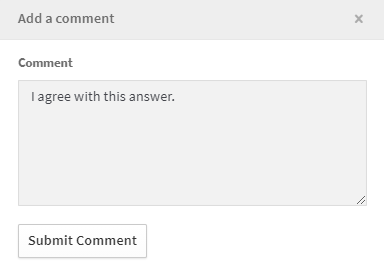
- Once done, add the Comment option at the bottom right of the question box, and the answer box will also be visible to the user.

- Click on the Add a Comment option.
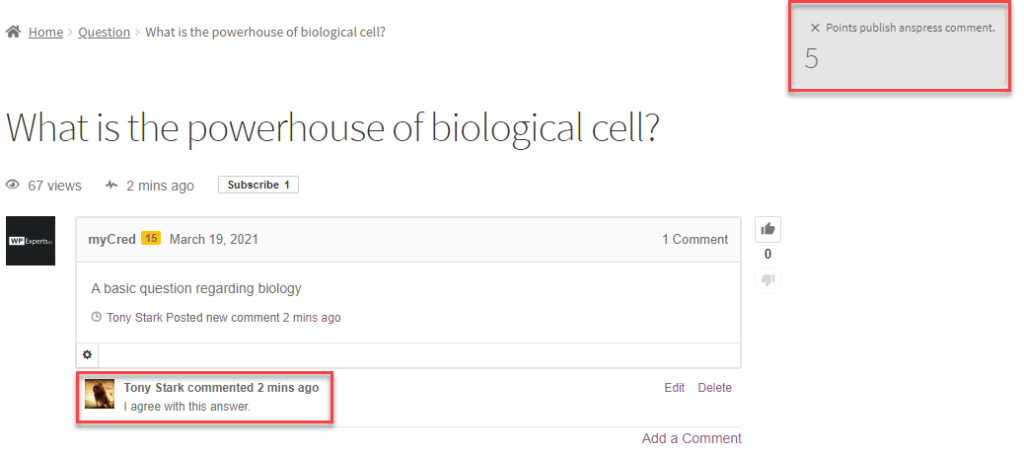
- A pop-up would appear, enter your comment, and click on the Submit Comment button.
- The user will be awarded points when the event is triggered.
Logs
- Go to Admin Dashboard > Points > Logs
