With this functionality, the admin can display how many points the user will earn on the Single Product Page, Cart Product Total, Product Total, Checkout Product Meta, and Cart Product Meta.
Back-End Settings
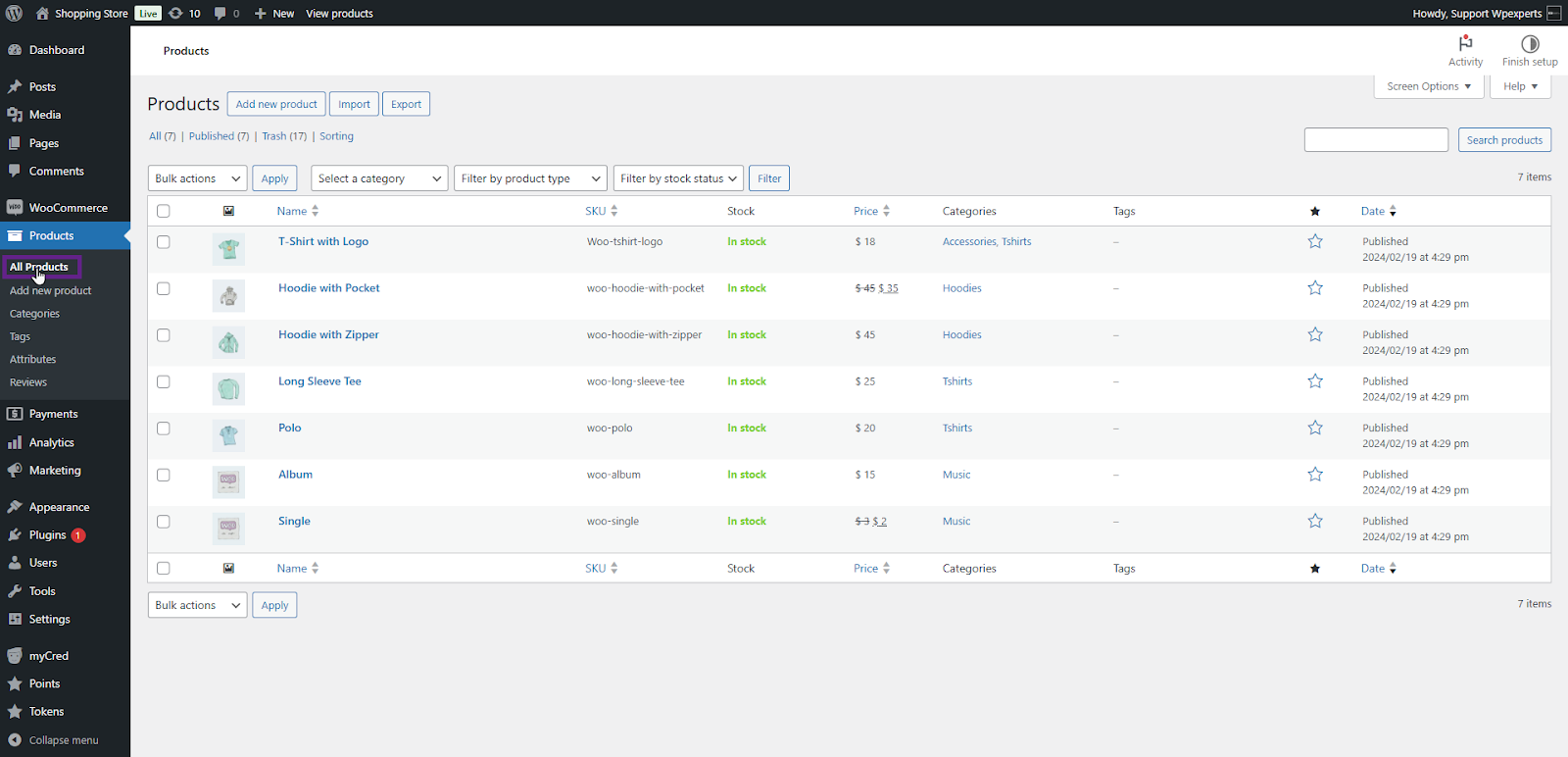
Go to the Admin Dashboard > Products > All Products.
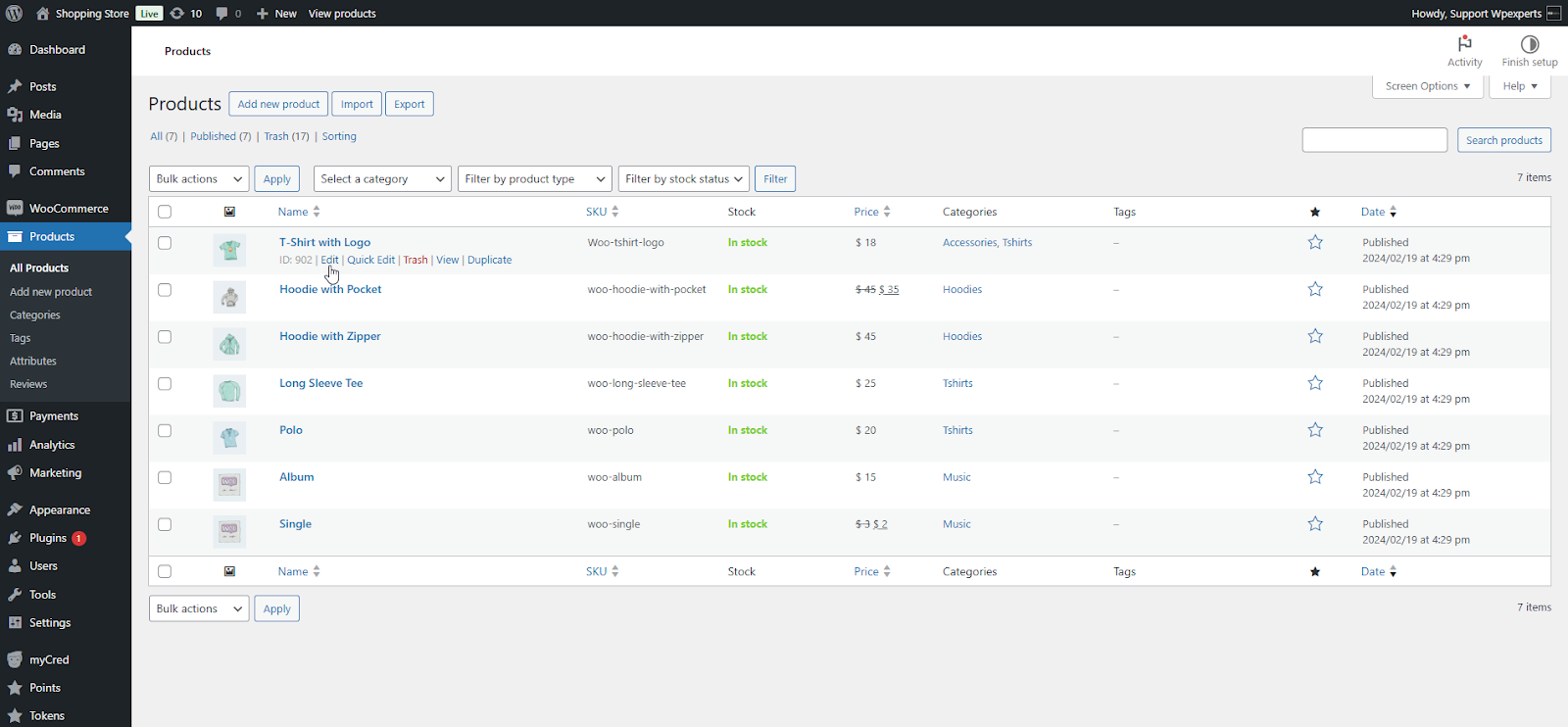
Add or Edit a product.
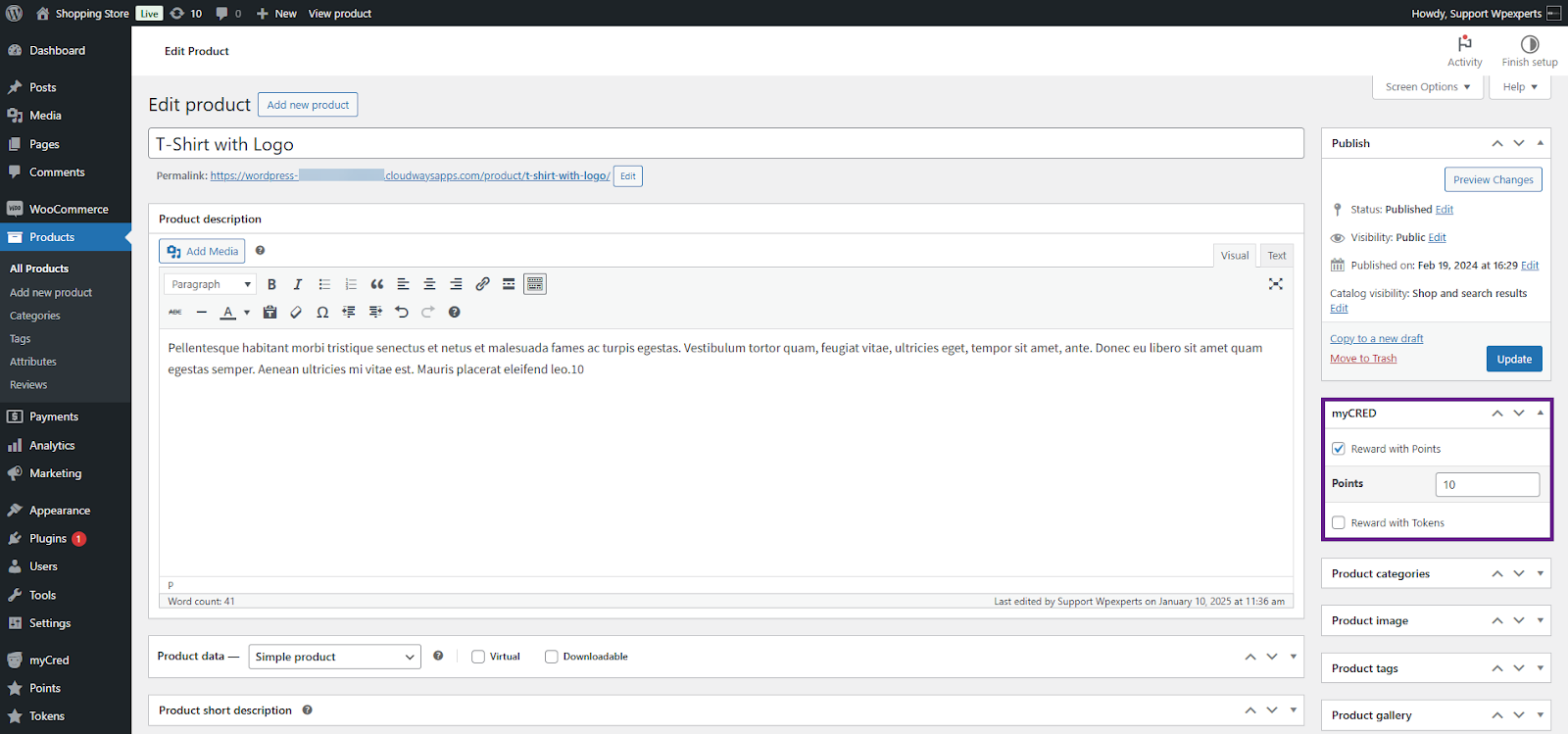
Select the checkbox for the point type you wish to assign as a reward.
Once selected, a Points field will appear where you can specify the number of points to be rewarded.
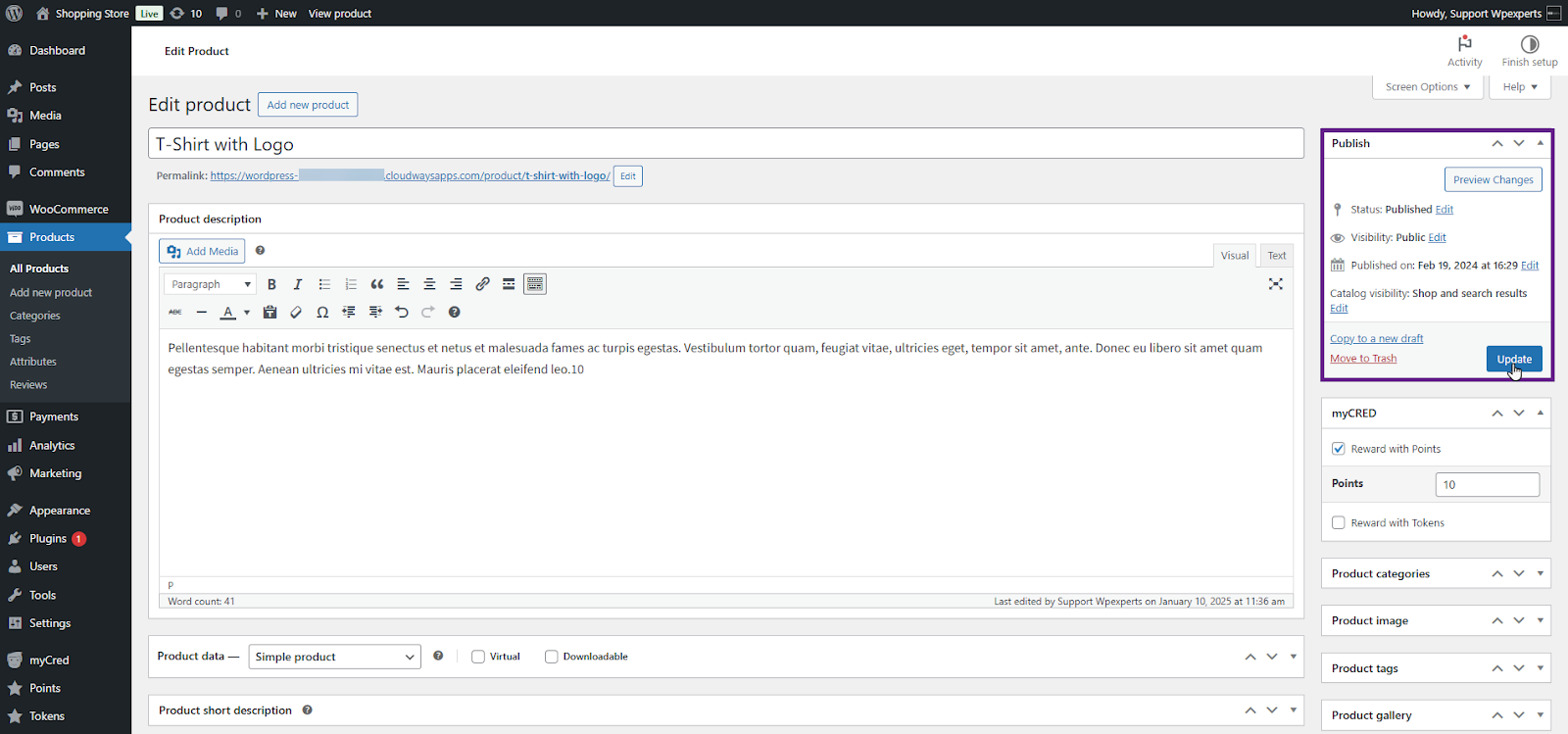
Once done, click the Update button.
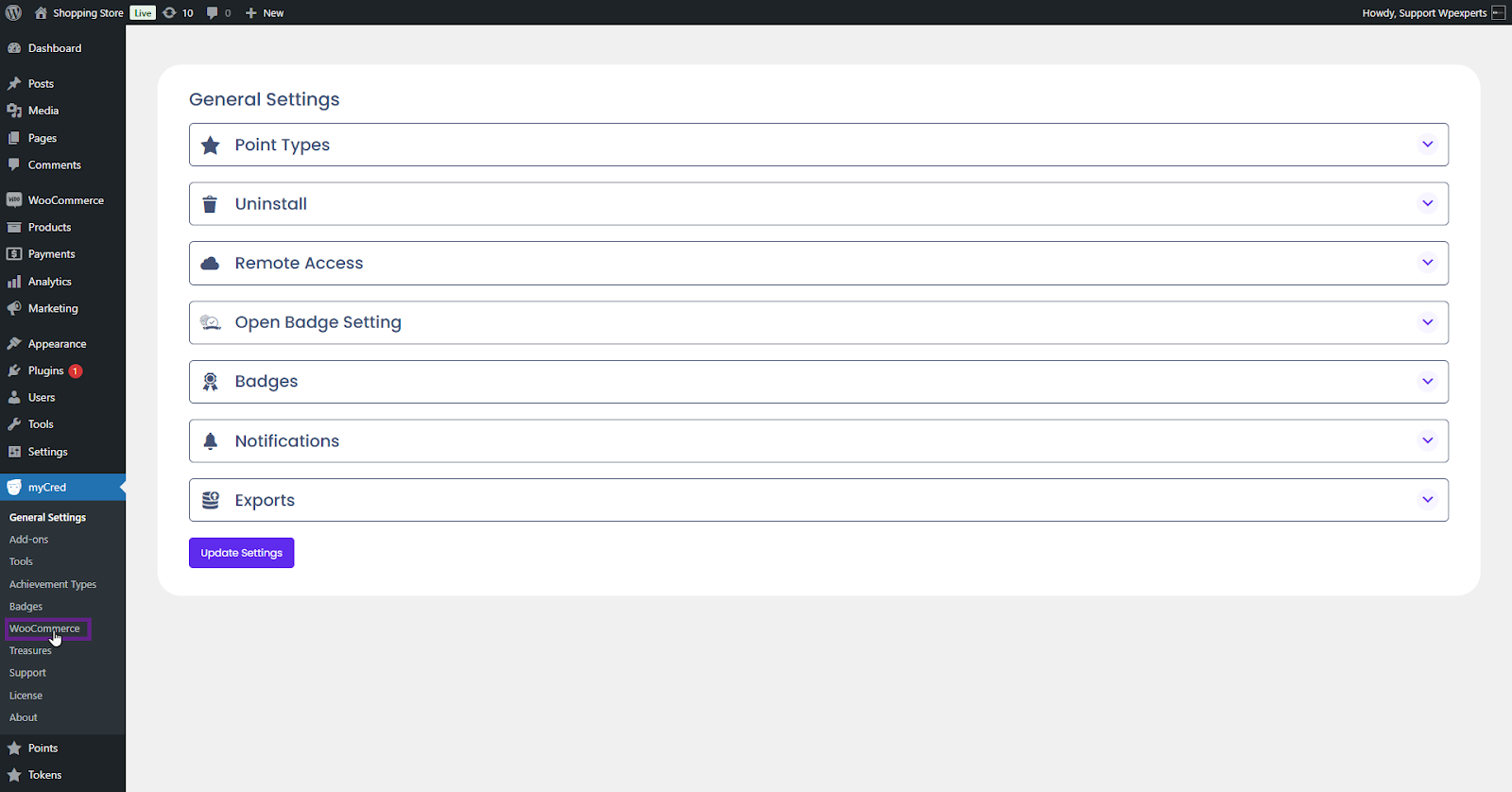
Now, go to the Admin Dashboard > myCred > WooCoomerce.
Navigate to the Display Reward section.
Enable the toggle buttons according to your requirements. In this scenario, all the toggle buttons are activated.
Once done, click the Update button.
Front-End Impact
Go to the website.
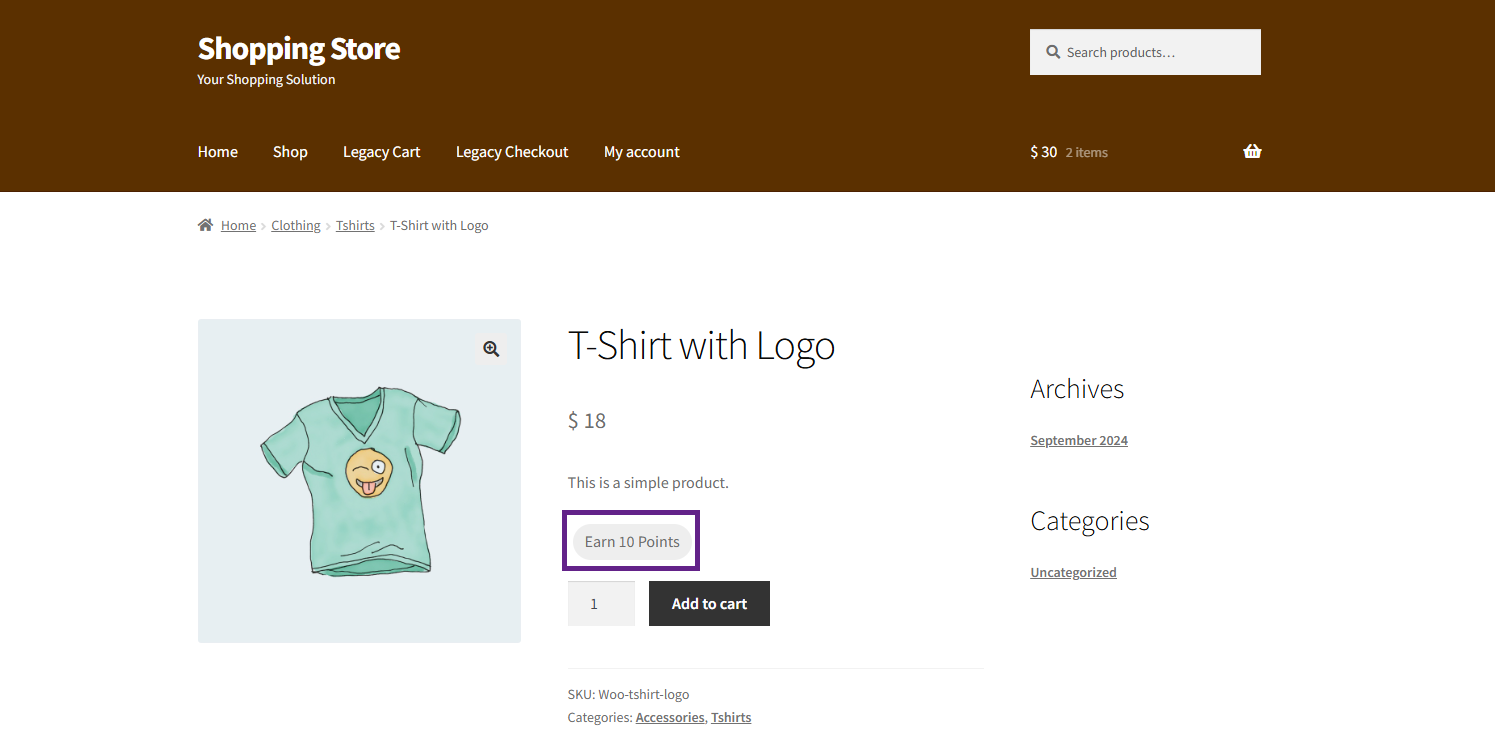
Navigate to the product where rewards were set in the backend settings and select it.
As you can see the reward is displayed on the Single Product Page.
Add the product to the cart and proceed to the Cart page.
On the Cart page, you will find the rewards displayed in the Cart Product Meta and Cart Product Total sections.
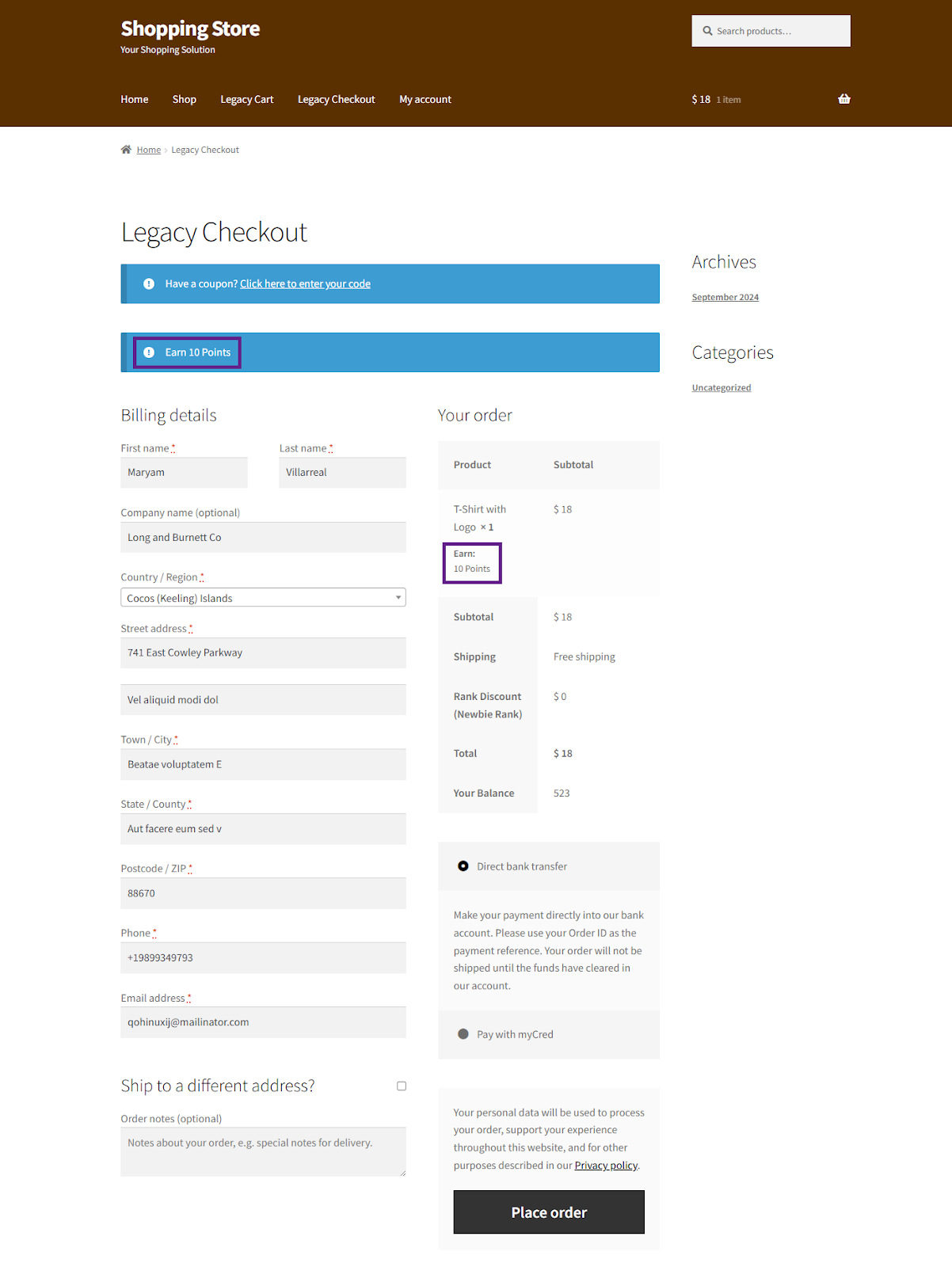
Next, proceed to the Checkout page.
On the Checkout page, you will find the rewards displayed in the Checkout Product Meta and Checkout Product Total sections.